Figwright: Bidirectional Figma MCP (2026)
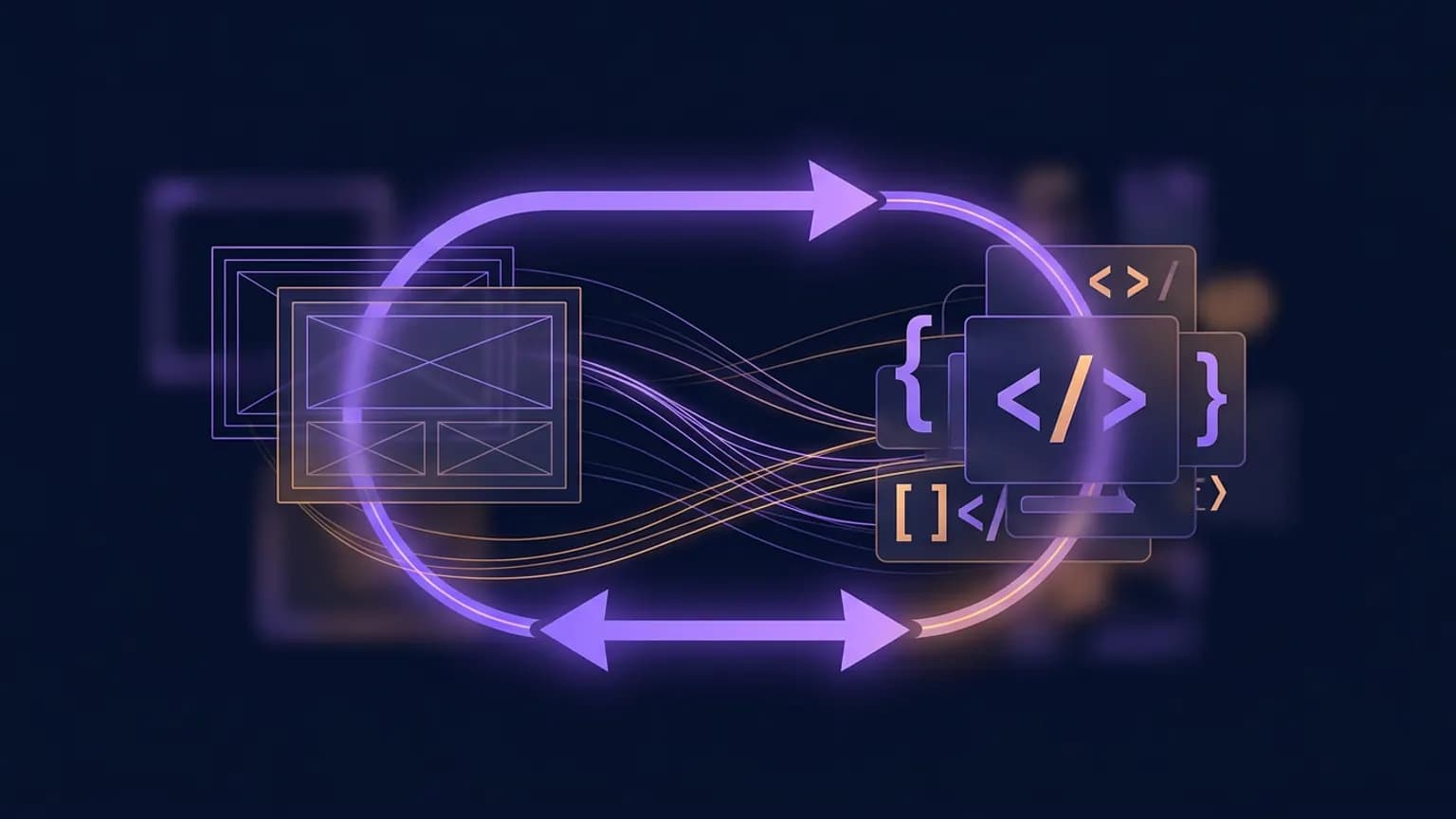
Figwright connects an MCP server to a real Figma plugin over a local WebSocket, so an agent doesn’t just read your designs — it can build inside Figma too. This guide covers what makes it bidirectional, how its 101-tool surface splits into read, write, and grounding, the quick-start install, the skills that orchestrate it, and the honest risk of letting an agent write directly to a live design file.
Not yet in our catalog
Figwright at a glance
- License
- MIT
- Package
- @figwright/mcp
- Tools
- 101, read + write
- Cost
- Free, local, no seat
On this page · 18 sections▾
- TL;DR + at a glance
- What Figwright is
- Why it exists
- The named pieces
- Install (quick start)
- Smallest end-to-end example
- Tools: read, write, grounding
- Skills: codegen & build
- The plugin, not a black box
- Recipes
- What we got wrong
- The write-back risk
- Who it's for / not for
- Community signal
- The verdict
- FAQ
- Glossary
- Sources
TL;DR + at a glance
Figwright is a local MCP server plus a Figma plugin that, together, let an AI agent read a Figma file and write to it. Five things to know before you install it:
- Free and unmetered: MIT-licensed, no Figma Dev Mode seat, no usage cap. It talks to Figma through a plugin, not Figma’s paid Dev Mode API.
- Bidirectional: 101 tools split across reading a selection into code and writing frames, text, components, and whole screens onto the canvas.
- Two installs, not one: the
@figwright/mcpserver (vianpx)and a Figma plugin, sideloaded from a GitHub release because it isn’t on the Community marketplace yet. - Provider-first codegen: it detects your real framework and styling system and reuses your existing components and tokens instead of emitting generic markup.
- Young: first tagged release in mid-June 2026, on version 0.2.0 as of this writing, single maintainer. Capable, but not battle-tested at scale yet — see the write-back risk before you point it at a file that matters.
The copy-paste, if that’s all you came for:
{
  "mcpServers": {
    "figwright": {
      "command": "npx",
      "args": ["-y", "@figwright/mcp@latest"]
    }
  }
}
That gets the server running. You still need the Figma plugin — covered in the install section below.
What Figwright is
Figwright is a free, MIT-licensed Model Context Protocol server that connects an AI agent to a real Figma plugin over a local WebSocket, so the agent can work with Figma instead of just looking at it. MCP is the JSON-RPC wire format that lets any LLM client talk to any tool server; if that’s new, start with our What is MCP guide.
The project’s own tagline explains the name: “Where Playwright drives the browser, Figwright drives Figma.” It follows the -wright tradition — an old English word for a maker or craftsman, the way a playwright writes plays and a shipwright builds ships. Figwright is built by a developer who goes by awdr74100 (Roya), and it does two things a purely read-only connector can’t:
- Read — turn a Figma selection into framework-aware code, grounded on faithful, de-duplicated design context: layout, typography, variables, components.
- Write — author and edit the canvas directly: frames, text, auto-layout, styles, variables, components, whole screens.
Everything runs on your machine and talks to Figma through a plugin, so it needs no Figma Dev Mode seat and no paid tier.
Why it exists
Figma ships its own official connector, the Dev Mode MCP server, and it’s a reasonable default for reading designs into code. But it has two structural limits: it is read-only, and it’s gated behind a paid Dev Mode seat. An agent can look at your file through it; it cannot build anything back into Figma, and you need to be paying for Dev Mode access to use it at all.

Figwright fills both gaps at once. It talks to Figma through a plugin instead of the Dev Mode API, so the free Figma tier is enough, and because a plugin can call the Figma Plugin API in both directions, the same connection that reads a frame can also create one. The creator put it plainly in the launch post on Reddit: the official server’s usage limits were the itch that started the project.
“The biggest pain point for me was the usage limits. The official MCP server only includes 6 free requests per month. If you need more, you have to purchase a Dev seat... Figwright runs entirely on your local machine, so there are no usage limits and no subscription fees.”
Figwright's creator, on r/FigmaDesign · Reddit
From the launch post announcing Figwright, cross-posted to r/FigmaDesign, r/vuejs, r/mcp, r/aiagents, and r/coolgithubprojects.
Read that usage-limit figure as the creator’s own framing of the problem, not a number we’re independently verifying — Figma’s exact Dev Mode MCP quotas are Figma’s to state and can change. What’s not in dispute is the structural gap: Dev Mode MCP reads, Figwright reads and writes, and Figwright doesn’t require the paid seat to do it. If you want the fuller comparison across every Figma-adjacent MCP server — official Dev Mode, Framelink, and the rest — our best MCP servers for design roundup covers that ground; this guide stays focused on what makes Figwright specifically different: the write half.
The named pieces
Four moving parts. Hold these and the install steps and error messages below stop being mysterious.
The MCP server
@figwright/mcp — the process your client spawns over stdio. If more than one client connects, the servers elect a leader that owns the plugin link; the rest become followers.
The Figma plugin
Runs inside Figma: a Vue 3 UI you can watch, and a sandbox that executes real Figma Plugin API calls against your file.
The WebSocket relay
A local, loopback-only channel (127.0.0.1) between server and plugin, carrying binary msgpack messages. Nothing leaves your machine.
Grounding tools
get_design_context, component_map, token_map, icon_map, design_diff — the tools that join Figma data to your actual codebase so generated code reuses what you already have.
The fifth piece is skills — installable, model-invoked workflows (figma-codegen, figma-build) that orchestrate the raw tools above into a coherent task instead of leaving the agent to sequence 101 tools on its own. More on those in the skills section.
Claude Code / Cursor / other MCP client
        |  MCP over stdio
        v
  @figwright/mcp  (one process per agent; elects a leader if >1)
        |
        v
  Local WebSocket relay  (127.0.0.1, binary msgpack)
        |
        v
  Figwright Figma plugin  (Vue 3 UI + sandbox)
        |  Figma Plugin API
        v
      Canvas
Opinionated takeaway: the plugin is the whole trick. Most design-to-code servers stop at reading Figma’s REST API. By running inside Figma as a real plugin, Figwright gets access to the same API surface a human-built plugin would — which is what makes writing back possible at all.
Install (quick start)
Two installs, because there are two halves: the MCP server your client launches, and the Figma plugin that actually touches your file.
1. Add the server to your MCP client
For Claude Code, add this to your .mcp.json (other clients use the same JSON shape):
{
  "mcpServers": {
    "figwright": {
      "command": "npx",
      "args": ["-y", "@figwright/mcp@latest"]
    }
  }
}
Or, from the command line in Claude Code:
claude mcp add figwright -- npx -y @figwright/mcp@latestnpx fetches and runs the published package — no global install required. There is no token, no OAuth flow, and no environment variable to set; the server needs nothing from you until the plugin connects.
2. Install the Figma plugin
The plugin isn’t on the Figma Community marketplace yet, so it installs from the repo’s releases instead of a marketplace search — the one step people expect to skip and can’t:
- Download the plugin zip from the latest GitHub release and unzip it.
- In the Figma desktop app: Menu → Plugins → Development → Import plugin from manifest… and pick the unzipped
manifest.json.
This step needs the desktop app specifically — importing a plugin under development isn’t currently available from Figma in the browser.
3. Connect
Open the Figwright plugin in Figma (Plugins → Development → Figwright). It connects to the local server automatically and shows Connected. Ask your agent to run ping to confirm the link end to end.
4. (Optional) Install the skills
npx skills add awdr74100/figwright/skillsSkills need @figwright/mcp connected first — on their own they have no tools to drive. See the skills section for what each one does.
Other clients
Cursor uses the identical JSON shape in ~/.cursor/mcp.json (see /clients/cursor), and VS Code / Windsurf take the same block in their own MCP config file. For Codex CLI, add to ~/.codex/config.toml:
[mcp_servers.figwright]
command = "npx"
args = ["-y", "@figwright/mcp@latest"]
Restart Codex and confirm with codex mcp list. Every client still needs the Figma plugin installed separately — that part doesn’t change per client, since it lives in Figma, not your MCP config. Browse every supported client and its config path at mcp.directory/clients.
Requirements
- An MCP client — Claude Code, Cursor, or similar.
- Node.js 24 LTS or newer — the server runs via
npx. - Figma’s free tier is enough; the desktop app is needed to import the plugin while it’s in development.
Smallest end-to-end example
Two directions, one plugin connection. First, read — turning a selection into code that matches your project:
You: Turn my selected "Pricing Card" frame into a React
component using my existing design tokens.

Figwright (agent-orchestrated):
  -> get_design_context(nodeId=...)   de-duplicated design context
  -> component_map()                  matches Figma components to code
  -> token_map()                      matches Figma variables to tokens
  -> icon_map()                       matches icons to existing .svg assets

Claude: Here's PricingCard.tsx, built with your existing Card
and Button components and mapped to your Tailwind spacing
tokens instead of hard-coded pixel values.
Then, write — the direction a read-only server can’t do at all:
You: Build a 3-column pricing section in Figma: a plan
name, price, three feature bullets, and a CTA button in
each column.

Figwright (agent-orchestrated):
  -> create_section(...)              the section frame, auto-layout
  -> create_component(...) / create_instance(...)
  -> create_text(...)  x N            plan names, prices, bullets
  -> set_auto_layout(...)             spacing + alignment
  -> batch(...)                       remaining edits, atomically

Claude: I built the pricing section on a new page called
"Pricing Draft" -- open Figma to review before this touches
your shipping file.
That last line is the point: a well-behaved agent stages writes somewhere you review, rather than editing your source-of-truth page directly. Nothing in Figwright forces that discipline — it’s a prompting habit, and the write-back risk section covers why it matters.
Tools: read, write, grounding
Figwright exposes 101 MCP tools as of this writing, grouped into three jobs. Your MCP client lists every tool at connect time — that list is always the authoritative, up-to-date catalog; what follows is the shape of it.
Read
Selection, document and node inspection, styles, variables, components, fonts, reactions, screenshots, and PDF export. get_component_api is in this group too — it reads a component’s boolean, text, and instance-swap properties so codegen and the write tools know what’s actually swappable.
Write
Create and edit frames, text, shapes, auto-layout, effects, styles, variables, components, pages, and reactions. Verified tool names from the project’s changelog give a concrete sense of the surface: create_text, create_rectangle, create_ellipse, create_component, create_section, create_instance, set_auto_layout, set_corner_radius (per-corner), set_strokes, set_instance_properties, move_nodes, resize_nodes, rotate_nodes, clone_node, combine_as_variants, set_mask, import_svg, import_image, and delete_nodes. A dedicated batch tool applies many of these as one all-or-nothing operation — if one change in a batch fails, the whole batch rolls back instead of leaving a half-applied edit on your canvas.
Grounding
get_design_context returns faithful, de-duplicated design context for a selection. component_map, token_map, and icon_map join that Figma data to your codebase, so codegen reuses what you already have instead of inventing new components. design_diff reports what changed in a design against a saved baseline, so you update only the code that the change actually affects. Two supporting tools, analyze_project and scan_components, are what build those maps: they detect your framework and styling system and scan your repo for existing components to match against.
Opinionated takeaway: the grounding group is the differentiator, not the raw write count. Plenty of tools can create a rectangle; component_map and token_map are what stop the output from being a rectangle instead of your actual Card component.
Skills: codegen & build
Skills are installable, model-invoked workflows — your agent loads one automatically when a task matches its description, similar to the skill catalog on our own /skills pages. Figwright ships two:
figma-codegen— turns a Figma selection into framework-aware code, grounded on your stack and existing components. This is the workflow behind the read example above.figma-build— builds a Figma design from code or a written description, reusing the file’s existing components and styles. This is the workflow behind the write example above.
Install across any supported agent:
npx skills add awdr74100/figwright/skills      # both
npx skills add https://github.com/awdr74100/figwright/tree/main/skills/figma-codegen  # one
Without a skill installed, the raw 101 tools still work — skills aren’t a gate, they’re a sequencing shortcut so the agent doesn’t have to rediscover “call get_design_context before generating code” on every session.
The plugin, not a black box
The Figma-side plugin shows every call as it happens instead of running silently in the background, which matters more here than in a typical read-only connector because this one can change your file. Four tabs:
Activity
Every tool call, with timing — a live log of what the agent is doing to your file, in order.
Payload inspector
The exact data sent to the model — useful for seeing precisely what design context left your machine.
Context
Which file, page, and selection the plugin is currently scoped to — the fastest way to catch “wrong file” before it becomes “wrong edit.”
Debug
Connection health, plus a one-click diagnostic bundle you can paste into a bug report.
This is the practical answer to “how do I know what it’s about to do to my file” — open the Activity tab before you approve a write-heavy prompt.
Recipes
Five workflows spanning both directions. All assume the server is connected and the plugin shows Connected.
Recipe 1 — Selection to component
“Turn this selected card into a component matching my existing design system.” get_design_context plus component_map/token_map ground the generation in what your project already has, instead of a generic <div> tree.
Recipe 2 — Build a section from a spec
“Build a testimonial section: avatar, quote, name, and role, three across.” The write tools construct it on a new page, so you review before it lands anywhere that matters.
Recipe 3 — Diff before a refactor
“What changed in this frame since the baseline I saved last week, and which components does that touch?” design_diff scopes the regeneration to what actually moved, instead of re-generating an entire screen.
Recipe 4 — Token and icon audit
“Which elements in this frame don’t map to an existing token or icon?” token_map and icon_map surface the gaps — genuinely useful for catching design drift before it becomes one-off CSS.
Recipe 5 — One reader, one writer
Because multiple MCP server instances can share a plugin via leader/follower election, one agent session can read context for documentation while another builds, both against the same live file, without opening two plugin connections.
What we got wrong
Three assumptions worth correcting before you install this, based on what the project’s own README and changelog actually say — not what “bidirectional Figma MCP” sounds like it should mean.
1. We assumed “bidirectional” meant a live, continuous sync. It doesn’t. Every write is an explicit tool call the agent chooses to make in response to a prompt, not a background process mirroring changes both ways in real time. That’s the safer design of the two — nothing changes in your file unless the agent decides to call a write tool.
2. We assumed the plugin would be a marketplace install. It isn’t, yet. You sideload it from a GitHub release zip through Figma’s developer import flow, which needs the desktop app. That’s one more step than a typical plugin install, and it’s easy to go looking for it in the Community tab first and come up empty.
3. We assumed skills were required to use it. They’re not. The 101 raw tools work without installing anything beyond the MCP server and the plugin — skills just save the agent from re-deriving the right tool sequence every session.
The write-back risk
A live design file doesn’t have branches
Unlike a git repo, there’s no pull request between an agent’s write tools and your canvas. A batch of edits lands directly on whatever page you pointed it at. Figma’s own version history is your undo button if something goes wrong — know where it is before you need it.
This is the honest trade of being bidirectional: a read-only connector can, at worst, hand you bad code. A write-capable one can change the file itself. A few concrete habits keep that risk in proportion to the benefit:
- Draft on a separate page first. Ask the agent to build on a new page (“Pricing Draft”-style, as in the example above) rather than your shipping file’s source-of-truth page, especially for your first few sessions.
- Watch the Activity and Payload tabs on anything big. They show exactly what’s about to run before you let a large prompt fire off a long tool-call chain.
- Lean on
batch’s rollback. Compound edits applied viabatchare all-or-nothing; a failure rolls the whole set back instead of leaving a half-built frame behind. - Treat
delete_nodeslikerm. It’s a real deletion tool in an agent’s hands — scope prompts narrowly when destructive tools are in play.
Worth stating plainly: this is a young project. The first tagged release shipped in mid-June 2026, it’s on version 0.2.0 as of this writing, and its GitHub issue tracker was empty when we checked. That’s either reassuring — nobody’s hit a serious problem yet — or simply a sign the user base is still small. We can’t tell which from the outside, and you shouldn’t assume the best case for a tool with canvas write access either.
Troubleshooting (from the project’s own FAQ)
“command not found”
Your MCP client spawns npx directly, not through your interactive shell, so it never sees PATH entries a version manager like fnm, nvm, asdf, volta, or mise sets up. Fix: use an absolute path to npx (find it with which npx), or pass your version manager’s bin directory through the client’s per-server env.
-32000 / “Connection closed”
@latest forces npx to re-resolve the package from the registry on every launch; in a directly-spawned environment that fetch can fail silently and the server exits before the MCP handshake. Fix: install @figwright/mcp as a project dependency and drop @latest from your config, or install it globally and point command straight at the resolved binary.
Plugin stuck on “Waiting”
Confirm your MCP client is running with Figwright configured (try ping), the plugin is open in the same Figma app on the same machine (the relay is local-only), and nothing’s blocking loopback connections, which some firewall or security tools do.
Can’t find the plugin in the Community tab
It isn’t published there yet. Install it from the latest GitHub release zip via Development → Import plugin from manifest… instead of searching Figma’s marketplace.
Who it’s for / not for
Good fit if
- You want an agent to both read designs and draft new screens directly in Figma
- You have an existing component library and want codegen to reuse it, not reinvent it
- You want write-back without paying for a Dev Mode seat
- You’re comfortable running a local Node process plus a Figma desktop plugin
Not yet if
- You need vendor-backed support and SLAs over a young, single-maintainer project
- You’re Figma-web-only and can’t use the desktop app to sideload the plugin
- Your team’s review process isn’t ready for agent-authored canvas edits
- You only need to read designs — the official Dev Mode MCP or Framelink cover that more simply
Community signal
Figwright is new enough that the loudest signal so far is the launch itself: a Reddit post cross-posted to five subreddits (r/FigmaDesign, r/vuejs, r/mcp, r/aiagents, r/coolgithubprojects) framed as “I built an open-source alternative to Figma’s official MCP server,” plus a wave of amplification once it reached X.
The clearest third-party signal is a verified account summarizing the project to a Chinese-speaking developer audience — effectively a translation of the repo’s own pitch, but the reach it picked up (real reposts and replies within hours) shows genuine interest beyond the maintainer’s own posts:
免费、双向的 Figma MCP 服务器,让 AI 代理能读写 Figma 画布并生成框架感知的代码。
— Geek (@geekbb) July 4, 2026
它是通过本地 WebSocket 把 AI 代理(Claude Code、Cursor 等)和 Figma 插件连起来,既能读设计稿也能直接写画布。
In English: “A free, bidirectional Figma MCP server that lets AI agents read and write the Figma canvas and generate framework-aware code — connecting agents like Claude Code and Cursor to a Figma plugin over a local WebSocket, so it can both read designs and write directly to the canvas.” This is a third-party reaction, not a maintainer post — Figwright’s creator ships releases and a Reddit launch thread rather than running an active X account.
The contrarian view. Set the enthusiasm against what the project actually is today: two npm releases, a single maintainer, and (at the time we checked) zero filed GitHub issues — not because it’s flawless, but because it’s three weeks old. Handing write access to a live design file to a project at that stage is a bigger trust ask than installing a read-only connector, and the guardrails in the write-back risk section exist precisely because the enthusiasm is real but the track record is still short.
The verdict
Our take
Install Figwright if you want an agent that can both read your Figma files and build inside them, without paying for a Dev Mode seat — the provider-first codegen and the grounding tools (component_map, token_map) are genuinely useful even if you only ever use the read half. Point early writes at a draft page, watch the Activity tab, and lean on batch’s rollback for compound edits. Skip it, or wait, if you need vendor-backed support, you’re Figma-web-only, or your team isn’t ready to review agent-authored canvas changes — a young, single-maintainer project with write access to your design file is real power that deserves real caution.
The bigger picture: Figwright is part of a small but growing pattern of MCP servers named after the tool they’re driving — Playwright for browsers, Figwright for Figma — that trade a vendor’s gated, read-only API for a plugin-based connection that reads and writes for free. If that pattern holds, the question for design tooling stops being “can an agent see my file” and becomes “how much do I trust it to change one” — which is exactly the question this guide tried to answer honestly rather than sell past.
Frequently asked questions
What is Figwright?
Figwright is a free, MIT-licensed Model Context Protocol server that connects an AI agent to a real Figma plugin over a local WebSocket. Unlike read-only design-to-code tools, it works in both directions: it turns a Figma selection into framework-aware code, and it can create frames, text, components, and whole screens directly on the canvas.
How is Figwright different from Figma's official Dev Mode MCP server?
Two differences. Figma's Dev Mode MCP is read-only and requires a paid Dev Mode seat. Figwright is free, needs no Dev Mode access, and is bidirectional — it can also write to the canvas: build frames, text, and components from a prompt, not just read them into code.
How do I install Figwright?
Add {"command":"npx","args":["-y","@figwright/mcp@latest"]} to your MCP client's config, or run claude mcp add figwright -- npx -y @figwright/mcp@latest in Claude Code. Then install the Figma plugin from the latest GitHub release — it isn't on the Community marketplace yet — via Plugins → Development → Import plugin from manifest.
Do I need a paid Figma plan to use Figwright?
No. Figwright talks to Figma through a plugin, not the Dev Mode API, so the free Figma tier is enough. You do need the Figma desktop app, since importing a plugin that isn't on the Community marketplace yet currently requires it.
Is it safe to let an AI agent write directly to my Figma file?
Treat it like any agent with write access: point it at a draft page first, and use the plugin's Activity and Payload tabs to see exactly what it's about to send before trusting a large batch of edits. The batch tool is all-or-nothing, so a failed compound edit rolls back instead of landing half-applied.
Why does Figwright fail with “command not found” or a -32000 connection error?
Both trace to how your MCP client launches the server: as a direct subprocess, not through your interactive shell, so it can't see PATH entries a Node version manager like fnm or nvm sets up. Fix it with an absolute path to npx, or install @figwright/mcp as a project dependency and drop @latest from the config.
Can more than one agent or teammate use Figwright on the same Figma file?
Yes. Multiple MCP server instances can share one Figma plugin connection through a leader/follower election — one instance leads and owns the live link, the others forward their tool calls to it, and a new leader takes over automatically if the original one exits.
Glossary
- MCP
- Model Context Protocol — the JSON-RPC wire format that lets any LLM client talk to any tool server.
- Bidirectional
- Reads a design into code and writes new elements back onto the canvas, versus a read-only connector.
- Dev Mode MCP
- Figma’s own official MCP server; read-only, gated behind a paid Dev Mode seat.
- Figma Plugin API
- The JavaScript API Figma exposes inside its plugin sandbox for inspecting and editing a file.
- WebSocket relay
- The local, loopback-only channel that carries tool calls between the MCP server and the Figma plugin.
- Leader/follower election
- The scheme multiple connected MCP server instances use to share one plugin connection without conflicting.
- Provider-first codegen
- Generating code that reuses a project’s actual components and tokens instead of generic markup.
- Grounding
- Supplying an LLM with faithful, de-duplicated context about a design before asking it to generate or edit anything.
- component_map / token_map / icon_map
- Tools that join Figma components, variables, and icons to their matching code-side counterparts.
- design_diff
- Reports what changed in a design against a saved baseline, so only the affected code gets updated.
- Agent skill
- An installable, model-invoked workflow that orchestrates several raw MCP tool calls into one task.
- batch
- The write tool that applies many edits as one all-or-nothing operation.
- stdio transport
- The MCP transport where the client spawns the server as a child process and talks over stdin/stdout.
- msgpack
- The compact binary serialization format the WebSocket relay uses between server and plugin.
Sources & links
Primary
- Repository, README & changelog: github.com/awdr74100/figwright (MIT, TypeScript, by Roya)
- npm package: @figwright/mcp
- Figma’s official Dev Mode MCP docs: developers.figma.com/docs/figma-mcp-server
Community
- Launch post (creator), r/FigmaDesign: “I built an open-source alternative to Figma’s official MCP server”
- Third-party reaction: @geekbb, July 4 2026
Internal
- Official Dev Mode MCP catalog entry: /servers/figma
- Full design-tooling comparison: Best MCP servers for design (2026)
- MCP fundamentals: What is MCP?
- Skill catalog: /skills
- Client config reference: /clients/claude-code · all clients
Roundup
Best MCP servers for design — the full comparison
ReadFundamentals
What is MCP? A developer’s map
ReadClient
Claude Code — MCP client reference
OpenFound an issue?
If something in this guide is out of date — the tool count changing, the plugin landing on the Community marketplace, a new skill shipping — email [email protected] or read more on our about page. We keep these guides current.