
A2A Bridge
Connects MCP clients like Claude to Google's Agent-to-Agent (A2A) protocol agents, enabling cross-protocol communication between AI systems.
Bridges Google's Agent-to-Agent protocol with MCP, enabling agent discovery, registration, message sending, and task management through protocol translation between A2A's JSON-RPC messaging and MCP's tool-based interface.
What it does
- Register A2A agents for MCP access
- Send messages between MCP and A2A protocols
- Stream real-time responses from A2A agents
- Track and manage agent tasks
- List registered A2A agents
- Cancel running tasks on agents
Best for
About A2A Bridge
A2A Bridge is a community-built MCP server published by gongrzhe that provides AI assistants with tools and capabilities via the Model Context Protocol. A2A Bridge enables agent discovery and task management by bridging Google's protocol with MCP, supporting shortest path bridging and bridge STP. It is categorized under ai ml, developer tools. This server exposes 7 tools that AI clients can invoke during conversations and coding sessions.
How to install
You can install A2A Bridge in your AI client of choice. Use the install panel on this page to get one-click setup for Cursor, Claude Desktop, VS Code, and other MCP-compatible clients. This server runs locally on your machine via the stdio transport.
License
A2A Bridge is released under the Apache-2.0 license. This is a permissive open-source license, meaning you can freely use, modify, and distribute the software.
Tools (7)
Register an A2A agent with the bridge server. Args: url: URL of the A2A agent Returns: Dictionary with registration status
List all registered A2A agents. Returns: List of registered agents
Unregister an A2A agent from the bridge server. Args: url: URL of the A2A agent to unregister Returns: Dictionary with unregistration status
Send a message to an A2A agent. Args: agent_url: URL of the A2A agent message: Message to send session_id: Optional session ID for multi-turn conversations Returns: Agent's response with task_id for future reference
Retrieve the result of a task from an A2A agent. Args: task_id: ID of the task to retrieve history_length: Optional number of history items to include (null for all) Returns: Task result including status, message, and artifacts if available
A2A MCP Server

A mcp server that bridges the Model Context Protocol (MCP) with the Agent-to-Agent (A2A) protocol, enabling MCP-compatible AI assistants (like Claude) to seamlessly interact with A2A agents.
Overview
This project serves as an integration layer between two cutting-edge AI agent protocols:
-
Model Context Protocol (MCP): Developed by Anthropic, MCP allows AI assistants to connect to external tools and data sources. It standardizes how AI applications and large language models connect to external resources in a secure, composable way.
-
Agent-to-Agent Protocol (A2A): Developed by Google, A2A enables communication and interoperability between different AI agents through a standardized JSON-RPC interface.
By bridging these protocols, this server allows MCP clients (like Claude) to discover, register, communicate with, and manage tasks on A2A agents through a unified interface.
Demo
1, Run The Currency Agent in A2A Sample
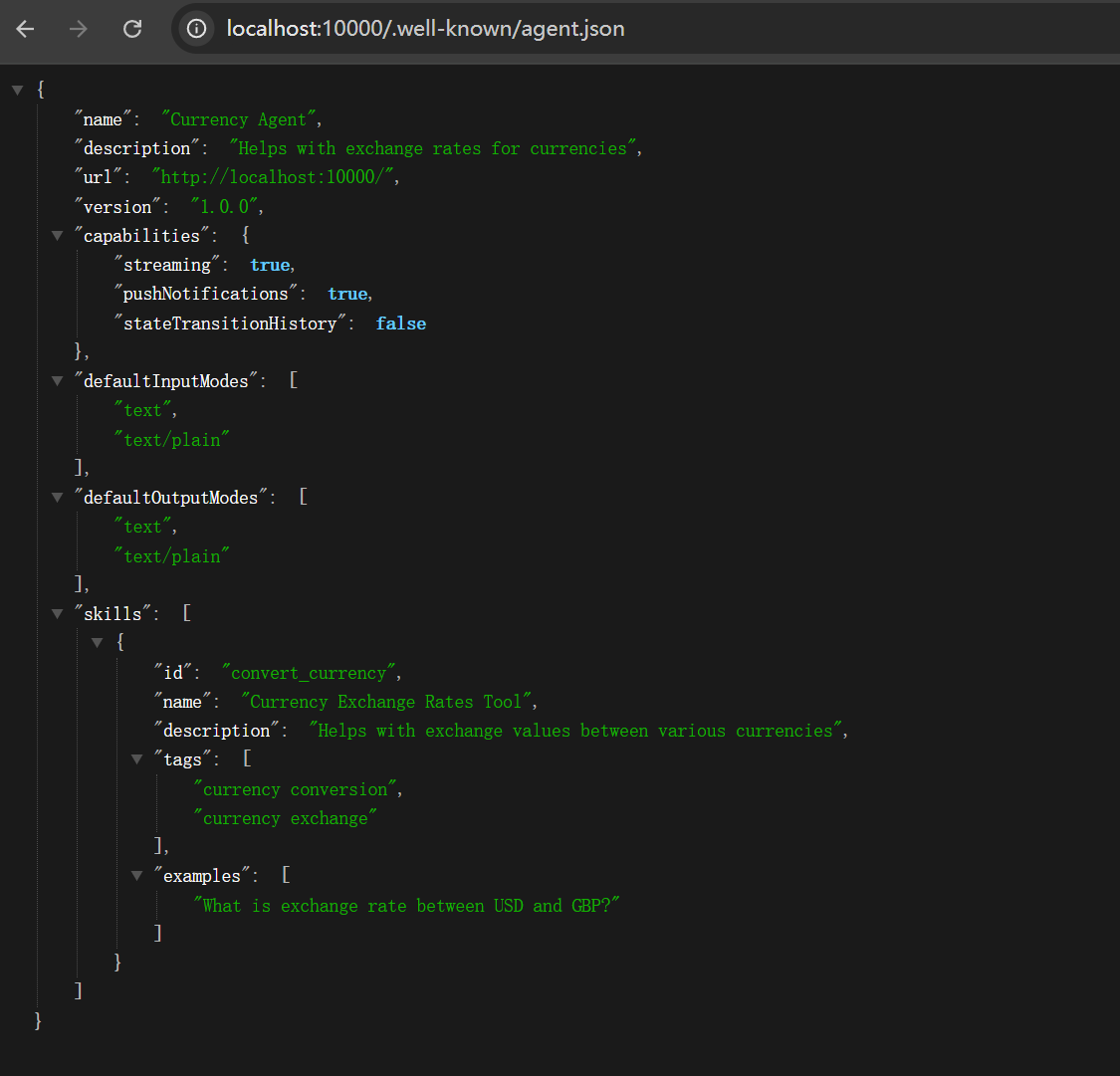
also support cloud deployed Agent
2, Use Claude to Register the Currency Agent
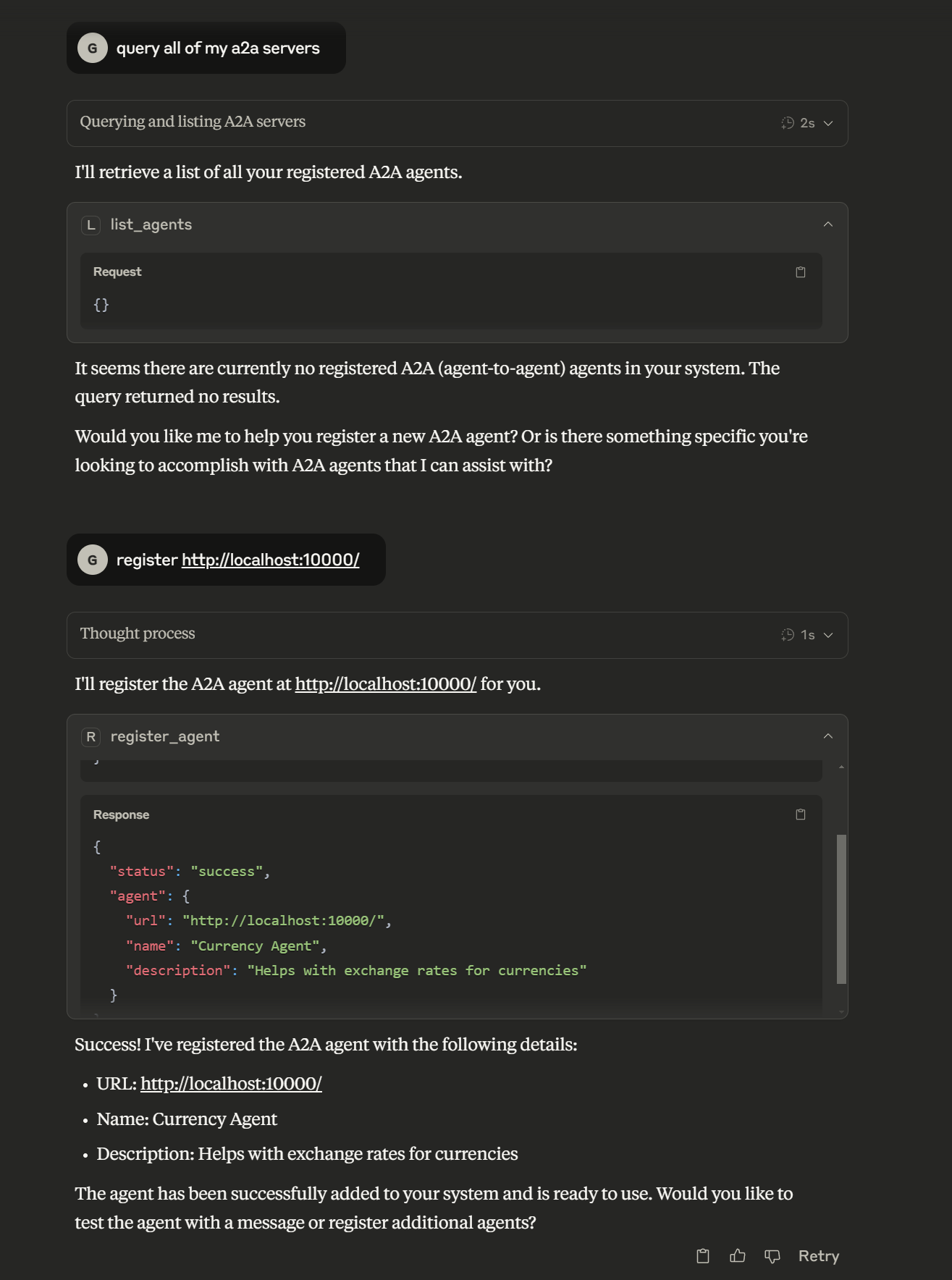
3, Use Claude to Send a task to the Currency Agent and get the result
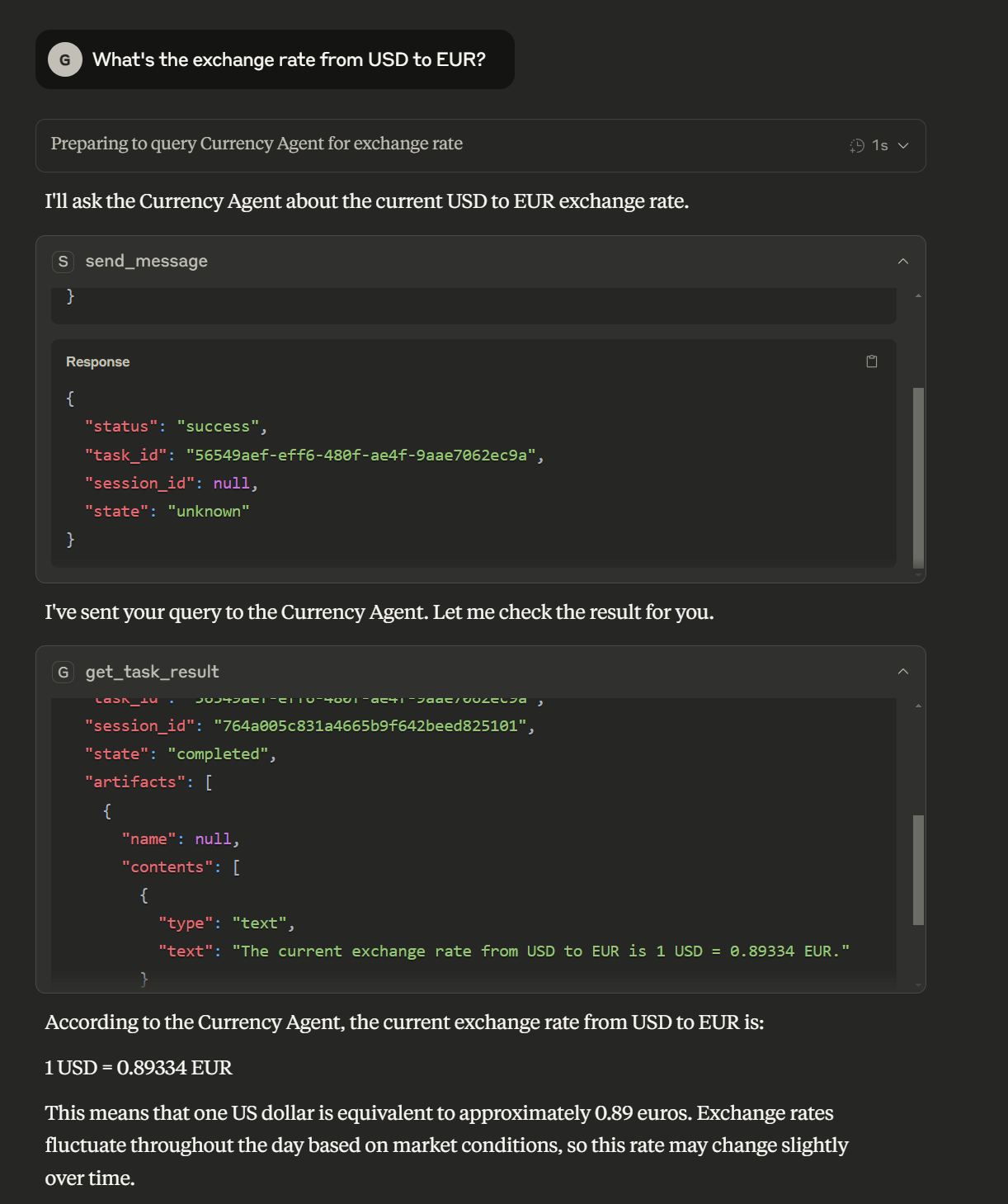
Features
-
Agent Management
- Register A2A agents with the bridge server
- List all registered agents
- Unregister agents when no longer needed
-
Communication
- Send messages to A2A agents and receive responses
- Stream responses from A2A agents in real-time
-
Task Management
- Track which A2A agent handles which task
- Retrieve task results using task IDs
- Cancel running tasks
-
Transport Support
- Multiple transport types: stdio, streamable-http, SSE
- Configure transport type using MCP_TRANSPORT environment variable
Installation
Installing via Smithery
To install A2A Bridge Server for Claude Desktop automatically via Smithery:
npx -y @smithery/cli install @GongRzhe/A2A-MCP-Server --client claude
Option 1: Install from PyPI
pip install a2a-mcp-server
Option 2: Local Installation
-
Clone the repository:
git clone https://github.com/GongRzhe/A2A-MCP-Server.git cd A2A-MCP-Server -
Set up a virtual environment:
python -m venv .venv source .venv/bin/activate # On Windows: .venv\Scripts\activate -
Install dependencies:
pip install -r requirements.txt
Configuration
Environment Variables
Configure how the MCP server runs using these environment variables:
# Transport type: stdio, streamable-http, or sse
export MCP_TRANSPORT="streamable-http"

# Host for the MCP server
export MCP_HOST="0.0.0.0"

# Port for the MCP server (when using HTTP transports)
export MCP_PORT="8000"

# Path for the MCP server endpoint (when using HTTP transports)
export MCP_PATH="/mcp"

# Path for SSE endpoint (when using SSE transport)
export MCP_SSE_PATH="/sse"

# Enable debug logging
export MCP_DEBUG="true"
Transport Types
The A2A MCP Server supports multiple transport types:
-
stdio (default): Uses standard input/output for communication
- Ideal for command-line usage and testing
- No HTTP server is started
- Required for Claude Desktop
-
streamable-http (recommended for web clients): HTTP transport with streaming support
- Recommended for production deployments
- Starts an HTTP server to handle MCP requests
- Enables streaming of large responses
-
sse: Server-Sent Events transport
- Provides real-time event streaming
- Useful for real-time updates
To specify the transport type:
# Using environment variable
export MCP_TRANSPORT="streamable-http"
uvx a2a-mcp-server

# Or directly in the command
MCP_TRANSPORT=streamable-http uvx a2a-mcp-server
Running the Server
From Command Line
# Using default settings (stdio transport)
uvx a2a-mcp-server

# Using HTTP transport on specific host and port
MCP_TRANSPORT=streamable-http MCP_HOST=127.0.0.1 MCP_PORT=8080 uvx a2a-mcp-server
Configuring in Claude Desktop
Claude Desktop allows you to configure MCP servers in the claude_desktop_config.json file. This file is typically located at:
- Windows:
%APPDATA%\Claude\claude_desktop_config.json - macOS:
~/Library/Application Support/Claude/claude_desktop_config.json - Linux:
~/.config/Claude/claude_desktop_config.json
Method 1: PyPI Installation (Recommended)
Add the following to the mcpServers section of your claude_desktop_config.json:
"a2a": {
  "command": "uvx",
  "args": [
    "a2a-mcp-server"
  ]
}
Note that for Claude Desktop, you must use "MCP_TRANSPORT": "stdio" since Claude requires stdio communication with MCP servers.
Method 2: Local Installation
If you've cloned the repository and want to run the server from your local installation:
"a2a": {
  "command": "C:\\path\\to\\python.exe",
  "args": [
    "C:\\path\\to\\A2A-MCP-Server\\a2a_mcp_server.py"
  ],
  "env": {
    "MCP_TRANSPORT": "stdio",
    "PYTHONPATH": "C:\\path\\to\\A2A-MCP-Server"
  }
}
Replace C:\\path\\to\\ with the actual paths on your system.
Using the Config Creator
This repository includes a config_creator.py script to help you generate the configuration:
# If using local installation
python config_creator.py
The script will:
- Automatically detect Python, script, and repository paths when possible
- Configure stdio transport which is required for Claude Desktop
- Let you add any additional environment variables if needed
- Create or update your Claude Desktop configuration file
Complete Example
Here's an example of a complete claude_desktop_config.json file with the A2A-MCP-Server configured:
{
  "mcpServers": {
    "a2a": {
      "command": "uvx",
      "args": [
        "a2a-mcp-server"
      ]
    }
  }
}
Using with MCP Clients
Claude
Claude can use A2A agents through the MCP tools provided by this server. Here's how to set it up:
-
For Claude Web: Start the MCP server with the streamable-http transport:
MCP_TRANSPORT=streamable-http MCP_HOST=127.0.0.1 MCP_PORT=8000 uvx a2a-mcp-server -
For Claude Web: In Claude web interface, enable the MCP URL connection in your Tools menu.
- Use the URL:
http://127.0.0.1:8000/mcp
- Use the URL:
-
For Claude Desktop: Add the configuration to your
claude_desktop_config.jsonfile as described above. The easiest way is to use the providedconfig_creator.pyscript which will automatically detect paths and create the proper configuration. -
In Claude, you can now use the following functions:
Register an A2A agent:
I need to register a new agent. Can you help me with that?
(Agent URL: http://localhost:41242)
Send message to an agent:
Ask the agent at http://localhost:41242 what it can do.Retrieve task results:
Can you get the results for task ID: 550e8400-e29b-41d4-a716-446655440000?
Cursor IDE
Cursor IDE can connect to MCP servers to add tools to its AI assistant:
-
Run your A2A MCP server with the streamable-http transport:
MCP_TRANSPORT=streamable-http MCP_HOST=127.0.0.1 MCP_PORT=8000 uvx a2a-mcp-server -
In Cursor IDE, go to Settings > AI > MCP Servers
- Add a new MCP Server with URL:
http://127.0.0.1:8000/mcp - Enable the server
- Add a new MCP Server with URL:
-
Now you can use the A2A tools from within Cursor's AI assistant.
Windsurf Browser
Windsurf is a browser with built-in MCP support:
-
Run your A2A MCP server with the streamable-http transport:
MCP_TRANSPORT=streamable-http MCP_HOST=127.0.0.1 MCP_PORT=8000 uvx a2a-mcp-server -
In Windsurf browser, go to Settings > MCP Connections
- Add a new MCP connection with URL:
http://127.0.0.1:8000/mcp - Enable the connection
- Add a new MCP connection with URL:
-
You can now use A2A tools from within Windsurf's AI assistant.
Available MCP Tools
The server exposes the following MCP tools for integration with LLMs like Claude:
Agent Management
-
register_agent: Register an A2A agent with the bridge server
{ "name": "register_agent", "arguments": { "url": "http://localhost:41242" } } -
list_agents: Get a list of all registered agents
{ "name": "list_agents", "arguments": {} } -
unregister_agent: Remove an A2A agent from the bridge server
{
  "name": "unregister_agent",
  "arguments": {
    "url": "http://localhost:41242"
  }
}
Message Processing
-
send_message: Send a message to an agent and get a task_id for the response
{ "name": "send_message", "arguments": { "agent_url": "http://localhost:41242", "message": "What's the exchange rate from USD to EUR?", "session_id": "optional-session-id" } } -
send_message_stream: Send a message and stream the response
{
  "name": "send_message_stream",
  "arguments": {
    "agent_url": "http://localhost:41242",
    "message": "Tell me a story about AI agents.",
    "session_id": "optional-session-id"
  }
}
Task Management
-
get_task_result: Retrieve a task's result using its ID
{ "name": "get_task_result", "arguments": { "task_id": "b30f3297-e7ab-4dd9-8ff1-877bd7cfb6b1", "history_length": null } } -
cancel_task: Cancel a running task
README truncated. View full README on GitHub.
Alternatives



Related Skills
Browse all skillsUI design system toolkit for Senior UI Designer including design token generation, component documentation, responsive design calculations, and developer handoff tools. Use for creating design systems, maintaining visual consistency, and facilitating design-dev collaboration.
Answer questions about the AI SDK and help build AI-powered features. Use when developers: (1) Ask about AI SDK functions like generateText, streamText, ToolLoopAgent, embed, or tools, (2) Want to build AI agents, chatbots, RAG systems, or text generation features, (3) Have questions about AI providers (OpenAI, Anthropic, Google, etc.), streaming, tool calling, structured output, or embeddings, (4) Use React hooks like useChat or useCompletion. Triggers on: "AI SDK", "Vercel AI SDK", "generateText", "streamText", "add AI to my app", "build an agent", "tool calling", "structured output", "useChat".
Bridge between Claude Code and OpenAI Codex CLI - generates AGENTS.md from CLAUDE.md, provides Codex CLI execution helpers, and enables seamless interoperability between both tools
Use when working with the OpenAI API (Responses API) or OpenAI platform features (tools, streaming, Realtime API, auth, models, rate limits, MCP) and you need authoritative, up-to-date documentation (schemas, examples, limits, edge cases). Prefer the OpenAI Developer Documentation MCP server tools when available; otherwise guide the user to enable `openaiDeveloperDocs`.
Guide for building TypeScript CLIs with Bun. Use when creating command-line tools, adding subcommands to existing CLIs, or building developer tooling. Covers argument parsing, subcommand patterns, output formatting, and distribution.
Guide developers through setting up development environments with proper tools, dependencies, and configurations