
Android UI Assist MCP Server
Captures screenshots from Android devices and emulators for AI agents to analyze mobile app UIs in real-time. Integrates with development workflows for iterative UI improvements.
Enables AI agents to capture screenshots from Android devices and emulators, and manage connected devices for UI analysis and testing. Supports device listing, screenshot capture, and integrates with Claude Desktop, Gemini CLI, and GitHub Copilot.
What it does
- Take screenshots from Android devices or emulators
- List connected Android devices and emulators
- Provide real-time UI feedback during development
- Analyze mobile app interfaces for AI agents
Best for
About Android UI Assist MCP Server
Android UI Assist MCP Server is a community-built MCP server published by infiniV that provides AI assistants with tools and capabilities via the Model Context Protocol. Android UI Assist MCP Server — capture screenshots and manage Android devices & emulators for UI testing. Integrates Claude, Gemini CLI & GitHub Copilot. It is categorized under ai ml, developer tools. This server exposes 2 tools that AI clients can invoke during conversations and coding sessions.
How to install
You can install Android UI Assist MCP Server in your AI client of choice. Use the install panel on this page to get one-click setup for Cursor, Claude Desktop, VS Code, and other MCP-compatible clients. This server runs locally on your machine via the stdio transport.
License
Android UI Assist MCP Server is released under the MIT license. This is a permissive open-source license, meaning you can freely use, modify, and distribute the software.
Tools (2)
Capture a screenshot from an Android device or emulator
List all connected Android devices and emulators
Real-Time Android UI Development with AI Agents - MCP Server



Model Context Protocol server that enables AI coding agents to see and analyze your Android app UI in real-time during development. Perfect for iterative UI refinement with Expo, React Native, Flutter, and native Android development workflows. Connect your AI agent to your running app and get instant visual feedback on UI changes.
Keywords: android development ai agent, real-time ui feedback, expo development tools, react native ui assistant, flutter development ai, android emulator screenshot, ai powered ui testing, visual regression testing ai, mobile app development ai, iterative ui development, ai code assistant android
Quick Demo
See the MCP server in action with real-time Android UI analysis:
| MCP Server Status | Live Development Workflow |
|---|---|
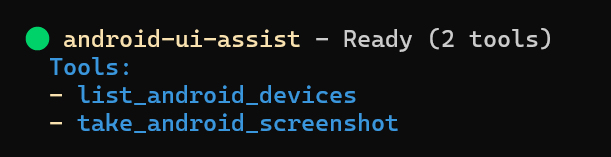 | 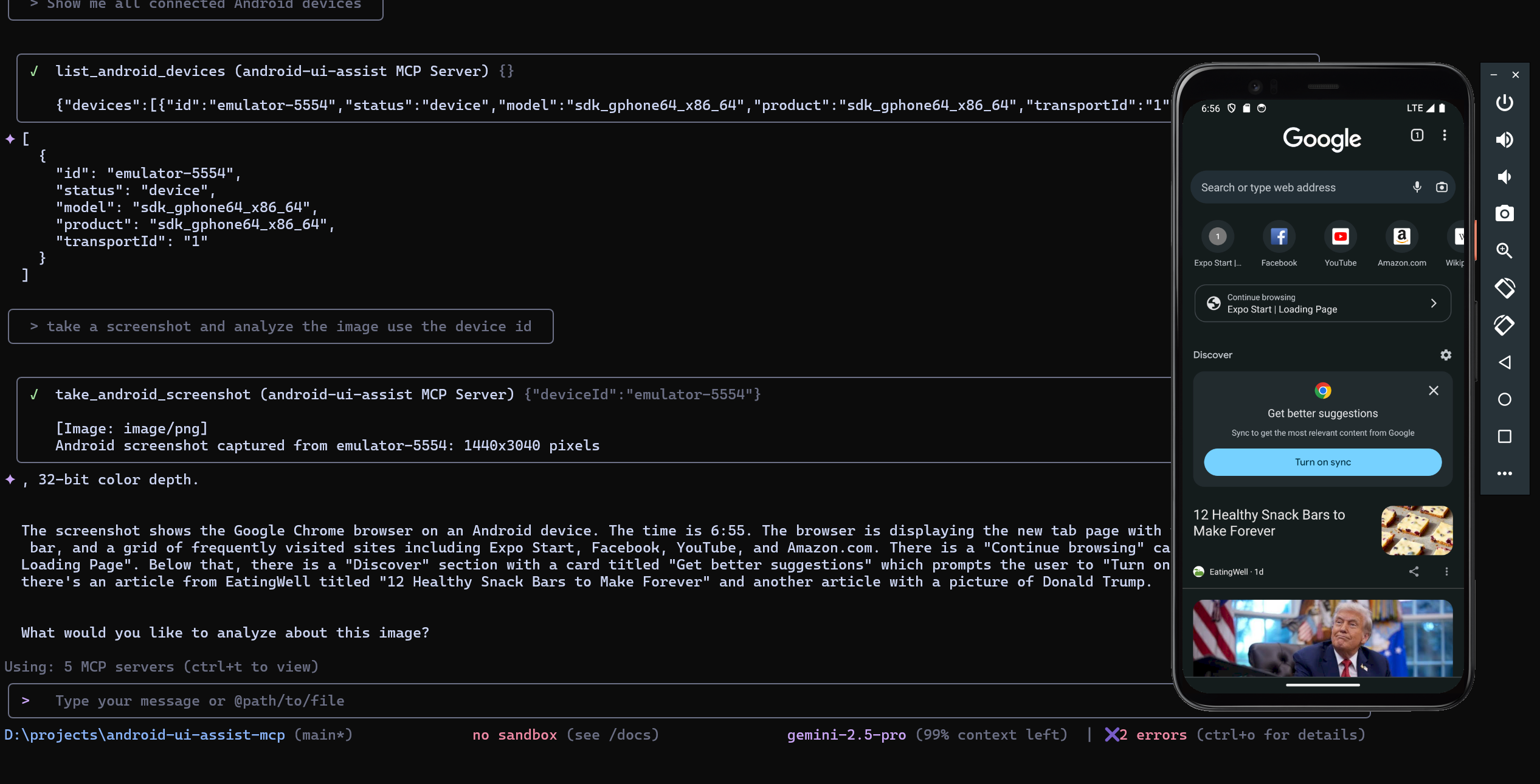 |
| Server ready with 2 tools available | AI agent analyzing Android UI in real-time |
Features
Real-Time Development Workflow
- Live screenshot capture during app development with Expo, React Native, Flutter
- Instant visual feedback for AI agents on UI changes and iterations
- Seamless integration with development servers and hot reload workflows
- Support for both physical devices and emulators during active development
AI Agent Integration
- MCP protocol support for Claude Desktop, GitHub Copilot, and Gemini CLI
- Enable AI agents to see your app UI and provide contextual suggestions
- Perfect for iterative UI refinement and design feedback loops
- Visual context for AI-powered code generation and UI improvements
Developer Experience
- Zero-configuration setup with running development environments
- Docker deployment for team collaboration and CI/CD pipelines
- Comprehensive error handling with helpful development suggestions
- Secure stdio communication with timeout management
Table of Contents
- AI Agent Configuration
- Installation
- Development Workflow
- Prerequisites
- Development Environment Setup
- Docker Deployment
- Available Tools
- Usage Examples
- Troubleshooting
- Development
AI Agent Configuration
This MCP server works with AI agents that support the Model Context Protocol. Configure your preferred agent to enable real-time Android UI analysis:
Claude Code
# CLI Installation
claude mcp add android-ui-assist -- npx android-ui-assist-mcp

# Local Development
claude mcp add android-ui-assist -- node "D:\\projects\\android-ui-assist-mcp\\dist\\index.js"
Claude Desktop
Add to %APPDATA%\Claude\claude_desktop_config.json:
{
  "mcpServers": {
    "android-ui-assist": {
      "command": "npx",
      "args": ["android-ui-assist-mcp"],
      "timeout": 10000
    }
  }
}
GitHub Copilot (VS Code)
Add to .vscode/settings.json:
{
  "github.copilot.enable": {
    "*": true
  },
  "mcp.servers": {
    "android-ui-assist": {
      "command": "npx",
      "args": ["android-ui-assist-mcp"],
      "timeout": 10000
    }
  }
}
Gemini CLI
# CLI Installation
gemini mcp add android-ui-assist npx android-ui-assist-mcp

# Configuration
# Create ~/.gemini/settings.json with:
{
  "mcpServers": {
    "android-ui-assist": {
      "command": "npx",
      "args": ["android-ui-assist-mcp"]
    }
  }
}
Installation
Package Manager Installation
npm install -g android-ui-assist-mcp
Source Installation
git clone https://github.com/yourusername/android-ui-assist-mcp
cd android-ui-assist-mcp
npm install && npm run build
Installation Verification
After installation, verify the package is available:
android-ui-assist-mcp --version
# For npm installation
npx android-ui-assist-mcp --version
Development Workflow
This MCP server transforms how you develop Android UIs by giving AI agents real-time visual access to your running application. Here's the typical workflow:
- Start Your Development Environment: Launch Expo, React Native Metro, Flutter, or Android Studio with your app running
- Connect the MCP Server: Configure your AI agent (Claude, Copilot, Gemini) to use this MCP server
- Iterative Development: Ask your AI agent to analyze the current UI, suggest improvements, or help implement changes
- Real-Time Feedback: The AI agent takes screenshots to see the results of code changes immediately
- Refine and Repeat: Continue the conversation with visual context for better UI development
Perfect for:
- Expo development with live preview and hot reload
- React Native development with Metro bundler
- Flutter development with hot reload
- Native Android development with instant run
- UI testing and visual regression analysis
- Collaborative design reviews with AI assistance
- Accessibility testing with visual context
- Cross-platform UI consistency checking
Prerequisites
| Component | Version | Installation |
|---|---|---|
| Node.js | 18.0+ | Download |
| npm | 8.0+ | Included with Node.js |
| ADB | Latest | Android SDK Platform Tools |
Android Device Setup
- Enable Developer Options: Settings > About Phone > Tap "Build Number" 7 times
- Enable USB Debugging: Settings > Developer Options > USB Debugging
- Verify connection:
adb devices
Development Environment Setup
Expo Development
- Start your Expo development server:
npx expo start
# or
npm start
- Open your app on a connected device or emulator
- Ensure your device appears in
adb devices - Your AI agent can now take screenshots during development
React Native Development
- Start Metro bundler:
npx react-native start
- Run on Android:
npx react-native run-android
- Enable hot reload for instant feedback with AI analysis
Flutter Development
- Start Flutter in debug mode:
flutter run
- Use hot reload (
r) and hot restart (R) while getting AI feedback - The AI agent can capture UI states after each change
Native Android Development
- Open project in Android Studio
- Run app with instant run enabled
- Connect device or start emulator
- Enable AI agent integration for real-time UI analysis
Docker Deployment
Docker Compose
cd docker
docker-compose up --build -d
Configure AI platform for Docker:
{
  "mcpServers": {
    "android-ui-assist": {
      "command": "docker",
      "args": ["exec", "android-ui-assist-mcp", "node", "/app/dist/index.js"],
      "timeout": 15000
    }
  }
}
Manual Docker Build
docker build -t android-ui-assist-mcp .
docker run -it --rm --privileged -v /dev/bus/usb:/dev/bus/usb android-ui-assist-mcp
Available Tools
| Tool | Description | Parameters |
|---|---|---|
take_android_screenshot | Captures device screenshot | deviceId (optional) |
list_android_devices | Lists connected devices | None |
Tool Schemas
take_android_screenshot
{
  "name": "take_android_screenshot",
  "description": "Capture a screenshot from an Android device or emulator",
  "inputSchema": {
    "type": "object",
    "properties": {
      "deviceId": {
        "type": "string",
        "description": "Optional device ID. If not provided, uses the first available device"
      }
    }
  }
}
list_android_devices
{
  "name": "list_android_devices",
  "description": "List all connected Android devices and emulators with detailed information",
  "inputSchema": {
    "type": "object",
    "properties": {}
  }
}
Usage Examples
Example: AI agent listing devices, capturing screenshots, and providing detailed UI analysis in real-time
Real-Time UI Development
With your development environment running (Expo, React Native, Flutter, etc.), interact with your AI agent:
Initial Analysis:
- "Take a screenshot of my current app UI and analyze the layout"
- "Show me the current state of my login screen and suggest improvements"
- "Capture the app and check for accessibility issues"
Iterative Development:
- "I just changed the button color, take another screenshot and compare"
- "Help me adjust the spacing - take a screenshot after each change"
- "Take a screenshot and tell me if the new navigation looks good"
Cross-Platform Testing:
- "Capture screenshots from both my phone and tablet emulator"
- "Show me how the UI looks on device emulator-5554 vs my physical device"
Development Debugging:
- "List all connected devices and their status"
- "Take
README truncated. View full README on GitHub.
Alternatives



Related Skills
Browse all skillsThis skill enables automated testing of mobile applications on iOS and Android platforms using frameworks like Appium, Detox, XCUITest, and Espresso. It generates end-to-end tests, sets up page object models, and handles platform-specific elements. Use this skill when the user requests mobile app testing, test automation for iOS or Android, or needs assistance with setting up device farms and simulators. The skill is triggered by terms like "mobile testing", "appium", "detox", "xcuitest", "espresso", "android test", "ios test".
UI design system toolkit for Senior UI Designer including design token generation, component documentation, responsive design calculations, and developer handoff tools. Use for creating design systems, maintaining visual consistency, and facilitating design-dev collaboration.
Comprehensive guide for creating professional UI/UX designs in Penpot using MCP tools. Use this skill when: (1) Creating new UI/UX designs for web, mobile, or desktop applications, (2) Building design systems with components and tokens, (3) Designing dashboards, forms, navigation, or landing pages, (4) Applying accessibility standards and best practices, (5) Following platform guidelines (iOS, Android, Material Design), (6) Reviewing or improving existing Penpot designs for usability. Triggers: "design a UI", "create interface", "build layout", "design dashboard", "create form", "design landing page", "make it accessible", "design system", "component library".
Answer questions about the AI SDK and help build AI-powered features. Use when developers: (1) Ask about AI SDK functions like generateText, streamText, ToolLoopAgent, embed, or tools, (2) Want to build AI agents, chatbots, RAG systems, or text generation features, (3) Have questions about AI providers (OpenAI, Anthropic, Google, etc.), streaming, tool calling, structured output, or embeddings, (4) Use React hooks like useChat or useCompletion. Triggers on: "AI SDK", "Vercel AI SDK", "generateText", "streamText", "add AI to my app", "build an agent", "tool calling", "structured output", "useChat".
Power BI semantic modeling assistant for building optimized data models. Use when working with Power BI semantic models, creating measures, designing star schemas, configuring relationships, implementing RLS, or optimizing model performance. Triggers on queries about DAX calculations, table relationships, dimension/fact table design, naming conventions, model documentation, cardinality, cross-filter direction, calculation groups, and data model best practices. Always connects to the active model first using power-bi-modeling MCP tools to understand the data structure before providing guidance.
Use when working with the OpenAI API (Responses API) or OpenAI platform features (tools, streaming, Realtime API, auth, models, rate limits, MCP) and you need authoritative, up-to-date documentation (schemas, examples, limits, edge cases). Prefer the OpenAI Developer Documentation MCP server tools when available; otherwise guide the user to enable `openaiDeveloperDocs`.