
Bitcoin
Enables AI models to interact with Bitcoin and Lightning Network through the Blockstream API. Generate Bitcoin addresses, decode transactions, query blockchain data, and manage Lightning invoices.
Integrates with Bitcoin network and blockchain data via Blockstream API to enable transaction monitoring, wallet management, and blockchain analysis
What it does
- Generate Bitcoin key pairs and addresses
- Validate Bitcoin addresses
- Decode Bitcoin transactions
- Query latest blocks and transaction details
- Decode Lightning invoices
- Pay Lightning invoices
Best for
About Bitcoin
Bitcoin is a community-built MCP server published by abdelstark that provides AI assistants with tools and capabilities via the Model Context Protocol. Integrate with the Bitcoin network via Blockstream API for transaction monitoring, wallet management, and blockchain analysis. It is categorized under finance. This server exposes 7 tools that AI clients can invoke during conversations and coding sessions.
How to install
You can install Bitcoin in your AI client of choice. Use the install panel on this page to get one-click setup for Cursor, Claude Desktop, VS Code, and other MCP-compatible clients. This server runs locally on your machine via the stdio transport.
License
Bitcoin is released under the MIT license. This is a permissive open-source license, meaning you can freely use, modify, and distribute the software.
Tools (7)
Generate a new Bitcoin key pair and address
Validate a Bitcoin address
Decode a Bitcoin transaction
Get the latest block
Get transaction details




₿itcoin & Lightning Network MCP Server

Overview
A Model Context Protocol (MCP) server that enables AI models to interact with Bitcoin and Lightning Network, allowing them to generate keys, validate addresses, decode transactions, query the blockchain, and more.
🎮 Demo
| Claude Demo Video | Goose Demo Video |
|---|---|
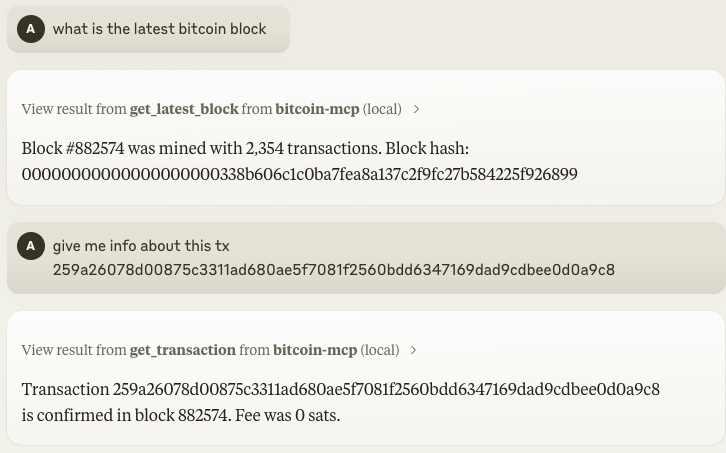 | 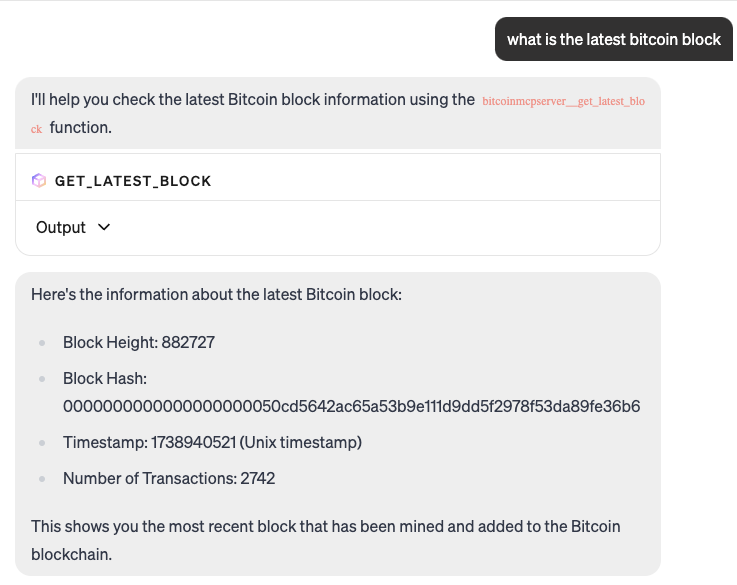 |
💼 Table of Contents
- ₿itcoin & Lightning Network MCP Server
🔧 Features
- Key Generation: Create new Bitcoin key pairs — including address, public key, and private key (WIF).
- Address Validation: Validate the correctness of a Bitcoin address.
- Transaction Decoding: Parse a raw Bitcoin transaction and display its details in a human-readable format.
- Blockchain Queries:
- Latest Block: Retrieve details about the most recent block (hash, height, timestamp, transaction count, etc.).
- Transaction Details: Fetch detailed information about a transaction using its TXID.
- Lightning Network:
- Invoice Decoding: Parse a BOLT11 Lightning invoice and display human-readable information.
- Payment: Pay a Lightning invoice directly from your LNBits wallet.
🔑 Claude Desktop Integration
To use the Bitcoin MCP server with Claude Desktop (Anthropic's desktop app for Claude), follow these steps:
-
Download and Install Claude Desktop: Visit the official Claude Desktop downloads page and get the app for your operating system (macOS or Windows) (Installing Claude for Desktop | Anthropic Help Center). Install the app and ensure you're using the latest version (you can check for updates in the app menu).
-
Configure Claude Desktop to use the Bitcoin MCP Server: Open the Claude Desktop configuration file (it's created when you first edit settings in Claude Desktop):
- macOS:
~/Library/Application Support/Claude/claude_desktop_config.json - Windows:
%APPDATA%\Claude\claude_desktop_config.json
Add an entry for the Bitcoin MCP server in this JSON config under the"mcpServers"section. For example:
{
  "mcpServers": {
    "bitcoin-mcp": {
      "command": "npx",
      "args": ["-y", "bitcoin-mcp@latest"]
    }
  }
}
In the snippet above,
"bitcoin-mcp"is an identifier for the server (you can name it whatever you want). Thecommandis set to run thenpxcommand, andargspoints to the path of your Bitcoin MCP server script or the command to run the server. - macOS:
-
Restart Claude Desktop: Save the
claude_desktop_config.jsonfile and then close and reopen Claude Desktop. On the next launch, Claude will automatically start the Bitcoin MCP server as configured. If Claude Desktop was running, you need to restart it for the changes to take effect.
Testing the Claude Desktop Integration
Once Claude Desktop is restarted, you can test whether the Bitcoin MCP server is working correctly:
-
Ask Claude a sample question related to Bitcoin. For example, try asking: "What's the latest block on the Bitcoin network?" If the integration is successful, Claude's response should include the latest block fetched via the MCP server, rather than an "I don't know" or a generic answer. You can also try other queries like "Give me information about the transaction with TXID abcdef1234567890abcdef1234567890abcdef1234567890abcdef1234567890." Claude should use the MCP server's tools to retrieve the data and answer your query.
-
Verify the response: Claude should return a detailed answer (e.g. the latest block on the Bitcoin network) without errors. If you get an error message or no useful response, the MCP server might not be connected properly.
-
Check Claude's logs (if needed): Claude Desktop provides log files that can help debug MCP integrations. If the tool isn't responding, check the log files in:
- macOS:
~/Library/Logs/Claude/ - Windows:
%APPDATA%\Claude\logs\
Look formcp.logfor general MCP connection messages, and a file namedmcp-server-bitcoin-mcp.log(or with whatever name you used) for the MCP server's output/errors. These logs will show if the server started up or if there were any errors (such as a wrong path or exceptions in the server). If you see errors, fix the configuration or environment as needed, then restart Claude Desktop and test again.
- macOS:
🦆 Goose Integration
Goose is an open-source AI agent framework by Block that supports extensions via the Model Context Protocol. You can integrate the Bitcoin MCP server as a Goose extension to allow Goose to interact with the Bitcoin blockchain. Goose supports two modes of integration for MCP servers: running the server as a local process (STDIO) or connecting to it as a remote service via Server-Sent Events (SSE). Below are instructions for both methods:
Using STDIO (Local Extension)
This method runs the Bitcoin MCP server locally as a subprocess of Goose, communicating through standard input/output.
-
Add a new extension in Goose: Open Goose's configuration interface. You can do this via the command line by running
goose configure, or in the Goose Desktop app by going to Settings > Extensions. From the menu, choose "Add Extension." (Using Extensions | goose) -
Choose the extension type – Command-Line Extension: When prompted for the type of extension, select Command-Line Extension (in the CLI menu or UI) so that Goose knows it should launch a local command (Using Extensions | goose) (as opposed to a built-in or remote extension).
-
Enter the extension details: Provide a name and command for the Bitcoin MCP server:
-
Name: You can call it "bitcoin", or any identifier (this will be how you refer to the extension).
-
Command: Specify how to run the MCP server. For example, if you have the Python script, enter the command to run it. In the CLI configurator, it might ask "What command should be run?" – you would enter:
npx -y bitcoin-mcp@latestThis tells Goose to launch the Bitcoin MCP server (GitHub - AbdelStark/bitcoin-mcp: Bitcoin MCP Server). (Make sure to use the correct path to your server script or the correct command to run the server, just like in the Claude config.)
-
You typically do not need to add any arguments beyond the script path (unless your server requires special flags). The above command uses the default STDIO transport, which Goose expects for a command-line extension. (In the Goose config file, this would correspond to an entry with
cmd: "npx"andargs: ["-y", "bitcoin-mcp@latest"], withtype: stdioindicating standard I/O mode ([Using Extensions | goose](https://block.github.io/goose/docs/getting-started/using-extensions/#adding-extensions#:~:text=extensions%3A%20fetch%3A%20name%
-
README truncated. View full README on GitHub.
Alternatives



Related Skills
Browse all skillsProduction-ready financial analyst skill with ratio analysis, DCF valuation, budget variance analysis, and rolling forecast construction. 4 Python tools (all stdlib-only). Works with Claude Code, Codex CLI, and OpenClaw.
Comprehensive news aggregator that fetches, filters, and deeply analyzes real-time content from 8 major sources: Hacker News, GitHub Trending, Product Hunt, 36Kr, Tencent News, WallStreetCN, V2EX, and Weibo. Best for 'daily scans', 'tech news briefings', 'finance updates', and 'deep interpretations' of hot topics.
Comprehensive cryptocurrency market research and analysis using specialized AI agents. Analyzes market data, price trends, news sentiment, technical indicators, macro correlations, and investment opportunities. Use when researching cryptocurrencies, analyzing crypto markets, evaluating digital assets, or investigating blockchain projects like Bitcoin, Ethereum, Solana, etc.
Professional personal finance advisor specializing in plain-text accounting with Beancount and Fava. Use when users need help with: (1) Analyzing spending habits and financial patterns from Beancount files, (2) Creating or understanding Beancount transactions and syntax, (3) Financial planning, budgeting, and investment advice, (4) Interpreting Fava reports and creating custom queries, (5) Organizing chart of accounts, (6) Double-entry bookkeeping principles, (7) Personal finance optimization and wealth building strategies. Provides analysis, education, and personalized recommendations while maintaining professional standards.
Comprehensive personal finance management system for analyzing transaction data, generating insights, creating visualizations, and providing actionable financial recommendations. Use when users need to analyze spending patterns, track budgets, visualize financial data, extract transactions from PDFs, calculate savings rates, identify spending trends, generate financial reports, or receive personalized budget recommendations. Triggers include requests like "analyze my finances", "track my spending", "create a financial report", "extract transactions from PDF", "visualize my budget", "where is my money going", "financial insights", "spending breakdown", or any finance-related analysis tasks.
Tavily AI search platform with 5 modes: Search (web/news/finance), Extract (URL content), Crawl (website crawling), Map (sitemap discovery), and Research (deep research with citations). Use for: web search with LLM answers, content extraction, site crawling, deep research.