
Electron Desktop Automation
Automates and debugs Electron desktop applications through Chrome DevTools Protocol without requiring app modifications. Provides AI-powered control over UI interactions, screenshot capture, and real-time monitoring.
Automates Electron desktop applications through Chrome DevTools Protocol integration, enabling screenshot capture, JavaScript execution, console monitoring, and window management with intelligent project detection and debugging configuration.
What it does
- Take screenshots of Electron applications
- Execute JavaScript code in running Electron apps
- Monitor console logs and application events
- Control UI elements like buttons and forms
- Extract DOM elements and application data
- Manage Electron application windows
Best for
About Electron Desktop Automation
Electron Desktop Automation is a community-built MCP server published by halilural that provides AI assistants with tools and capabilities via the Model Context Protocol. Electron Desktop Automation streamlines app testing with screenshots, console monitoring, project detection, and debugging via Chrome DevTools. It is categorized under browser automation, developer tools.
How to install
You can install Electron Desktop Automation in your AI client of choice. Use the install panel on this page to get one-click setup for Cursor, Claude Desktop, VS Code, and other MCP-compatible clients. This server runs locally on your machine via the stdio transport.
License
Electron Desktop Automation is released under the MIT license. This is a permissive open-source license, meaning you can freely use, modify, and distribute the software.
Electron MCP Server



A powerful Model Context Protocol (MCP) server that provides comprehensive Electron application automation, debugging, and observability capabilities. Supercharge your Electron development workflow with AI-powered automation through Chrome DevTools Protocol integration.
Demo
See the Electron MCP Server in action:
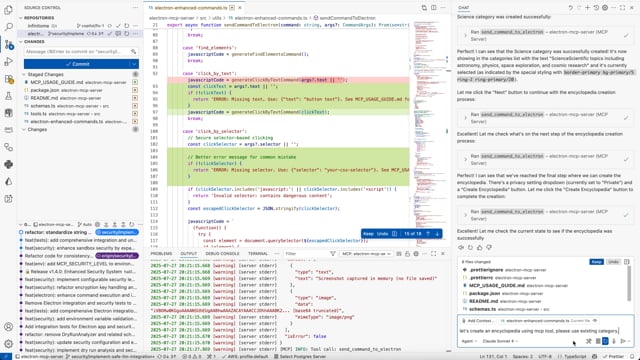
Watch how easy it is to automate Electron applications with AI-powered MCP commands.
🎯 What Makes This Special
Transform your Electron development experience with AI-powered automation:
- 🔄 Real-time UI Automation: Click buttons, fill forms, and interact with any Electron app programmatically
- 📸 Visual Debugging: Take screenshots and capture application state without interrupting development
- 🔍 Deep Inspection: Extract DOM elements, application data, and performance metrics in real-time
- ⚡ DevTools Protocol Integration: Universal compatibility with any Electron app - no modifications required
- 🚀 Development Observability: Monitor logs, system info, and application behavior seamlessly
🔒 Security & Configuration
Configurable security levels to balance safety with functionality:
Security Levels
- 🔒 STRICT: Maximum security for production environments
- ⚖️ BALANCED: Default security with safe UI interactions (recommended)
- 🔓 PERMISSIVE: More functionality for trusted environments
- 🛠️ DEVELOPMENT: Minimal restrictions for development/testing
Environment Configuration
Configure the security level and other settings through your MCP client configuration:
VS Code MCP Settings:
{
  "mcp": {
    "servers": {
      "electron": {
        "command": "npx",
        "args": ["-y", "electron-mcp-server"],
        "env": {
          "SECURITY_LEVEL": "balanced",
          "SCREENSHOT_ENCRYPTION_KEY":"your-32-byte-hex-string"
        }
      }
    }
  }
}
Claude Desktop Configuration:
{
  "mcpServers": {
    "electron": {
      "command": "npx",
      "args": ["-y", "electron-mcp-server"],
      "env": {
        "SECURITY_LEVEL": "balanced",
        "SCREENSHOT_ENCRYPTION_KEY":"your-32-byte-hex-string"
      }
    }
  }
}
Alternative: Local .env file (for development):
# Create .env file in your project directory
SECURITY_LEVEL=balanced
SCREENSHOT_ENCRYPTION_KEY=your-32-byte-hex-string
Security Level Behaviors:
| Level | UI Interactions | DOM Queries | Property Access | Assignments | Function Calls | Risk Threshold |
|---|---|---|---|---|---|---|
strict | ❌ Blocked | ❌ Blocked | ✅ Allowed | ❌ Blocked | ❌ None allowed | Low |
balanced | ✅ Allowed | ✅ Allowed | ✅ Allowed | ❌ Blocked | ✅ Safe UI functions | Medium |
permissive | ✅ Allowed | ✅ Allowed | ✅ Allowed | ✅ Allowed | ✅ Extended UI functions | High |
development | ✅ Allowed | ✅ Allowed | ✅ Allowed | ✅ Allowed | ✅ All functions | Critical |
Environment Setup:
- Copy
.env.exampleto.env - Set
SECURITY_LEVELto your desired level - Configure other security settings as needed
cp .env.example .env
# Edit .env and set SECURITY_LEVEL=balanced
Secure UI Interaction Commands
Instead of raw JavaScript eval, use these secure commands:
// ✅ Secure button clicking
{
  "command": "click_by_text",
  "args": { "text": "Create New Encyclopedia" }
}

// ✅ Secure element selection
{
  "command": "click_by_selector",
  "args": { "selector": "button[title='Create']" }
}

// ✅ Secure keyboard shortcuts
{
  "command": "send_keyboard_shortcut",
  "args": { "text": "Ctrl+N" }
}

// ✅ Secure navigation
{
  "command": "navigate_to_hash",
  "args": { "text": "create" }
}
See SECURITY_CONFIG.md for detailed security documentation.
🎯 Proper MCP Usage Guide
⚠️ Critical: Argument Structure
The most common mistake when using this MCP server is incorrect argument structure for the send_command_to_electron tool.
❌ Wrong (causes "selector is empty" errors):
{
  "command": "click_by_selector",
  "args": "button.submit-btn"  // ❌ Raw string - WRONG!
}
✅ Correct:
{
  "command": "click_by_selector",
  "args": {
    "selector": "button.submit-btn"  // ✅ Object with selector property
  }
}
📋 Command Argument Reference
| Command | Required Args | Example |
|---|---|---|
click_by_selector | {"selector": "css-selector"} | {"selector": "button.primary"} |
click_by_text | {"text": "button text"} | {"text": "Submit"} |
fill_input | {"value": "text", "selector": "..."} or {"value": "text", "placeholder": "..."} | {"placeholder": "Enter name", "value": "John"} |
send_keyboard_shortcut | {"text": "key combination"} | {"text": "Ctrl+N"} |
eval | {"code": "javascript"} | {"code": "document.title"} |
get_title, get_url, get_body_text | No args needed | {} or omit args |
🔄 Recommended Workflow
- Inspect: Start with
get_page_structureordebug_elements - Target: Use specific selectors or text-based targeting
- Interact: Use the appropriate command with correct argument structure
- Verify: Take screenshots or check page state
// Step 1: Understand the page
{
  "command": "get_page_structure"
}

// Step 2: Click button using text (most reliable)
{
  "command": "click_by_text",
  "args": {
    "text": "Create New Encyclopedia"
  }
}

// Step 3: Fill form field
{
  "command": "fill_input",
  "args": {
    "placeholder": "Enter encyclopedia name",
    "value": "AI and Machine Learning"
  }
}

// Step 4: Submit with selector
{
  "command": "click_by_selector",
  "args": {
    "selector": "button[type='submit']"
  }
}
🐛 Troubleshooting Common Issues
| Error | Cause | Solution |
|---|---|---|
| "The provided selector is empty" | Passing string instead of object | Use {"selector": "..."} |
| "Element not found" | Wrong selector | Use get_page_structure first |
| "Command blocked" | Security restriction | Check security level settings |
| "Click prevented - too soon" | Rapid consecutive clicks | Wait before retrying |
🛠️ Security Features
Enterprise-grade security built for safe AI-powered automation:
- 🔒 Sandboxed Execution: All code runs in isolated environments with strict resource limits
- 🔍 Input Validation: Advanced static analysis detects and blocks dangerous code patterns
- 📝 Comprehensive Auditing: Encrypted logs track all operations with full traceability
- 🖼️ Secure Screenshots: Encrypted screenshot data with clear user notifications
- ⚠️ Risk Assessment: Automatic threat detection with configurable security thresholds
- 🚫 Zero Trust: Dangerous functions like
eval, file system access, and network requests are blocked by default
Safety First: Every command is analyzed, validated, and executed in a secure sandbox before reaching your application.
�🚀 Key Features
🎮 Application Control & Automation
- Launch & Manage: Start, stop, and monitor Electron applications with full lifecycle control
- Interactive Automation: Execute JavaScript code directly in running applications via WebSocket
- UI Testing: Automate button clicks, form interactions, and user workflows
- Process Management: Track PIDs, monitor resource usage, and handle graceful shutdowns
📊 Advanced Observability
- Screenshot Capture: Non-intrusive visual snapshots using Playwright and Chrome DevTools Protocol
- Real-time Logs: Stream application logs (main process, renderer, console) with filtering
- Window Information: Get detailed window metadata, titles, URLs, and target information
- System Monitoring: Track memory usage, uptime, and performance metrics
🛠️ Development Productivity
- Universal Compatibility: Works with any Electron app without requiring code modifications
- DevTools Integration: Leverage Chrome DevTools Protocol for powerful debugging capabilities
- Build Automation: Cross-platform building for Windows, macOS, and Linux
- Environment Management: Clean environment handling and debugging port configuration
📦 Installation
VS Code Integration (Recommended)
[



Related Skills
Browse all skillsBrowser automation, debugging, and performance analysis using Puppeteer CLI scripts. Use for automating browsers, taking screenshots, analyzing performance, monitoring network traffic, web scraping, form automation, and JavaScript debugging.
Electron desktop development guide. Use when implementing desktop features, IPC handlers, controllers, preload scripts, window management, menu configuration, or Electron-specific functionality. Triggers on desktop app development, Electron IPC, or desktop local tools implementation.
Lightweight Chrome automation toolkit with shared configuration, JSON-first output, and six focused scripts for starting, navigating, inspecting, capturing, evaluating, and cleaning up browser sessions.
Guide users through browser automation setup using Chrome DevTools MCP as the primary path and the OpenCode browser extension as a fallback. Use when the user asks to set up browser automation, Chrome DevTools MCP, browser MCP, browser extension, or runs the browser-setup command.
This skill should be used for browser automation tasks using Chrome DevTools Protocol (CDP). Triggers when users need to launch Chrome with remote debugging, navigate pages, execute JavaScript in browser context, capture screenshots, or interactively select DOM elements. No MCP server required.
Comprehensive CrewAI framework guide for building collaborative AI agent teams and structured workflows. Use when developing multi-agent systems with CrewAI, creating autonomous AI crews, orchestrating flows, implementing agents with roles and tools, or building production-ready AI automation. Essential for developers building intelligent agent systems, task automation, and complex AI workflows.