
GoLogin
OfficialConnects GoLogin browser automation service to AI assistants, allowing you to manage browser profiles, proxies, and fingerprints through natural language commands.
Manage your GoLogin browser profiles and automation directly through AI conversations. This MCP server connects to the GoLogin API, letting you create, configure, and control browser profiles using natural language.
What it does
- Create and delete browser profiles
- Configure proxy settings for profiles
- Customize browser fingerprints and user agents
- Organize profiles into folders
- Check account subscription status and usage
- List and update existing browser profiles
Best for
About GoLogin
GoLogin is an official MCP server published by gologinapp that provides AI assistants with tools and capabilities via the Model Context Protocol. Manage GoLogin browser profiles via AI. Automate with GoLogin, Selenium for software testing, and browser automation studio integration. It is categorized under browser automation, developer tools.
How to install
You can install GoLogin in your AI client of choice. Use the install panel on this page to get one-click setup for Cursor, Claude Desktop, VS Code, and other MCP-compatible clients. This server runs locally on your machine via the stdio transport.
License
GoLogin is released under the MIT license. This is a permissive open-source license, meaning you can freely use, modify, and distribute the software.
GoLogin MCP Server
Manage your GoLogin browser profiles and automation directly through AI conversations. This MCP server connects to the GoLogin API, letting you create, configure, and control browser profiles using natural language.
What You Can Do
With GoLogin MCP Server, you can:
- Manage browser profiles - Create, update, delete, and list your browser profiles
- Configure proxies - Set up and modify proxy settings for your profiles
- Handle fingerprints - Customize browser fingerprints and user agents
- Manage folders - Organize your profiles into folders
- Account information - Check your subscription status and usage
Example Use Cases
- "Create a new browser profile with a US proxy"
- "Show me all my browser profiles"
- "Update the proxy settings for my profile"
- "Delete old profiles I no longer need"
- "Check my GoLogin account status"
- "Create a folder to organize my profiles"
Setup for MCP Clients
Claude Desktop
How to connect Gologin MCP with Claude Desktop:
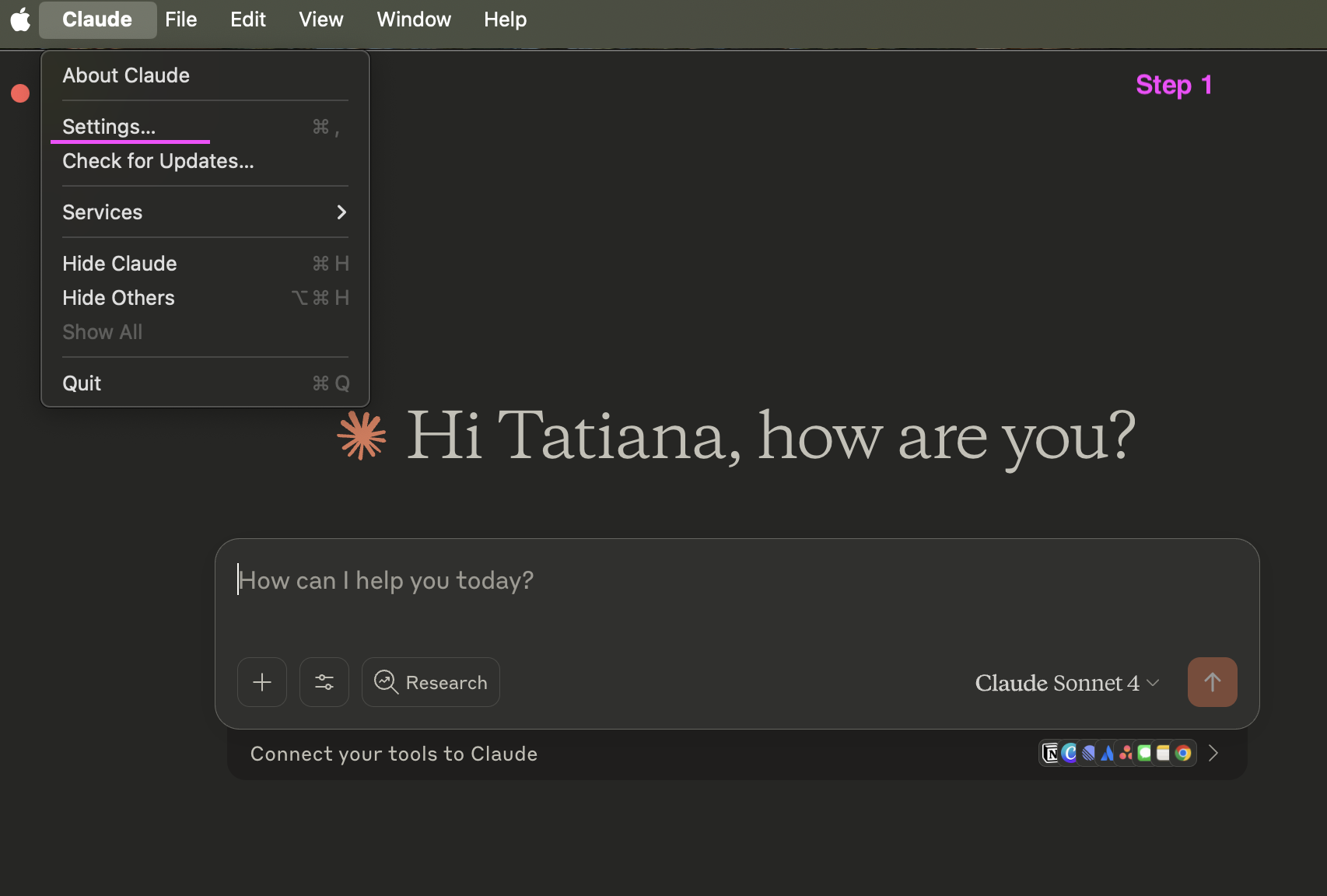
Step 1: Access Claude Desktop settings
Open your Claude Desktop application. In the top menu bar, click on 'Claude' and then select 'Settings...'.
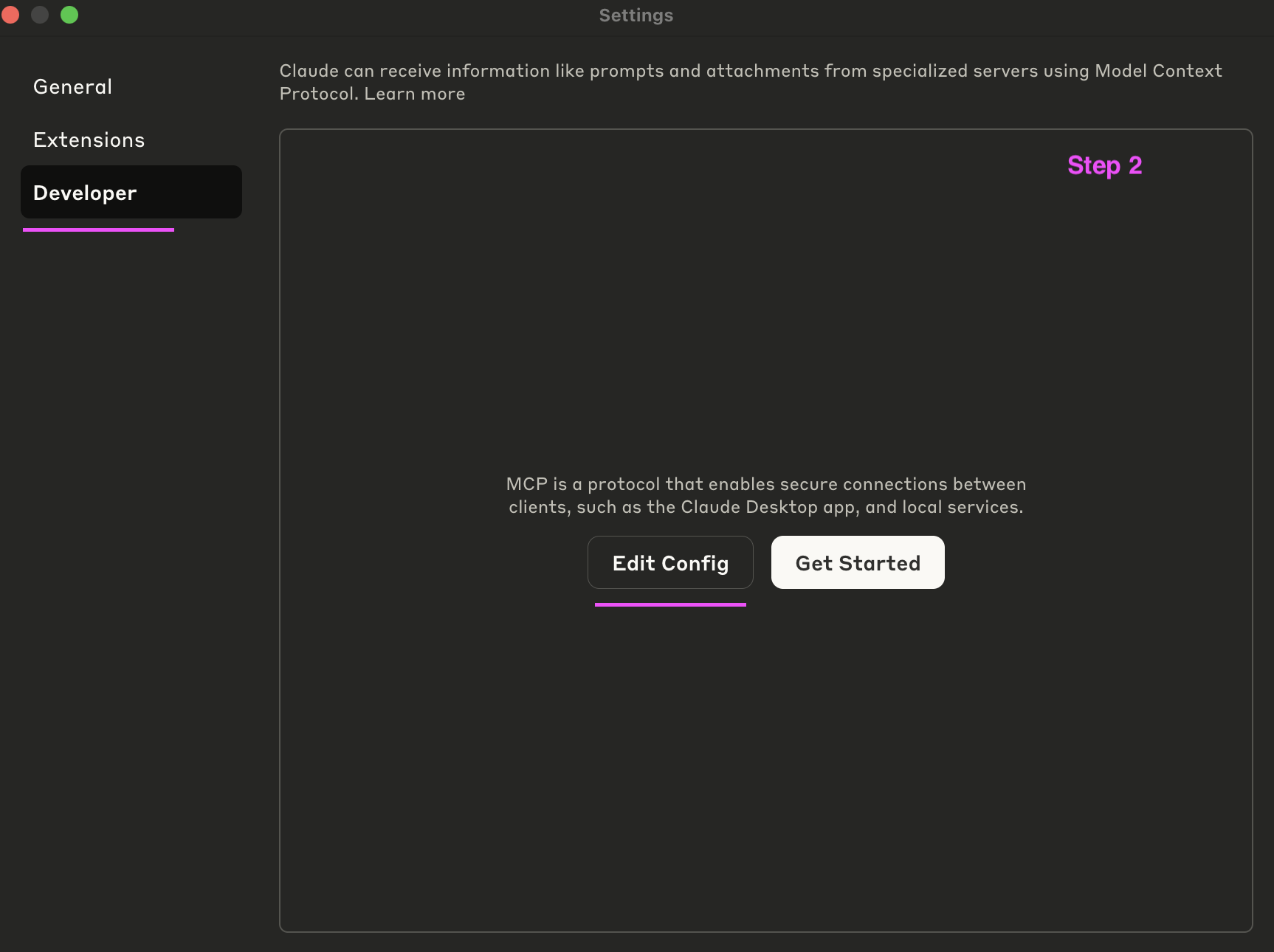
Step 2: Navigate to developer settings
In the Settings window, on the left sidebar, click on 'Developer'. This section manages connections via the Model Context Protocol. Click the 'Edit Config' button to open the configuration file.
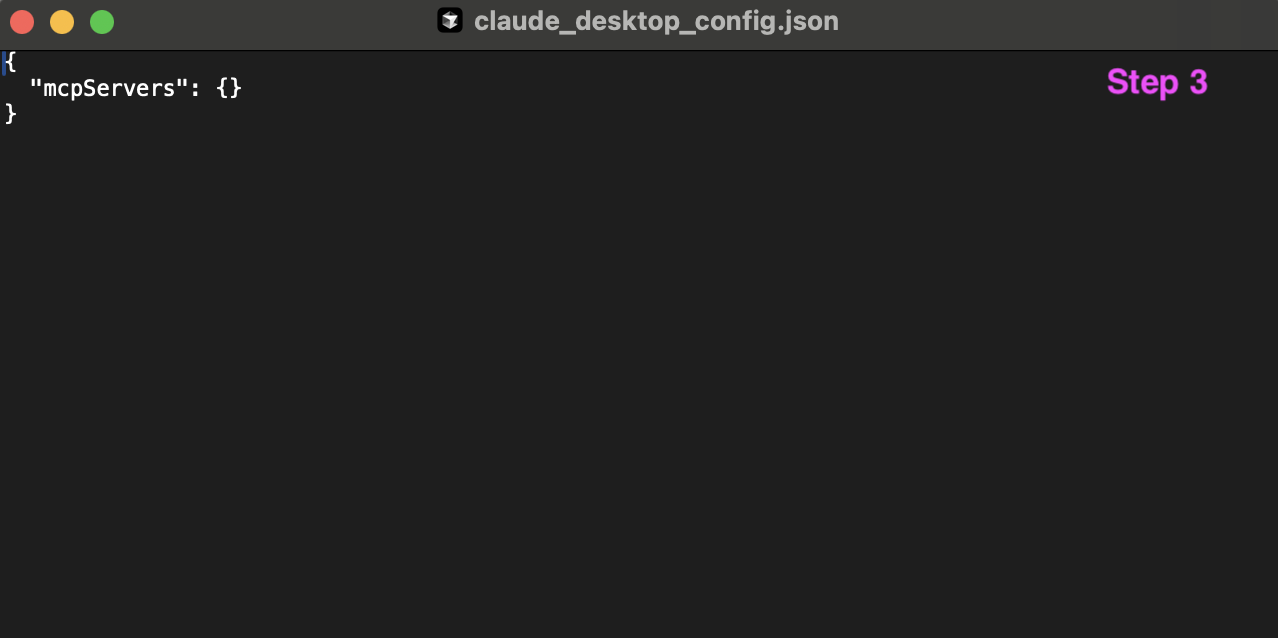
Step 3: Locate claude_desktop_config.json
This action will open the claude_desktop_config.json file in your default text editor. This file is where you configure your MCP servers.
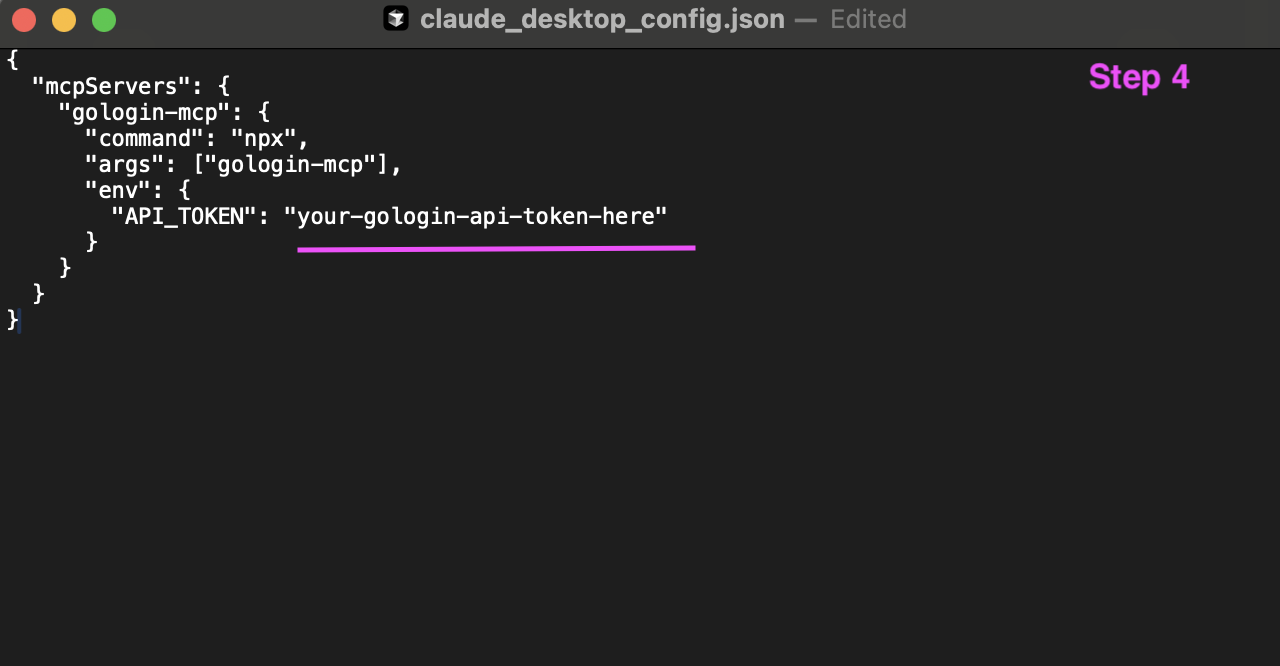
Step 4: Add Gologin MCP configuration
You need to add the GoLogin MCP server configuration details within the mcpservers object. Carefully paste the following JSON snippet into your claude_desktop_config.json file. Important: Replace 'your-gologin-api-token-here' with your actual GoLogin API token. Ensure the JSON structure remains correct after pasting.
{
  "mcpServers": {
    "gologin-mcp": {
      "command": "npx",
      "args": ["gologin-mcp"],
      "env": {
        "API_TOKEN": "your-gologin-api-token-here"
      }
    }
  }
}
Step 5: Verify connection in connectors
After saving the claude_desktop_config.json file, it is recommended to restart Claude Desktop to ensure the new configuration is loaded. Once Claude restarts, navigate back to its 'Settings'. Under the 'Connectors' section (which might be under 'General' or 'Extensions' depending on your Claude version), you should now see 'gologin-mcp LOCAL' listed as a connected service. This indicates a successful integration.
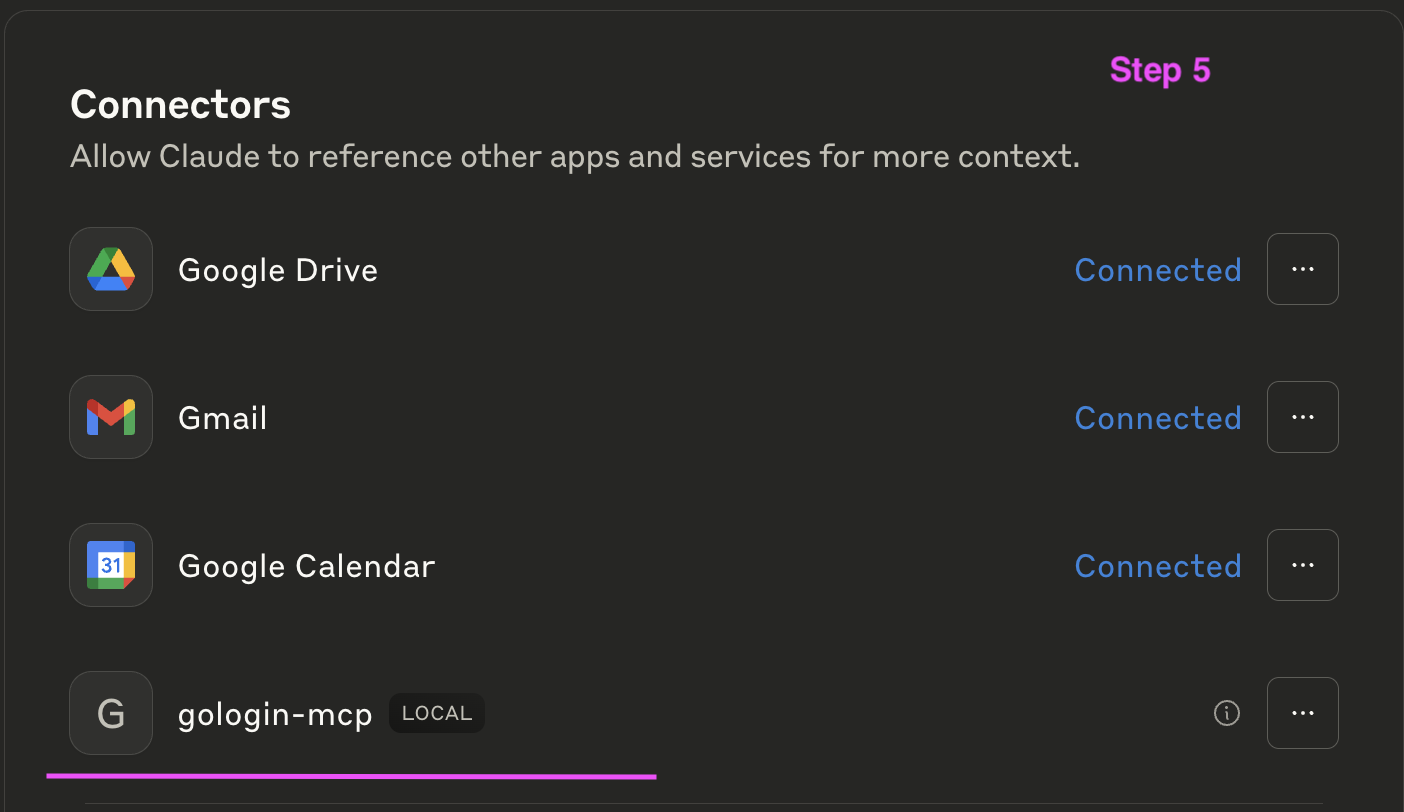
Congratulations! You have successfully connected GoLogin MCP with Claude Desktop. Your AI assistant can now leverage Gologin profiles for various tasks.
Cursor
-
Configure in Cursor:
Add to your Cursor MCP configuration:
{
  "mcpServers": {
    "gologin-mcp": {
      "command": "npx",
      "args": ["gologin-mcp"],
      "env": {
        "API_TOKEN": "your-gologin-api-token-here"
      }
    }
  }
}
Other MCP Clients
For other MCP-compatible clients, use the same configuration pattern with the appropriate config file location for your client.
Getting Your API Token
- Log in to your GoLogin account
- Go to API settings
- Generate or copy your API token
- Use this token in the configuration above
Example Workflow
-
Check your account: "What's my GoLogin account status?"
-
Create a profile: "Create a new browser profile with Chrome browser and a US proxy"
-
Manage profiles: "Show me all my profiles" "Update the proxy for profile ID 123 to use a UK proxy" "Delete the profile named 'test-profile'"
-
Organize profiles: "Create a folder called 'Social Media Accounts'" "Move profile XYZ to the Social Media Accounts folder"
-
Control browsers: "Start a browser session for my profile" "Stop all running browser sessions"
Requirements
- Node.js 18 or higher
- Valid GoLogin API token
- Active GoLogin account
Alternatives




Related Skills
Browse all skillsBrowser automation, debugging, and performance analysis using Puppeteer CLI scripts. Use for automating browsers, taking screenshots, analyzing performance, monitoring network traffic, web scraping, form automation, and JavaScript debugging.
Lightweight Chrome automation toolkit with shared configuration, JSON-first output, and six focused scripts for starting, navigating, inspecting, capturing, evaluating, and cleaning up browser sessions.
Guide users through browser automation setup using Chrome DevTools MCP as the primary path and the OpenCode browser extension as a fallback. Use when the user asks to set up browser automation, Chrome DevTools MCP, browser MCP, browser extension, or runs the browser-setup command.
This skill should be used for browser automation tasks using Chrome DevTools Protocol (CDP). Triggers when users need to launch Chrome with remote debugging, navigate pages, execute JavaScript in browser context, capture screenshots, or interactively select DOM elements. No MCP server required.
Comprehensive CrewAI framework guide for building collaborative AI agent teams and structured workflows. Use when developing multi-agent systems with CrewAI, creating autonomous AI crews, orchestrating flows, implementing agents with roles and tools, or building production-ready AI automation. Essential for developers building intelligent agent systems, task automation, and complex AI workflows.
CCXT cryptocurrency exchange library for TypeScript and JavaScript developers (Node.js and browser). Covers both REST API (standard) and WebSocket API (real-time). Helps install CCXT, connect to exchanges, fetch market data, place orders, stream live tickers/orderbooks, handle authentication, and manage errors. Use when working with crypto exchanges in TypeScript/JavaScript projects, trading bots, arbitrage systems, or portfolio management tools. Includes both REST and WebSocket examples.