
Selenium WebDriver
Controls web browsers programmatically through Selenium WebDriver to automate browsing tasks, interact with web pages, and capture screenshots. Works with Chrome, Firefox, and Edge browsers.
Enables browser automation through Selenium WebDriver with support for Chrome, Firefox, and Edge browsers, providing navigation, element interaction, form handling, screenshot capture, JavaScript execution, and advanced actions for automated testing and web scraping tasks.
What it does
- Open and control browser sessions
- Navigate to URLs and browse pages
- Interact with web elements and forms
- Capture screenshots of web pages
- Execute JavaScript code in browsers
- Extract page content and data
Best for
About Selenium WebDriver
Selenium WebDriver is a community-built MCP server published by pshivapr that provides AI assistants with tools and capabilities via the Model Context Protocol. Selenium WebDriver automates browser tasks for automated testing in software testing, supporting Chrome, Firefox, and Edge for reliable test automation. It is categorized under browser automation, search web. This server exposes 56 tools that AI clients can invoke during conversations and coding sessions.
How to install
You can install Selenium WebDriver in your AI client of choice. Use the install panel on this page to get one-click setup for Cursor, Claude Desktop, VS Code, and other MCP-compatible clients. This server runs locally on your machine via the stdio transport.
License
Selenium WebDriver is released under the MIT license. This is a permissive open-source license, meaning you can freely use, modify, and distribute the software.
Tools (56)
Open a new browser session
Navigate to a URL
Navigate back in the browser
Navigate forward in the browser
Get the current page title






Selenium MCP Server



This is a server implementation that bridges the gap between MCP clients (AI assistants) and Selenium WebDriver. It exposes Selenium WebDriver's functionalities as MCP tools, allowing AI models to utilize them for tasks like:
- Browser management (launching, navigating, closing browsers)
- Element interaction (clicking, typing, finding elements)
- Web scraping and automated testing
- Advanced operations like screenshots, cookie management, and JavaScript execution
In essence, the selenium webdriver mcp setup allows AI assistants to leverage the power of Selenium Webdriver for web automation, by communicating with a dedicated Selenium MCP server via the Model Context Protocol. This facilitates tasks such as automated web interactions, testing, and data extraction, all controlled by AI.
🚀 Overview
A Model Context Protocol (MCP) server for Selenium that provides comprehensive Selenium WebDriver automation tools for AI assistants and applications. This server enables automated web browser interactions, testing, and scraping through a standardized interface.
Built with TypeScript and modern ES modules, it offers type-safe browser automation capabilities through the Model Context Protocol.
✨ Key Features
- Multi-Browser Support: Chrome, Firefox, Safari, and Edge browser automation
- Comprehensive Element Interaction: Click, type, hover, drag & drop, file uploads
- Advanced Navigation: Forward, backward, refresh, window management
- Wait Strategies: Intelligent waiting for elements and page states
- Type Safety: Full TypeScript implementation with Zod validation
🤝 Integration
MCP Client Integration
Configure your MCP client to connect to the Selenium server:
Standard Configuration (applicable to Windsurf, Warp, Gemini CLI etc)
{
  "servers": {
    "selenium-mcp": {
      "command": "npx",
      "args": ["-y", "selenium-webdriver-mcp@latest"]
    }
  }
}
Installation in VS Code
Update your mcp.json in VS Code with below configuration
NOTE: If you're new to MCP servers, follow this link Use MCP servers in VS Code
Example 'stdio' type connection
{
  "servers": {
    "selenium-mcp": {
      "command": "npx",
      "args": [
        "-y",
        "selenium-webdriver-mcp@latest"
      ],
      "type": "stdio"
    }
  },
  "inputs": []
}
Example 'http' type connection
{
  "servers": {
    "Selenium": {
      "url": "https://smithery.ai/server/@pshivapr/selenium-mcp",
      "type": "http"
    }
  },
  "inputs": []
}
After installation, the Selenium MCP server will be available for use with your GitHub Copilot agent in VS Code.
To install the Selenium MCP server using the VS Code CLI
# For VS Code
code --add-mcp '{\"name\":\"selenium-mcp\",\"command\": \"npx\",\"args\": [\"selenium-webdriver-mcp@latest\"]}'
# For VS Code Insiders
vscode-insiders --add-mcp '{\"name\":\"selenium-mcp\",\"command\": \"npx\",\"args\": [\"selenium-webdriver-mcp@latest\"]}'
To install the package using either npm, or Smithery
Using npm:
npm install -g selenium-webdriver-mcp@latest
Using Smithery
To install Selenium MCP for Claude Desktop automatically via
npx @smithery/cli install @pshivapr/selenium-mcp --client claude
Claude Desktop Integration
Add to your Claude Desktop configuration:
{
  "mcpServers": {
    "selenium-mcp": {
      "command": "npx",
      "args": ["-y", "selenium-webdriver-mcp@latest"]
    }
  }
}
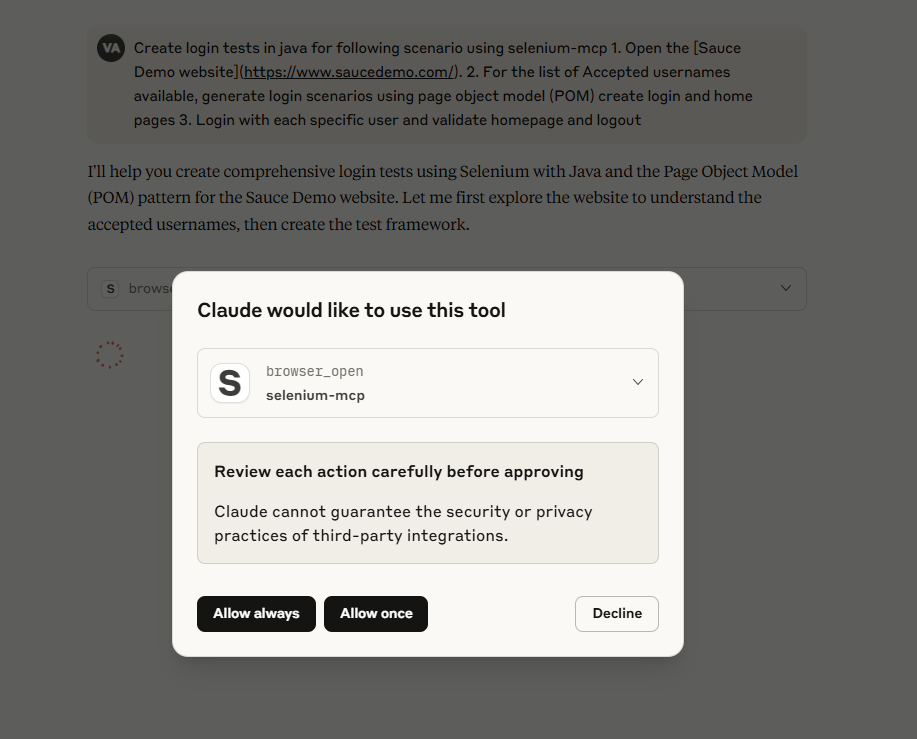
Screenshot
Prompts
An example prompt to start AI Agent interaction:
Using selenium mcp tools, navigate to <https://parabank.parasoft.com/> click the 'Register' link and signup using dynamic test data and click register. Then generate selenium tests in <YOUR_FAVOURITE_PROGRAMMING_LANGUAGE> using pom, create tests using cucumber features, steps and execute the tests.
Note: For more prompts, look at examples directory of the project
🛠️ MCP Available Tools
Browser Management Tools
| Tool | Description | Parameters |
|---|---|---|
browser_open | Open a new browser session | browser, options |
browser_navigate | Navigate to a URL | url |
browser_navigate_back | Navigate back in history | None |
browser_navigate_forward | Navigate forward in history | None |
browser_title | Get the current page title | None |
browser_refresh | Refresh the current page | None |
browser_get_url | Get the current page URL | None |
browser_get_page_source | Get the current page HTML source | None |
browser_maximize | Maximize the browser window | None |
browser_resize | Resize browser window | width, height |
browser_close | Close current browser session | None |
Cookie Management Tools
| Tool | Description | Parameters |
|---|---|---|
browser_get_cookies | Get all cookies from the current browser session | None |
browser_get_cookie_by_name | Get a specific cookie by name | cookie (cookie name) |
browser_add_cookie_by_name | Add a new cookie to the browser | cookie (cookie name), value |
browser_set_cookie_object | Set a cookie object in the browser | cookie (cookie object as string) |
browser_delete_cookie | Delete a specific cookie by name | value (cookie name to delete) |
browser_delete_cookies | Delete all cookies from the current browser session | None |
Window Management Tools
| Tool | Description | Parameters |
|---|---|---|
browser_switch_to_window | Switch to a different browser window by handle | windowHandle |
browser_switch_to_original_window | Switch back to the original browser window | None |
browser_switch_to_window_by_title | Switch to a window by its page title | title |
browser_switch_window_by_index | Switch to a window by its index position | index |
browser_switch_to_window_by_url | Switch to a window by its URL | url |
Element Interaction Tools
| Tool | Description | Parameters |
|---|---|---|
browser_find_element | Find an element on the page | by, value, timeout |
browser_find_elements | Find multiple elements on the page | by, value, timeout |
browser_click | Click on an element | by, value, timeout |
browser_type | Type text into an element | by, value, text, timeout |
browser_get_element_text | Get text content of element | by, value, timeout |
browser_file_upload | Upload file via input element | by, value, filePath, timeout |
browser_clear | Clear text from an element | by, value, timeout |
browser_get_attribute | Get element attribute value | by, value, attribute, timeout |
Element State Validation Tools
| Tool | Description | Parameters |
|---|---|---|
browser_element_is_displayed | Check if an element is visible on the page | by, value, timeout |
browser_element_is_enabled | Check if an element is enabled for interaction | by, value, timeout |
browser_element_is_selected | Check if an element is selected (checkboxes, radio buttons) | by, value, timeout |
Frame Management Tools
| Tool | Description | Parameters |
|---|---|---|
browser_switch_to_frame | Switch to an iframe element | by, value, timeout |
browser_switch_to_parent_frame | Switch to the parent frame (from nested iframe) | None |
browser_switch_to_default_content | Switch back to the main page content | None |
Advanced Action Tools
| Tool | Description | Parameters |
|---|---|---|
browser_hover | Hover over an element | by, value, timeout |
browser_double_click | Double-click on an element | by, value, timeout |
browser_right_click | Right-click (context menu) | by, value, timeout |
browser_drag_and_drop | Drag from source to target | by, value, targetBy, targetValue, timeout |
browser_wait_for_element | Wait for element to appear | by, value, timeout |
browser_execute_script | Execute JavaScript code | script, args |
browser_screenshot | Take a screenshot | filename (optional) |
browser_select_dropdown_by_text | Select dropdown option by visible text | by, value, text, timeout |
| `browser_select_dropdown_by |
README truncated. View full README on GitHub.
Alternatives




Related Skills
Browse all skillsAutomate web browser interactions using natural language via CLI commands. Use when the user asks to browse websites, navigate web pages, extract data from websites, take screenshots, fill forms, click buttons, or interact with web applications. Triggers include "browse", "navigate to", "go to website", "extract data from webpage", "screenshot", "web scraping", "fill out form", "click on", "search for on the web". When taking actions be as specific as possible.
Unblock websites and bypass CAPTCHAs and 403 errors using Aluvia mobile proxies. Enables web search and content extraction without browser automation.
Unblock websites and bypass CAPTCHAs and 403 errors using Aluvia mobile proxies. Enables web search and content extraction without browser automation.
Тестирование веб-интерфейса MikoPBX через BrowserStack. Запуск PHPUnit тестов с Selenium WebDriver в облачных браузерах. Использовать для автоматизированного тестирования админ-панели, проверки форм, навигации и интерактивных элементов.
Browser automation with persistent page state. Use when users ask to navigate websites, fill forms, take screenshots, extract web data, test web apps, or automate browser workflows. Trigger phrases include "go to [url]", "click on", "fill out the form", "take a screenshot", "scrape", "automate", "test the website", "log into", or any browser interaction request.
Browser automation, debugging, and performance analysis using Puppeteer CLI scripts. Use for automating browsers, taking screenshots, analyzing performance, monitoring network traffic, web scraping, form automation, and JavaScript debugging.