
AiDD (Dev Workflows)
Provides comprehensive file system operations and development tools for AI-assisted coding workflows. Enables reading, writing, editing files, directory management, and code analysis across multiple programming languages.
Integrates file system, code analysis, Git, and execution capabilities to enable AI-driven development workflows across multiple programming languages.
What it does
- Read and write files with full content control
- Edit specific lines in files without overwriting
- Create and manage directories and project structures
- Search for files by name patterns across directories
- Move, copy, and organize files and folders
- Switch between different project workspaces
Best for
About AiDD (Dev Workflows)
AiDD (Dev Workflows) is a community-built MCP server published by skydeckai that provides AI assistants with tools and capabilities via the Model Context Protocol. AiDD integrates AI in software development with advanced code analysis, Git, and execution, creating superior AI programming tools. It is categorized under file systems, developer tools. This server exposes 29 tools that AI clients can invoke during conversations and coding sessions.
How to install
You can install AiDD (Dev Workflows) in your AI client of choice. Use the install panel on this page to get one-click setup for Cursor, Claude Desktop, VS Code, and other MCP-compatible clients. This server runs locally on your machine via the stdio transport.
License
AiDD (Dev Workflows) is released under the Apache-2.0 license. This is a permissive open-source license, meaning you can freely use, modify, and distribute the software.
Tools (29)
Get the current working directory that this server is allowed to access. WHEN TO USE: When you need to understand the current workspace boundaries, determine the root directory for relative paths, or verify where file operations are permitted. Useful for commands that need to know the allowed workspace root. WHEN NOT TO USE: When you already know the current working directory or when you need to actually list files in the directory (use directory_listing instead). RETURNS: A string containing the absolute path to the current allowed working directory. This is the root directory within which all file operations must occur.
Create a new file or overwrite an existing file with new content. WHEN TO USE: When you need to save changes, create new files, or update existing ones with new content. Useful for generating reports, creating configuration files, or saving edited content. WHEN NOT TO USE: When you want to make targeted edits to parts of a file while preserving the rest (use edit_file instead), when you need to append to a file without overwriting existing content, or when you need to preserve the original file. RETURNS: A confirmation message indicating that the file was successfully written. Creates parent directories automatically if they don't exist. Use with caution as it will overwrite existing files without warning. Only works within the allowed directory. Example: Path='notes.txt', Content='Meeting notes for project X'
Change the working directory that this server is allowed to access. WHEN TO USE: When you need to switch between different projects, change the workspace root to a different directory, or expand/modify the boundaries of allowed file operations. Useful when working with multiple projects or repositories in different locations. WHEN NOT TO USE: When you only need to create a subdirectory within the current workspace (use create_directory instead), or when you just want to list files in a different directory (use directory_listing instead). RETURNS: A confirmation message indicating that the allowed directory has been successfully updated to the new path.
Create a new directory or ensure a directory exists. Can create multiple nested directories in one operation. WHEN TO USE: When you need to set up project structure, organize files, create output directories before saving files, or establish a directory hierarchy. WHEN NOT TO USE: When you only want to check if a directory exists (use get_file_info instead), or when trying to create directories outside the allowed workspace. RETURNS: Text message confirming either that the directory was successfully created or that it already exists. The operation succeeds silently if the directory already exists. Only works within the allowed directory. Example: Enter 'src/components' to create nested directories.
Make line-based edits to a text file. WHEN TO USE: When you need to make selective changes to specific parts of a file while preserving the rest of the content. Useful for modifying configuration values, updating text while maintaining file structure, or making targeted code changes. IMPORTANT: For multiple edits to the same file, use a single tool call with multiple edits in the 'edits' array rather than multiple tool calls. This is more efficient and ensures all edits are applied atomically. WHEN NOT TO USE: When you want to completely replace a file's contents (use write_file instead), when you need to create a new file (use write_file instead), or when you want to apply highly complex edits with context. RETURNS: A git-style diff showing the changes made, along with information about any failed matches. The response includes sections for failed matches (if any) and the unified diff output. Only works within the allowed directory. EXAMPLES: For a single edit: {"path": "config.js", "edits": [{"oldText": "port: 3000", "newText": "port: 8080"}]}. For multiple edits: {"path": "app.py", "edits": [{"oldText": "debug=False", "newText": "debug=True"}, {"oldText": "version='1.0'", "newText": "version='2.0'"}]}
SkyDeckAI Code
An MCP server that provides a comprehensive set of tools for AI-driven development workflows. Features include file system operations, code analysis using tree-sitter for multiple programming languages, code execution, web content fetching with HTML-to-markdown conversion, multi-engine web search, code content searching, and system information retrieval. Designed to enhance AI's capability to assist in software development tasks by providing direct access to both local and remote resources.
Formerly Known As MCP-Server-AIDD
This mcp server was formerly known as mcp-server-aidd. It was renamed to skydeckai-code to credit the team at SkyDeck.ai with creating this application along with East Agile. But more importantly we realized that the term AI Driven Development (AIDD) was just not catching on. People did not understand at a glance what it was about. And nor did LLMs. "Code" was far more intuitive. And linguistically intuitive is important in the world of agentic AI.

Installation
# Using uvx
uvx skydeckai-code
Claude Desktop Setup
Add to your claude_desktop_config.json:
{
    "mcpServers": {
        "skydeckai-code": {
            "command": "uvx",
            "args": ["skydeckai-code"]
        }
    }
}
SkyDeck AI Helper App
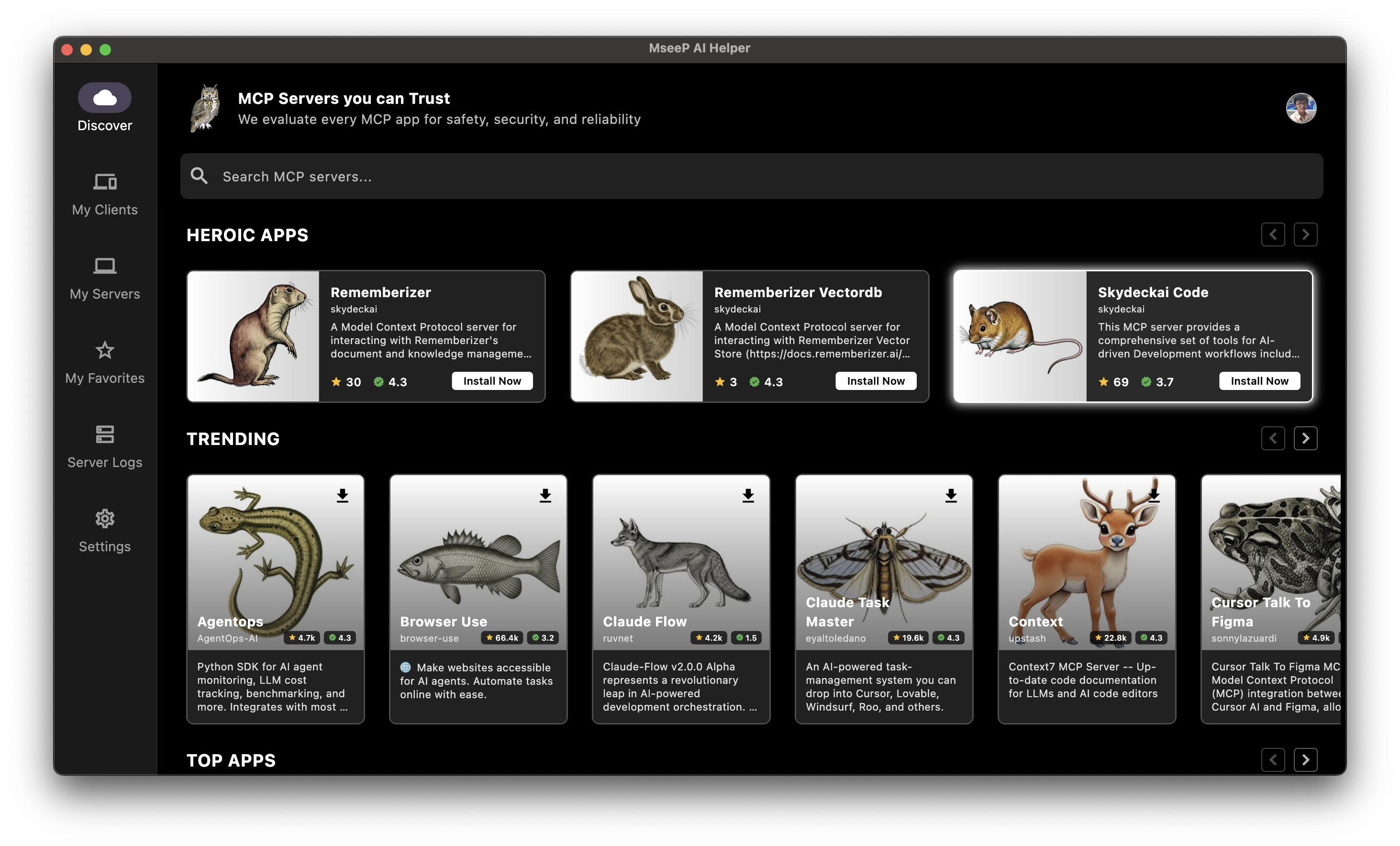
If you're using MseeP AI Helper app, you can search for "SkyDeckAI Code" and install it.
Key Features
- File system operations (read, write, edit, move, copy, delete)
- Directory management and traversal
- Multi-language code analysis using tree-sitter
- Code content searching with regex pattern matching
- Multi-language code execution with safety measures
- Web content fetching from APIs and websites with HTML-to-markdown conversion
- Multi-engine web search with reliable fallback mechanisms
- Batch operations for parallel and serial tool execution
- Security controls with configurable workspace boundaries
- Screenshot and screen context tools
- Image handling tools
Available Tools (29)
| Category | Tool Name | Description |
|---|---|---|
| File System | get_allowed_directory | Get the current working directory path |
update_allowed_directory | Change the working directory | |
create_directory | Create a new directory or nested directories | |
write_file | Create or overwrite a file with new content | |
edit_file | Make line-based edits to a text file | |
read_file | Read the contents of one or more files | |
list_directory | Get listing of files and directories | |
move_file | Move or rename a file or directory | |
copy_file | Copy a file or directory to a new location | |
search_files | Search for files matching a name pattern | |
delete_file | Delete a file or empty directory | |
get_file_info | Get detailed file metadata | |
directory_tree | Get a recursive tree view of directories | |
read_image_file | Read an image file as base64 data | |
| Code Tools | codebase_mapper | Analyze code structure across files |
search_code | Find text patterns in code files | |
execute_code | Run code in various languages | |
execute_shell_script | Run shell/bash scripts | |
| Web Tools | web_fetch | Get content from a URL |
web_search | Perform a web search | |
| Screen Tools | capture_screenshot | Take a screenshot of screen or window |
get_active_apps | List running applications | |
get_available_windows | List all open windows | |
| System | get_system_info | Get detailed system information |
| Utility | batch_tools | Run multiple tool operations together |
think | Document reasoning without making changes | |
| Todo | todo_read | Read current workspace todo list |
todo_write | Replace entire todo list with validation | |
todo_update | Update specific todo item by ID |
Detailed Tool Documentation
Basic File Operations
| Tool | Parameters | Returns |
|---|---|---|
| read_file | files: [{path: string, offset?: integer, limit?: integer}] | File content (single or multiple files) |
| write_file | path: string, content: string | Success confirmation |
| move_file | source: string, destination: string | Success confirmation |
| copy_file | source: string, destination: string, recursive?: boolean | Success confirmation |
| delete_file | path: string | Success confirmation |
| get_file_info | path: string | File metadata (size, timestamps, permissions) |
Complex File Operations
edit_file
Pattern-based file editing with preview support:
{
    "path": "src/main.py",
    "edits": [
        {
            "oldText": "def old_function():",
            "newText": "def new_function():"
        }
    ],
    "dryRun": false,
    "options": {
        "partialMatch": true
    }
}
Returns: Diff of changes or preview in dry run mode.
Directory Operations
| Tool | Parameters | Returns |
|---|---|---|
| get_allowed_directory | none | Current allowed directory path |
| update_allowed_directory | directory: string (absolute path) | Success confirmation |
| list_directory | path: string | Directory contents list |
| create_directory | path: string | Success confirmation |
| search_files | pattern: string, path?: string, include_hidden?: boolean | Matching files list |
The search_files tool searches for files by name pattern, while the search_code tool searches within file contents using regex. Use search_files when looking for files with specific names or extensions, and search_code when searching for specific text patterns inside files.
directory_tree
Generates complete directory structure:
{
    "path": "src",
    "include_hidden": false
}
Returns: JSON tree structure of directory contents.
Code Analysis
codebase_mapper
Analyzes source code structure:
{
    "path": "src"
}
Returns:
- Classes and their methods
- Functions and parameters
- Module structure
- Code organization statistics
- Inheritance relationships
Supported Languages:
- Python (.py)
- JavaScript (.js/.jsx, .mjs, .cjs)
- TypeScript (.ts/.tsx)
- Java (.java)
- C++ (.cpp, .hpp, .cc)
- Ruby (.rb, .rake)
- Go (.go)
- Rust (.rs)
- PHP (.php)
- C# (.cs)
- Kotlin (.kt, .kts)
search_code
Fast content search tool using regular expressions:
{
    "patterns": ["function\\s+\\w+", "class\\s+\\w+"],
    "include": "*.js",
    "exclude": "node_modules/**",
    "max_results": 50,
    "case_sensitive": false,
    "path": "src"
}
Parameters:
| Parameter | Type | Required | Description |
|---|---|---|---|
| patterns | array of strings | Yes | List of regular expression patterns to search for in file contents |
| include | string | No | File pattern to include (glob syntax, default: "*") |
| exclude | string | No | File pattern to exclude (glob syntax, default: "") |
| max_results | integer | No | Maximum results to return per pattern (default: 100) |
| case_sensitive | boolean | No | Whether search is case-sensitive (default: false) |
| path | string | No | Base directory to search from (default: ".") |
Returns: Matching lines grouped by file with line numbers, sorted by file modification time with newest files first.
This tool uses ripgrep when available for optimal performance, with a Python fallback implementation. It's ideal for finding specific code patterns like function declarations, imports, variable usages, or error handling.
System Information
| Tool | Paramete
README truncated. View full README on GitHub.
Alternatives



Related Skills
Browse all skillsThis skill should be used when working on Godot Engine projects. It provides specialized knowledge of Godot's file formats (.gd, .tscn, .tres), architecture patterns (component-based, signal-driven, resource-based), common pitfalls, validation tools, code templates, and CLI workflows. The `godot` command is available for running the game, validating scripts, importing resources, and exporting builds. Use this skill for tasks involving Godot game development, debugging scene/resource files, implementing game systems, or creating new Godot components.
Comprehensive CrewAI framework guide for building collaborative AI agent teams and structured workflows. Use when developing multi-agent systems with CrewAI, creating autonomous AI crews, orchestrating flows, implementing agents with roles and tools, or building production-ready AI automation. Essential for developers building intelligent agent systems, task automation, and complex AI workflows.
UI design system toolkit for Senior UI Designer including design token generation, component documentation, responsive design calculations, and developer handoff tools. Use for creating design systems, maintaining visual consistency, and facilitating design-dev collaboration.
Convert Markdown files to HTML similar to `marked.js`, `pandoc`, `gomarkdown/markdown`, or similar tools; or writing custom script to convert markdown to html and/or working on web template systems like `jekyll/jekyll`, `gohugoio/hugo`, or similar web templating systems that utilize markdown documents, converting them to html. Use when asked to "convert markdown to html", "transform md to html", "render markdown", "generate html from markdown", or when working with .md files and/or web a templating system that converts markdown to HTML output. Supports CLI and Node.js workflows with GFM, CommonMark, and standard Markdown flavors.
Answer questions about the AI SDK and help build AI-powered features. Use when developers: (1) Ask about AI SDK functions like generateText, streamText, ToolLoopAgent, embed, or tools, (2) Want to build AI agents, chatbots, RAG systems, or text generation features, (3) Have questions about AI providers (OpenAI, Anthropic, Google, etc.), streaming, tool calling, structured output, or embeddings, (4) Use React hooks like useChat or useCompletion. Triggers on: "AI SDK", "Vercel AI SDK", "generateText", "streamText", "add AI to my app", "build an agent", "tool calling", "structured output", "useChat".
Use when building MCP servers or clients that connect AI systems with external tools and data sources. Invoke for MCP protocol compliance, TypeScript/Python SDKs, resource providers, tool functions.