
Background Process Manager
Manages long-running command-line processes in the background, letting you start servers, monitor output, and control process lifecycle. Fills a gap for AI agents that can't natively handle background processes.
Provides background process management capabilities, enabling LLMs to start, stop, and monitor long-running command-line processes.
What it does
- Start background processes for servers or watchers
- Stop and clear managed processes
- Monitor process output with head/tail viewing
- Run synchronous shell commands
- List all managed processes with status
- Get server status and health info
Best for
About Background Process Manager
Background Process Manager is a community-built MCP server published by waylaidwanderer that provides AI assistants with tools and capabilities via the Model Context Protocol. Background Process Manager offers robust process monitor (procmon) features for LLMs to efficiently manage long-running command-line processes. It is categorized under developer tools. This server exposes 7 tools that AI clients can invoke during conversations and coding sessions.
How to install
You can install Background Process Manager in your AI client of choice. Use the install panel on this page to get one-click setup for Cursor, Claude Desktop, VS Code, and other MCP-compatible clients. This server runs locally on your machine via the stdio transport.
License
Background Process Manager is released under the MIT license. This is a permissive open-source license, meaning you can freely use, modify, and distribute the software.
Tools (7)
Starts a new process in the background. Use this for long-running commands such as servers or watchers.
Stops a running background process.
Clears a stopped background process from the list.
Gets the recent output for a background process. Can specify `head` or `tail`.
Gets the current status of the Background Process Manager server.
Background Process MCP
A Model Context Protocol (MCP) server that provides background process management capabilities. This server enables LLMs to start, stop, and monitor long-running command-line processes.
Motivation
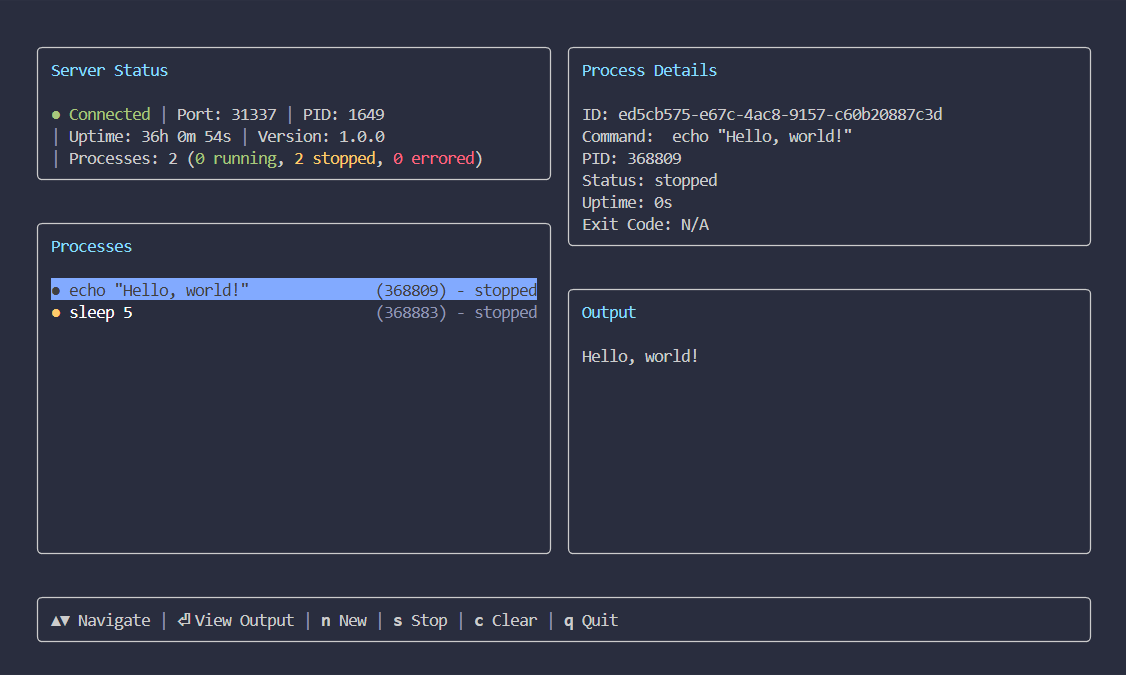
Some AI agents, like Claude Code, can manage background processes natively, but many others can't. This project provides that capability as a standard tool for other agents like Google's Gemini CLI. It works as a separate service, making long-running task management available to a wider range of agents. I also added a TUI because I wanted to be able to monitor the processes myself.
Screenshot
Getting Started
To get started, install the Background Process MCP server in your preferred client.
Standard Config
This configuration works for most MCP clients:
{
  "mcpServers": {
    "backgroundProcess": {
      "command": "npx",
      "args": [
        "@waylaidwanderer/background-process-mcp@latest"
      ]
    }
  }
}
To connect to a standalone server, add the --port argument to the args array (e.g., ...mcp@latest", "--port", "31337"]).
Claude Code
Use the Claude Code CLI to add the Background Process MCP server:
claude mcp add backgroundProcess npx @waylaidwanderer/background-process-mcp@latest
Claude Desktop
Follow the MCP install guide, use the standard config above.
Codex
Create or edit the configuration file ~/.codex/config.toml and add:
[mcp_servers.backgroundProcess]
command = "npx"
args = ["@waylaidwanderer/background-process-mcp@latest"]
For more information, see the Codex MCP documentation.
Cursor
Click the button to install:

Or install manually:
Go to Cursor Settings -> MCP -> Add new MCP Server. Name it backgroundProcess, use command type with the command npx @waylaidwanderer/background-process-mcp@latest.
Gemini CLI
Follow the MCP install guide, use the standard config above.
Goose
Click the button to install:

Or install manually:
Go to Advanced settings -> Extensions -> Add custom extension. Name it backgroundProcess, use type STDIO, and set the command to npx @waylaidwanderer/background-process-mcp@latest. Click "Add Extension".
LM Studio
Click the button to install:

Or install manually:
Go to Program in the right sidebar -> Install -> Edit mcp.json. Use the standard config above.
opencode
Follow the MCP Servers documentation. For example in ~/.config/opencode/opencode.json:
{
  "$schema": "https://opencode.ai/config.json",
  "mcp": {
    "backgroundProcess": {
      "type": "local",
      "command": [
        "npx",
        "@waylaidwanderer/background-process-mcp@latest"
      ],
      "enabled": true
    }
  }
}
Qodo Gen
Open Qodo Gen chat panel in VSCode or IntelliJ → Connect more tools → + Add new MCP → Paste the standard config above.
Click Save.
VS Code (for GitHub Copilot)
Click the button to install:


Or install manually:
Follow the MCP install guide, use the standard config above. You can also install the server using the VS Code CLI:
# For VS Code
code --add-mcp '{"name":"backgroundProcess","command":"npx","args":["@waylaidwanderer/background-process-mcp@latest"]}'
Windsurf
Follow Windsurf MCP documentation. Use the standard config above.
Tools
The following tools are exposed by the MCP server.
Process Management
-
start_process
- Description: Starts a new process in the background.
- Parameters:
command(string): The shell command to execute.
- Returns: A confirmation message with the new process ID.
-
stop_process
- Description: Stops a running process.
- Parameters:
processId(string): The UUID of the process to stop.
- Returns: A confirmation message.
-
clear_process
- Description: Clears a stopped process from the list.
- Parameters:
processId(string): The UUID of the process to clear.
- Returns: A confirmation message.
-
get_process_output
- Description: Gets the recent output for a process. Can specify
headfor the first N lines ortailfor the last N lines. - Parameters:
processId(string): The UUID of the process to get output from.head(number, optional): The number of lines to get from the beginning of the output.tail(number, optional): The number of lines to get from the end of the output.
- Returns: The requested process output as a single string.
- Description: Gets the recent output for a process. Can specify
-
list_processes
- Description: Gets a list of all processes being managed by the Core Service.
- Parameters: None
- Returns: A JSON string representing an array of all process states.
-
get_server_status
- Description: Gets the current status of the Core Service.
- Parameters: None
- Returns: A JSON string containing server status information (version, port, PID, uptime, process counts).
Architecture
The project has three components:
-
Core Service (
src/server.ts): A standalone WebSocket server that usesnode-ptyto manage child process lifecycles. It is the single source of truth for all process states. It is designed to be standalone so that other clients beyond the official TUI and MCP can be built for it. -
MCP Client (
src/mcp.ts): Exposes the Core Service functionality as a set of tools for an LLM agent. It can connect to an existing service or spawn a new one. -
TUI Client (
src/tui.ts): Anink-based terminal UI that connects to the Core Service to display process information and accept user commands.
Manual Usage
If you wish to run the server and TUI manually outside of an MCP client, you can use the following commands.
For a shorter command, you can install the package globally:
pnpm add -g @waylaidwanderer/background-process-mcp
This will give you access to the bgpm command.
1. Run the Core Service
Start the background service manually:
# With npx
npx @waylaidwanderer/background-process-mcp server

# Or, if installed globally
bgpm server
The server will listen on an available port (defaulting to 31337) and output a JSON handshake with the connection details.
2. Use the TUI
Connect the TUI to a running server via its port:
# With npx
npx @waylaidwanderer/background-process-mcp ui --port <port_number>

# Or, if installed globally
bgpm ui --port <port_number>
Alternatives



Related Skills
Browse all skillsTo check if the Background Process Manager is running, get the server status and confirm it is available.
.NET/C# backend developer for ASP.NET Core APIs with Entity Framework Core. Builds REST APIs, minimal APIs, gRPC services, authentication with Identity/JWT, authorization, database operations, background services, SignalR real-time features. Activates for: .NET, C#, ASP.NET Core, Entity Framework Core, EF Core, .NET Core, minimal API, Web API, gRPC, authentication .NET, Identity, JWT .NET, authorization, LINQ, async/await C#, background service, IHostedService, SignalR, SQL Server, PostgreSQL .NET, dependency injection, middleware .NET.
Technical workflow for implementing accessible React user interfaces with shadcn/ui, Tailwind CSS, and TanStack Query. Includes 6-phase process with mandatory Style Guide compliance, Context7 best practices consultation, Chrome DevTools validation, and WCAG 2.1 AA accessibility standards. Use after Test Agent, Implementer, and Supabase agents complete their work.
Comprehensive PMP/PMBOK project management methodologies and best practices. Use this skill when users need guidance on project management processes, templates, knowledge areas, process groups, tools, techniques, or certification preparation. Covers all 10 PMBOK Knowledge Areas and 5 Process Groups with practical templates, frameworks, and industry-standard approaches. Includes risk management, stakeholder engagement, schedule management, cost control, quality assurance, and resource planning.
BullMQ expert for Redis-backed job queues, background processing, and reliable async execution in Node.js/TypeScript applications. Use when: bullmq, bull queue, redis queue, background job, job queue.
UI design system toolkit for Senior UI Designer including design token generation, component documentation, responsive design calculations, and developer handoff tools. Use for creating design systems, maintaining visual consistency, and facilitating design-dev collaboration.