
File Format Converter (Pandoc)
Convert documents between formats like PDF, HTML, Markdown, DOCX, LaTeX, and more using Pandoc. Transform content while preserving formatting and structure.
Document format conversion using Pandoc, enabling transformation of content between PDF, HTML, Markdown, .docx, .rst, .epuc, .latex, and more.
What it does
- Convert between PDF, HTML, Markdown formats
- Transform DOCX to other document types
- Generate LaTeX from various input formats
- Convert reStructuredText and EPUB files
- Preserve formatting during conversions
Best for
About File Format Converter (Pandoc)
File Format Converter (Pandoc) is a community-built MCP server published by vivekvells that provides AI assistants with tools and capabilities via the Model Context Protocol. Convert files easily with File Format Converter (Pandoc): transform PDF, HTML, Markdown, HEIC to JPG, JPG to PDF, and more document formats. It is categorized under productivity. This server exposes 1 tool that AI clients can invoke during conversations and coding sessions.
How to install
You can install File Format Converter (Pandoc) in your AI client of choice. Use the install panel on this page to get one-click setup for Cursor, Claude Desktop, VS Code, and other MCP-compatible clients. This server runs locally on your machine via the stdio transport.
License
File Format Converter (Pandoc) is released under the MIT license. This is a permissive open-source license, meaning you can freely use, modify, and distribute the software.
Tools (1)
Converts content between different formats. Transforms input content from any supported format into the specified output format. 🚨 CRITICAL REQUIREMENTS - PLEASE READ: 1. PDF Conversion: * You MUST install TeX Live BEFORE attempting PDF conversion: * Ubuntu/Debian: `sudo apt-get install texlive-xetex` * macOS: `brew install texlive` * Windows: Install MiKTeX or TeX Live from https://miktex.org/ or https://tug.org/texlive/ * PDF conversion will FAIL without this installation 2. File Paths - EXPLICIT REQUIREMENTS: * When asked to save or convert to a file, you MUST provide: - Complete directory path - Filename - File extension * Example request: 'Write a story and save as PDF' * You MUST specify: '/path/to/story.pdf' or 'C:\Documents\story.pdf' * The tool will NOT automatically generate filenames or extensions 3. File Location After Conversion: * After successful conversion, the tool will display the exact path where the file is saved * Look for message: 'Content successfully converted and saved to: [file_path]' * You can find your converted file at the specified location * If no path is specified, files may be saved in system temp directory (/tmp/ on Unix systems) * For better control, always provide explicit output file paths Supported formats:- Basic: txt, html, markdown, ipynb, odt- Advanced (REQUIRE complete file paths): pdf, docx, rst, latex, epub✅ CORRECT Usage Examples: 1. 'Convert this text to HTML' (basic conversion) - Tool will show converted content 2. 'Save this text as PDF at /documents/story.pdf' - Correct: specifies path + filename + extension - Tool will show: 'Content successfully converted and saved to: /documents/story.pdf' ❌ INCORRECT Usage Examples: 1. 'Save this as PDF in /documents/' - Missing filename and extension 2. 'Convert to PDF' - Missing complete file path When requesting conversion, ALWAYS specify: 1. The content or input file 2. The desired output format 3. For advanced formats: complete output path + filename + extension Example: 'Convert this markdown to PDF and save as /path/to/output.pdf' 🎨 DOCX STYLING (NEW FEATURE): 4. Custom DOCX Styling with Reference Documents: * Use reference_doc parameter to apply professional styling to DOCX output * Create custom templates with your branding, fonts, and formatting * Perfect for corporate reports, academic papers, and professional documents * Example: 'Convert this report to DOCX using /templates/corporate-style.docx as reference and save as /reports/Q4-report.docx' 🎯 PANDOC FILTERS (NEW FEATURE): 5. Pandoc Filter Support: * Use filters parameter to apply custom Pandoc filters during conversion * Filters are Python scripts that modify document content during processing * Perfect for Mermaid diagram conversion, custom styling, and content transformation * Example: 'Convert this markdown with mermaid diagrams to DOCX using filters=["./filters/mermaid-to-png-vibrant.py"] and save as /reports/diagram-report.docx' 📋 Creating Reference Documents: * Generate template: pandoc -o template.docx --print-default-data-file reference.docx * Customize in Word/LibreOffice: fonts, colors, headers, margins * Use for consistent branding across all documents 📋 Filter Requirements: * Filters must be executable Python scripts * Use absolute paths or paths relative to current working directory * Filters are applied in the order specified * Common filters: mermaid conversion, color processing, table formatting 📄 Defaults File Support (NEW FEATURE): 7. Pandoc Defaults File Support: * Use defaults_file parameter to specify a YAML configuration file * Similar to using pandoc -d option in the command line * Allows setting multiple options in a single file * Options in the defaults file can include filters, reference-doc, and other Pandoc options * Example: 'Convert this markdown to DOCX using defaults_file="/path/to/defaults.yaml" and save as /reports/report.docx' Note: After conversion, always check the success message for the exact file location.


mcp-pandoc: A Document Conversion MCP Server
Link to glama.aiOfficially included in the Model Context Protocol servers open-source project. 🎉
Overview
A Model Context Protocol server for document format conversion using pandoc. This server provides tools to transform content between different document formats while preserving formatting and structure.
Please note that mcp-pandoc is currently in early development. PDF support is under development, and the functionality and available tools are subject to change and expansion as we continue to improve the server.
Credit: This project uses the Pandoc Python package for document conversion, forming the foundation for this project.
📋 Quick Reference
New to mcp-pandoc? Check out 📖 CHEATSHEET.md for
- ⚡ Copy-paste examples for all formats
- 🔄 Bidirectional conversion matrix
- 🎯 Common workflows and pro tips
- 🌟 Reference document styling guide
Perfect for quick lookups and getting started fast!
Demo
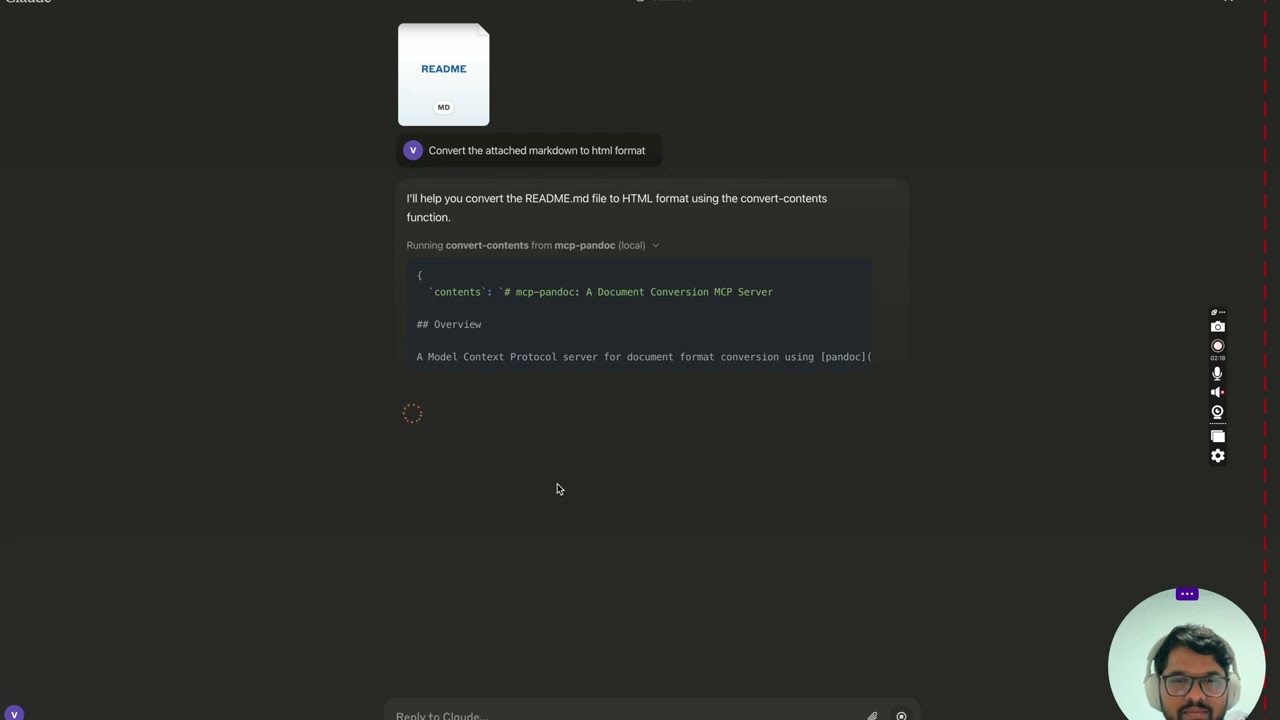
Screenshots
More to come...
Tools
convert-contents- Transforms content between supported formats
- Inputs:
contents(string): Source content to convert (required if input_file not provided)input_file(string): Complete path to input file (required if contents not provided)input_format(string): Source format of the content (defaults to markdown)output_format(string): Target format (defaults to markdown)output_file(string): Complete path for output file (required for pdf, docx, rst, latex, epub formats)reference_doc(string): Path to a reference document to use for styling (supported for docx output format)defaults_file(string): Path to a Pandoc defaults file (YAML) containing conversion optionsfilters(array): List of Pandoc filter paths to apply during conversion
- Supported input/output formats:
- markdown
- html
- docx
- rst
- latex
- epub
- txt
- ipynb
- odt
- Note: For advanced formats (pdf, docx, rst, latex, epub), an output_file path is required
🔧 Advanced Features
Defaults Files (YAML Configuration)
Use defaults files to create reusable conversion templates with consistent formatting:
# academic-paper.yaml
from: markdown
to: pdf
number-sections: true
toc: true
metadata:
  title: "Academic Paper"
  author: "Research Team"
Example usage: "Convert paper.md to PDF using defaults academic-paper.yaml and save as paper.pdf"
Pandoc Filters
Apply custom filters for enhanced processing:
Example usage: "Convert docs.md to HTML with filters ['/path/to/mermaid-filter.py'] and save as docs.html"
💡 For comprehensive examples and workflows, see CHEATSHEET.md
📊 Supported Formats & Conversions
Bidirectional Conversion Matrix
| From\To | MD | HTML | TXT | DOCX | RST | LaTeX | EPUB | IPYNB | ODT | |
|---|---|---|---|---|---|---|---|---|---|---|
| Markdown | ✅ | ✅ | ✅ | ✅ | ✅ | ✅ | ✅ | ✅ | ✅ | ✅ |
| HTML | ✅ | ✅ | ✅ | ✅ | ✅ | ✅ | ✅ | ✅ | ✅ | ✅ |
| TXT | ✅ | ✅ | ✅ | ✅ | ✅ | ✅ | ✅ | ✅ | ✅ | ✅ |
| DOCX | ✅ | ✅ | ✅ | ✅ | ✅ | ✅ | ✅ | ✅ | ✅ | ✅ |
| RST | ✅ | ✅ | ✅ | ✅ | ✅ | ✅ | ✅ | ✅ | ✅ | ✅ |
| LaTeX | ✅ | ✅ | ✅ | ✅ | ✅ | ✅ | ✅ | ✅ | ✅ | ✅ |
| EPUB | ✅ | ✅ | ✅ | ✅ | ✅ | ✅ | ✅ | ✅ | ✅ | ✅ |
| IPYNB | ✅ | ✅ | ✅ | ✅ | ✅ | ✅ | ✅ | ✅ | ✅ | ✅ |
| ODT | ✅ | ✅ | ✅ | ✅ | ✅ | ✅ | ✅ | ✅ | ✅ | ✅ |
A Note on PDF Support
This tool uses pandoc for conversions, which allows for generating PDF files from the formats listed above. However, converting from a PDF to other formats is not supported. Therefore, PDF should be considered an output-only format.
Format Categories
| Category | Formats | Requirements |
|---|---|---|
| Basic | MD, HTML, TXT, IPYNB, ODT | None |
| Advanced | DOCX, PDF, RST, LaTeX, EPUB | Must specify output_file path |
| Styled | DOCX with reference doc | Custom template support ⭐ |
Requirements by Format
- PDF (.pdf) - requires TeX Live installation
- DOCX (.docx) - supports custom styling via reference documents
- All others - no additional requirements
Note: For advanced formats:
- Complete file paths with filename and extension are required
- PDF conversion requires TeX Live installation (see Critical Requirements section -> For macOS:
brew install texlive) - When no output path is specified:
- Basic formats: Displays converted content in the chat
- Advanced formats: May save in system temp directory (/tmp/ on Unix systems)
Usage & configuration
NOTE: Ensure to complete installing required packages mentioned below under "Critical Requirements".
To use the published one
{
  "mcpServers": {
    "mcp-pandoc": {
      "command": "uvx",
      "args": ["mcp-pandoc"]
    }
  }
}
💡 Quick Start: See CHEATSHEET.md for copy-paste examples and common workflows.
⚠️ Important Notes
Critical Requirements
- Pandoc Installation
-
Required: Install
pandoc- the core document conversion engine -
Installation:
# macOS brew install pandoc # Ubuntu/Debian sudo apt-get install pandoc # Windows # Download installer from: https://pandoc.org/installing.html -
Verify:
pandoc --version
- UV package installation
-
Required: Install
uvpackage (includesuvxcommand) -
Installation:
# macOS brew install uv # Windows/Linux pip install uv -
Verify:
uvx --version
- PDF Conversion Prerequisites: Only needed if you need to convert & save pdf
-
TeX Live must be installed before attempting PDF conversion
-
Installation commands:
# Ubuntu/Debian
sudo apt-get install texlive-xetex

# macOS
brew install texlive

# Windows
# Install MiKTeX or TeX Live from:
# https://miktex.org/ or https://tug.org/texlive/
- File Path Requirements
- When saving or converting files, you MUST provide complete file paths including filename and extension
- The tool does not automatically generate filenames or extensions
Examples
✅ Correct Usage:
# Converting content to PDF
"Convert this text to PDF and save as /path/to/document.pdf"

# Converting between file formats
"Convert /path/to/input.md to PDF and save as /path/to/output.pdf"

# Converting to DOCX with a reference document template
"Convert input.md to DOCX using template.docx as reference and save as output.docx"

# Step-by-step reference document workflow
"First create a reference document: pandoc -o custom-reference.docx --print-default-data-file reference.docx" or if you already have one, use that
"Then convert with custom styling: Convert this text to DOCX using /path/to/custom-reference.docx as reference and save as /path/to/styled-output.docx"
❌ Incorrect Usage:
# Missing filename and extension
"Save this as PDF in /documents/"

# Missing complete path
"Convert this to PDF"

# Missing extension
"Save as /documents/story"
Com
README truncated. View full README on GitHub.
Alternatives




Related Skills
Browse all skillsConvert PDF files to and from Word, Excel, Image, and other formats
Convert documents and files to Markdown using markitdown. Use when converting PDF, Word (.docx), PowerPoint (.pptx), Excel (.xlsx, .xls), HTML, CSV, JSON, XML, images (with EXIF/OCR), audio (with transcription), ZIP archives, YouTube URLs, or EPubs to Markdown format for LLM processing or text analysis.
Convert between Markdown, DOCX, and PDF formats bidirectionally. Handles text extraction from PDF/DOCX, markdown to document conversion. Use when converting document formats or extracting structured content from Word or PDF files.
Build single-file HTML tools following Simon Willison's patterns - self-contained HTML+JS+CSS applications optimized for LLM generation, no build step, CDN dependencies. Use when creating browser-based tools, utilities, or demos that should be (1) Self-contained in one HTML file, (2) Easy to distribute and host statically, (3) Quick to prototype with LLMs, (4) Client-side only with no server requirements. Ideal for data visualization, API explorers, format converters, debugging tools, and interactive demos.
Convert file format converter operations. Auto-activating skill for Data Pipelines. Triggers on: file format converter, file format converter Part of the Data Pipelines skill category. Use when working with file format converter functionality. Trigger with phrases like "file format converter", "file converter", "file".
Create professional draw.io (diagrams.net) diagrams in XML format (.drawio files) with integrated PMP/PMBOK methodologies, extensive visual asset libraries, and industry-standard professional templates. Use this skill when users ask to create flowcharts, swimlane diagrams, cross-functional flowcharts, org charts, network diagrams, UML diagrams, BPMN, project management diagrams (WBS, Gantt, PERT, RACI), risk matrices, stakeholder maps, or any other visual diagram in draw.io format. This skill includes access to custom shape libraries for icons, clipart, and professional symbols.