
FreeCAD
Provides programmatic control of FreeCAD software through an RPC interface, allowing AI assistants to create and modify 3D CAD models by executing commands remotely.
Enables AI-driven CAD modeling by providing a remote procedure call (RPC) server that allows programmatic control of FreeCAD, supporting operations like creating documents, inserting parts, editing objects, and executing Python code for generative design workflows.
What it does
- Create and manage FreeCAD documents
- Generate 3D objects and parts programmatically
- Execute custom Python code in FreeCAD
- Insert parts from component libraries
- Capture screenshots of 3D models
- Edit and delete existing CAD objects
Best for
About FreeCAD
FreeCAD is a community-built MCP server published by neka-nat that provides AI assistants with tools and capabilities via the Model Context Protocol. AI-driven CAD modeling with FreeCAD: control design workflows, generate logos, and edit objects using remote Python scripting. It is categorized under developer tools, design. This server exposes 10 tools that AI clients can invoke during conversations and coding sessions.
How to install
You can install FreeCAD in your AI client of choice. Use the install panel on this page to get one-click setup for Cursor, Claude Desktop, VS Code, and other MCP-compatible clients. This server runs locally on your machine via the stdio transport.
License
FreeCAD is released under the MIT license. This is a permissive open-source license, meaning you can freely use, modify, and distribute the software.
Tools (10)
Create a new document in FreeCAD. Args: name: The name of the document to create. Returns: A message indicating the success or failure of the document creation. Examples: If you want to create a document named "MyDocument", you can use the following data. ```json { "name": "MyDocument" } ```
Create a new object in FreeCAD. Object type is starts with "Part::" or "Draft::" or "PartDesign::" or "Fem::". Args: doc_name: The name of the document to create the object in. obj_type: The type of the object to create (e.g. 'Part::Box', 'Part::Cylinder', 'Draft::Circle', 'PartDesign::Body', etc.). obj_name: The name of the object to create. obj_properties: The properties of the object to create. Returns: A message indicating the success or failure of the object creation and a screenshot of the object. Examples: If you want to create a cylinder with a height of 30 and a radius of 10, you can use the following data. ```json { "doc_name": "MyCylinder", "obj_name": "Cylinder", "obj_type": "Part::Cylinder", "obj_properties": { "Height": 30, "Radius": 10, "Placement": { "Base": { "x": 10, "y": 10, "z": 0 }, "Rotation": { "Axis": { "x": 0, "y": 0, "z": 1 }, "Angle": 45 } }, "ViewObject": { "ShapeColor": [0.5, 0.5, 0.5, 1.0] } } } ``` If you want to create a circle with a radius of 10, you can use the following data. ```json { "doc_name": "MyCircle", "obj_name": "Circle", "obj_type": "Draft::Circle", } ``` If you want to create a FEM analysis, you can use the following data. ```json { "doc_name": "MyFEMAnalysis", "obj_name": "FemAnalysis", "obj_type": "Fem::AnalysisPython", } ``` If you want to create a FEM constraint, you can use the following data. ```json { "doc_name": "MyFEMConstraint", "obj_name": "FemConstraint", "obj_type": "Fem::ConstraintFixed", "analysis_name": "MyFEMAnalysis", "obj_properties": { "References": [ { "object_name": "MyObject", "face": "Face1" } ] } } ``` If you want to create a FEM mechanical material, you can use the following data. ```json { "doc_name": "MyFEMAnalysis", "obj_name": "FemMechanicalMaterial", "obj_type": "Fem::MaterialCommon", "analysis_name": "MyFEMAnalysis", "obj_properties": { "Material": { "Name": "MyMaterial", "Density": "7900 kg/m^3", "YoungModulus": "210 GPa", "PoissonRatio": 0.3 } } } ``` If you want to create a FEM mesh, you can use the following data. The `Part` property is required. ```json { "doc_name": "MyFEMMesh", "obj_name": "FemMesh", "obj_type": "Fem::FemMeshGmsh", "analysis_name": "MyFEMAnalysis", "obj_properties": { "Part": "MyObject", "ElementSizeMax": 10, "ElementSizeMin": 0.1, "MeshAlgorithm": 2 } } ```
Edit an object in FreeCAD. This tool is used when the `create_object` tool cannot handle the object creation. Args: doc_name: The name of the document to edit the object in. obj_name: The name of the object to edit. obj_properties: The properties of the object to edit. Returns: A message indicating the success or failure of the object editing and a screenshot of the object.
Delete an object in FreeCAD. Args: doc_name: The name of the document to delete the object from. obj_name: The name of the object to delete. Returns: A message indicating the success or failure of the object deletion and a screenshot of the object.
Execute arbitrary Python code in FreeCAD. Args: code: The Python code to execute. Returns: A message indicating the success or failure of the code execution, the output of the code execution, and a screenshot of the object.
FreeCAD MCP
This repository is a FreeCAD MCP that allows you to control FreeCAD from Claude Desktop.
Demo
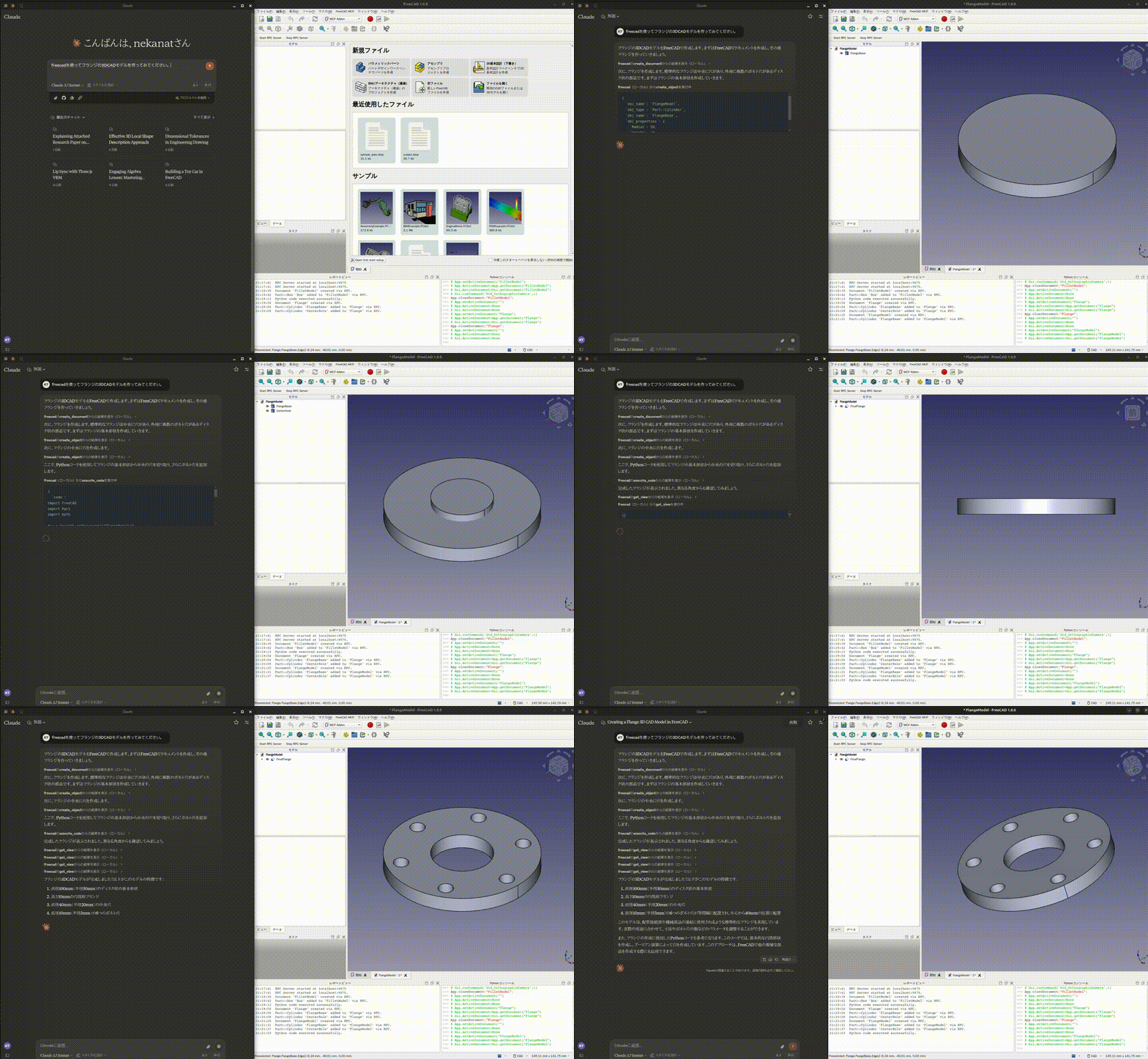
Design a flange
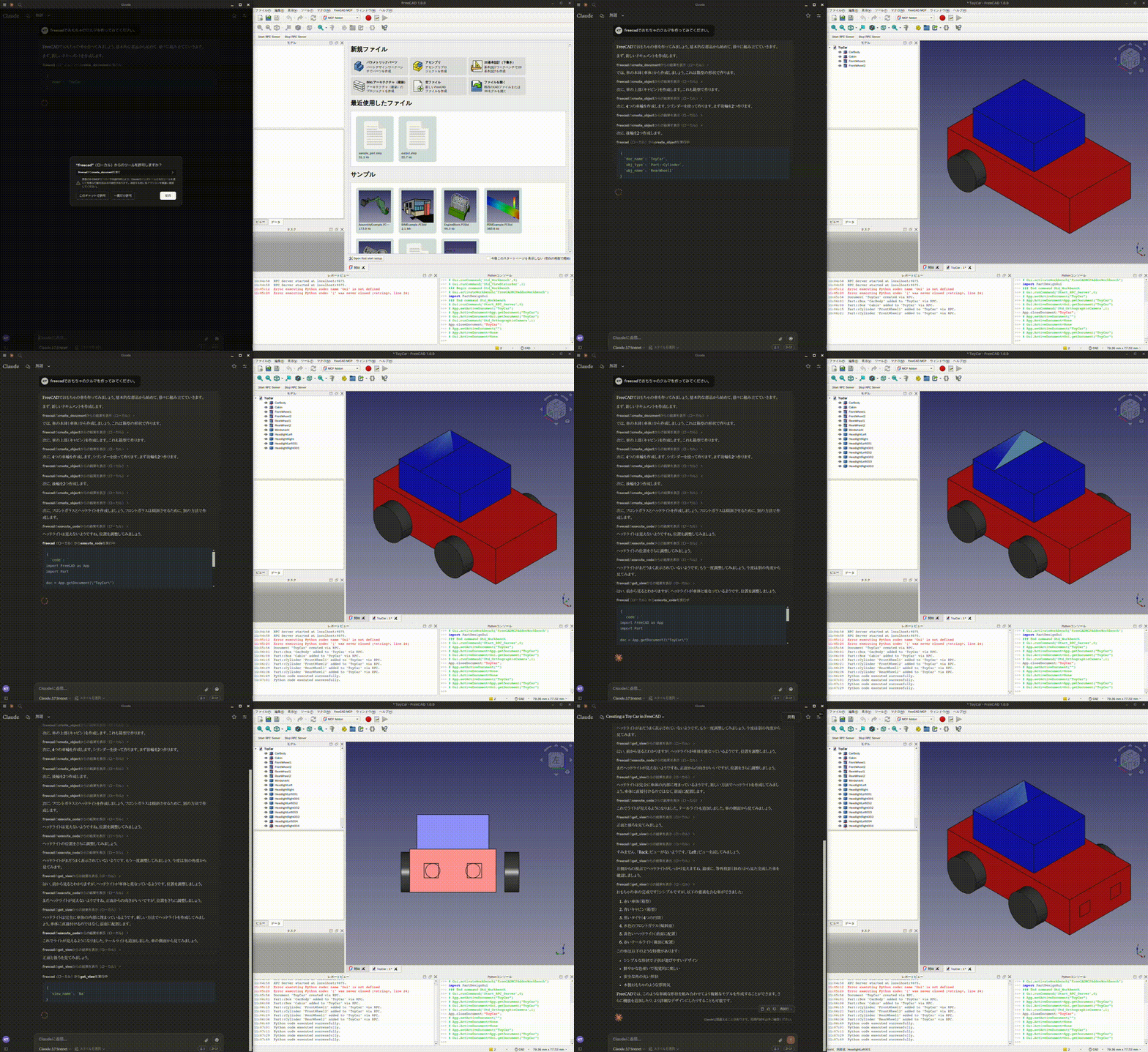
Design a toy car
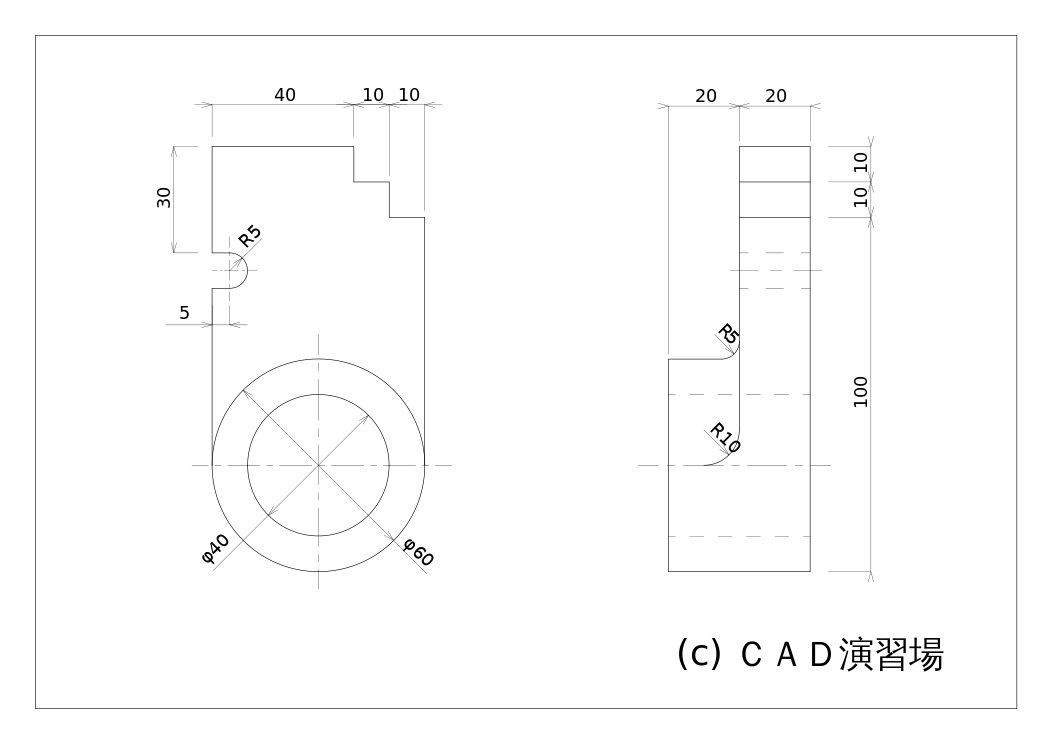
Design a part from 2D drawing
Input 2D drawing
Demo
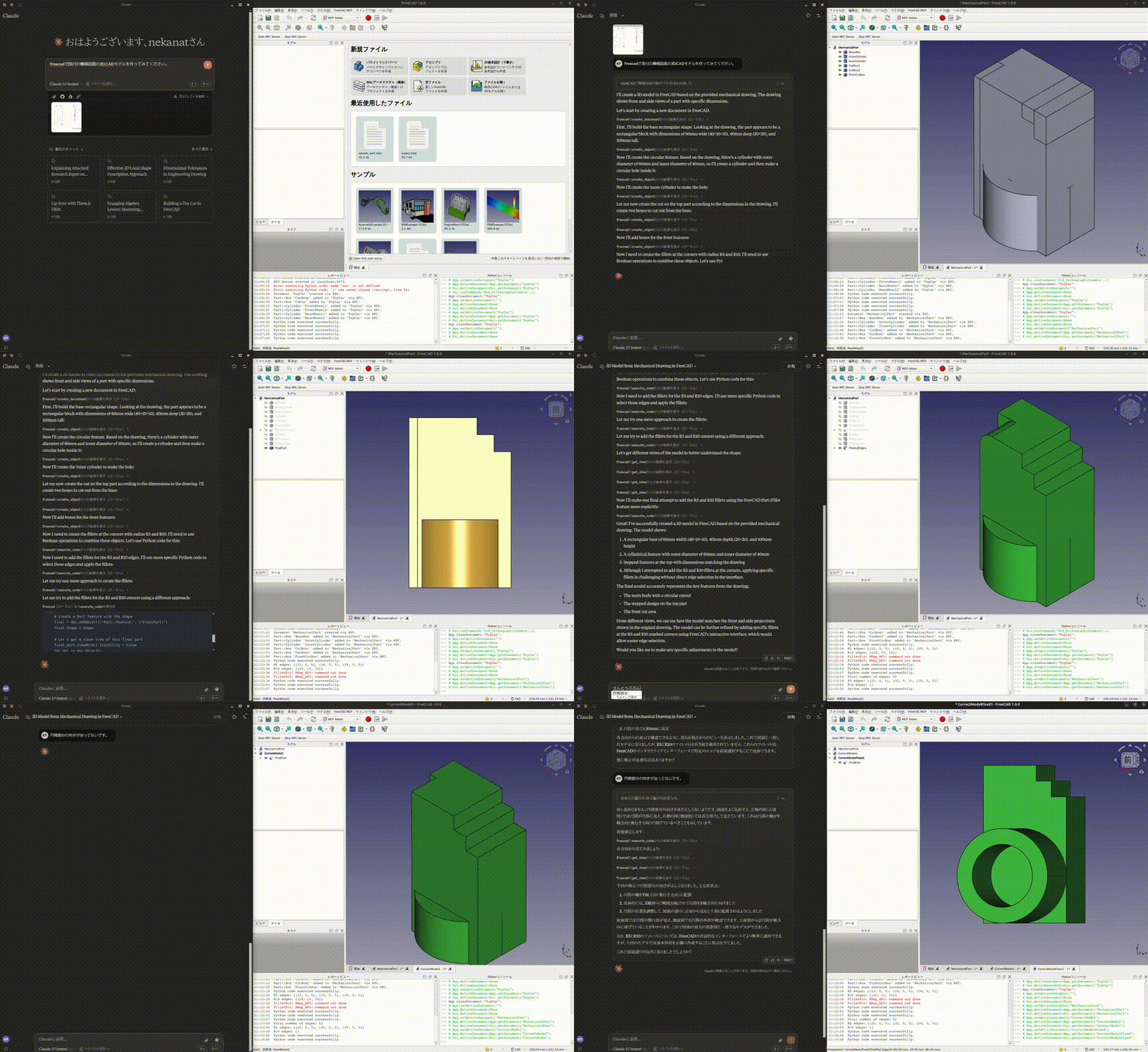
This is the conversation history. https://claude.ai/share/7b48fd60-68ba-46fb-bb21-2fbb17399b48
Install addon
FreeCAD Addon directory is
- Windows:
%APPDATA%\FreeCAD\Mod\ - Mac:
~/Library/Application\ Support/FreeCAD/Mod/ - Linux:
- Ubuntu:
~/.FreeCAD/Mod/or~/snap/freecad/common/Mod/(if you install FreeCAD from snap) - Debian:
~/.local/share/FreeCAD/Mod
- Ubuntu:
Please put addon/FreeCADMCP directory to the addon directory.
git clone https://github.com/neka-nat/freecad-mcp.git
cd freecad-mcp
cp -r addon/FreeCADMCP ~/.FreeCAD/Mod/
When you install addon, you need to restart FreeCAD. You can select "MCP Addon" from Workbench list and use it.
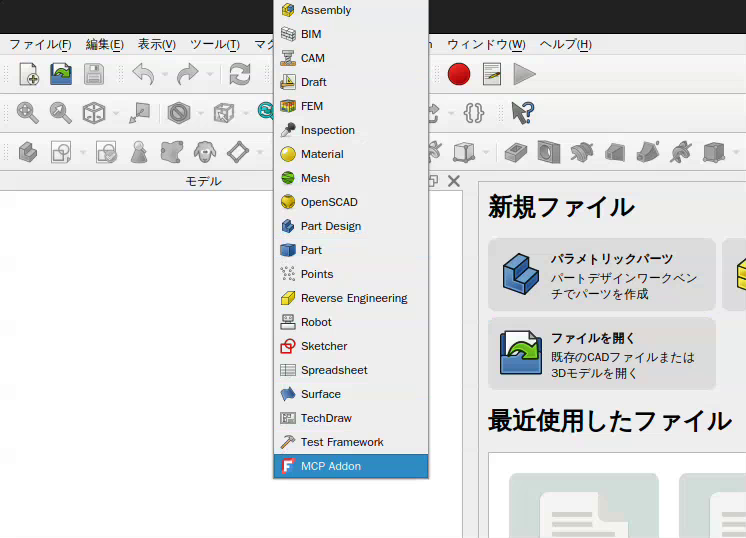
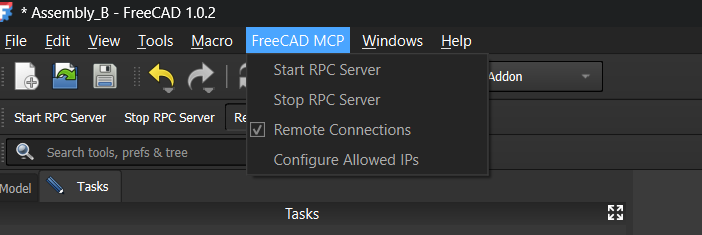
And you can start RPC server by "Start RPC Server" command in "FreeCAD MCP" toolbar.
Setting up Claude Desktop
Pre-installation of the uvx is required.
And you need to edit Claude Desktop config file, claude_desktop_config.json.
For user.
{
  "mcpServers": {
    "freecad": {
      "command": "uvx",
      "args": [
        "freecad-mcp"
      ]
    }
  }
}
If you want to save token, you can set only_text_feedback to true and use only text feedback.
{
  "mcpServers": {
    "freecad": {
      "command": "uvx",
      "args": [
        "freecad-mcp",
        "--only-text-feedback"
      ]
    }
  }
}
For developer. First, you need clone this repository.
git clone https://github.com/neka-nat/freecad-mcp.git
{
  "mcpServers": {
    "freecad": {
      "command": "uv",
      "args": [
        "--directory",
        "/path/to/freecad-mcp/",
        "run",
        "freecad-mcp"
      ]
    }
  }
}
Remote Connections
By default the RPC server does not accept remote connections and listens on localhost. To control FreeCAD from another machine on your network:
1. Enable remote connections in FreeCAD
In the FreeCAD MCP toolbar:
-
Check Remote Connections — the RPC server will bind to
0.0.0.0(all interfaces) on the next restart. For security reasons, it only accepts connections from the IP addresses or CIDR subnets specified in the Allowed IPs field. By default this is127.0.0.1. -
Click Configure Allowed IPs and enter a comma-separated list of IP addresses or CIDR subnets that are allowed to connect, e.g.:
192.168.1.100, 10.0.0.0/24127.0.0.1is always the default. Invalid entries are rejected with an error dialog. Restart the RPC server after changing these settings.
2. Point the MCP server at the remote host
Pass the --host flag with the IP address or hostname of the machine running FreeCAD:
{
  "mcpServers": {
    "freecad": {
      "command": "uvx",
      "args": [
        "freecad-mcp",
        "--host", "192.168.1.100"
      ]
    }
  }
}
The --host value is validated on startup — it must be a valid IPv4/IPv6 address or hostname.
Tools
create_document: Create a new document in FreeCAD.create_object: Create a new object in FreeCAD.edit_object: Edit an object in FreeCAD.delete_object: Delete an object in FreeCAD.execute_code: Execute arbitrary Python code in FreeCAD.insert_part_from_library: Insert a part from the parts library.get_view: Get a screenshot of the active view.get_objects: Get all objects in a document.get_object: Get an object in a document.get_parts_list: Get the list of parts in the parts library.
Contributors
Made with contrib.rocks.
Alternatives



Related Skills
Browse all skillsUI design system toolkit for Senior UI Designer including design token generation, component documentation, responsive design calculations, and developer handoff tools. Use for creating design systems, maintaining visual consistency, and facilitating design-dev collaboration.
Use when building CLI tools, implementing argument parsing, or adding interactive prompts. Invoke for CLI design, argument parsing, interactive prompts, progress indicators, shell completions.
Guide for creating high-quality MCP (Model Context Protocol) servers that enable LLMs to interact with external services through well-designed tools. Use when building MCP servers to integrate external APIs or services, whether in Python (FastMCP) or Node/TypeScript (MCP SDK).
Build full-stack applications with Supabase (PostgreSQL, Auth, Storage, Real-time, Edge Functions). Use when implementing authentication, database design with RLS, file storage, real-time features, or serverless functions.
Designer-turned-developer who crafts stunning UI/UX even without design mockups
Master REST and GraphQL API design principles to build intuitive, scalable, and maintainable APIs that delight developers. Use when designing new APIs, reviewing API specifications, or establishing API design standards.