
Notion
OfficialIntegrates with Notion workspaces to let AI agents create, update, and search pages and databases directly through your Notion account.
Unlock powerful AI-driven interactions with Notion data using our MCP server tailored for the Notion API. This project enables advanced AI agents to efficiently read, comment, and organize Notion content while optimizing token use. It supports key operations like searching, page creation, and content retrieval, allowing seamless natural language commands to manage your workspace. Designed with security in mind, it provides scoped access options to protect your data. Ideal for developers building intelligent applications that integrate deeply with Notion, it simplifies complex tasks and enhances productivity through AI automation.
What it does
- Create new Notion pages
- Update existing pages with rich text
- Search across Notion workspaces
- Manipulate database entries
- Format content with rich text
Best for
About Notion
Notion is an official MCP server published by makenotion that provides AI assistants with tools and capabilities via the Model Context Protocol. Enhance productivity with AI-driven Notion automation. Leverage the Notion API for secure, automated workspace management and advanced integrations. It is categorized under productivity.
How to install
You can install Notion in your AI client of choice. Use the install panel on this page to get one-click setup for Cursor, Claude Desktop, VS Code, and other MCP-compatible clients. This server supports remote connections over HTTP, so no local installation is required.
License
Notion is released under the MIT license. This is a permissive open-source license, meaning you can freely use, modify, and distribute the software.
Notion MCP Server
[!NOTE]
We’ve introduced Notion MCP, a remote MCP server with the following improvements:
- Easy installation via standard OAuth. No need to fiddle with JSON or API tokens anymore.
- Powerful tools tailored to AI agents, including editing pages in Markdown. These tools are designed with optimized token consumption in mind.
Learn more and get started at Notion MCP documentation.
We are prioritizing, and only providing active support for, Notion MCP (remote). As a result:
- We may sunset this local MCP server repository in the future.
- Issues and pull requests here are not actively monitored.
- Please do not file issues relating to the remote MCP here; instead, contact Notion support.
This project implements an MCP server for the Notion API.
⚠️ Version 2.0.0 breaking changes
Version 2.0.0 migrates to the Notion API 2025-09-03 which introduces data sources as the primary abstraction for databases.
What changed
Removed tools (3):
post-database-query- replaced byquery-data-sourceupdate-a-database- replaced byupdate-a-data-sourcecreate-a-database- replaced bycreate-a-data-source
New tools (7):
query-data-source- Query a data source (database) with filters and sortsretrieve-a-data-source- Get metadata and schema for a data sourceupdate-a-data-source- Update data source propertiescreate-a-data-source- Create a new data sourcelist-data-source-templates- List available templates in a data sourcemove-page- Move a page to a different parent locationretrieve-a-database- Get database metadata including its data source IDs
Parameter changes:
- All database operations now use
data_source_idinstead ofdatabase_id - Search filter values changed from
["page", "database"]to["page", "data_source"] - Page creation now supports both
page_idanddatabase_idparents (for data sources)
Do I need to migrate?
No code changes required. MCP tools are discovered automatically when the server starts. When you upgrade to v2.0.0, AI clients will automatically see the new tool names and parameters. The old database tools are no longer available.
If you have hardcoded tool names or prompts that reference the old database tools, update them to use the new data source tools:
| Old Tool (v1.x) | New Tool (v2.0) | Parameter Change |
|---|---|---|
post-database-query | query-data-source | database_id → data_source_id |
update-a-database | update-a-data-source | database_id → data_source_id |
create-a-database | create-a-data-source | No change (uses parent.page_id) |
Note:
retrieve-a-databaseis still available and returns database metadata including the list of data source IDs. Useretrieve-a-data-sourceto get the schema and properties of a specific data source.
Total tools now: 22 (was 19 in v1.x)
Installation
1. Setting up integration in Notion
Go to https://www.notion.so/profile/integrations and create a new internal integration or select an existing one.
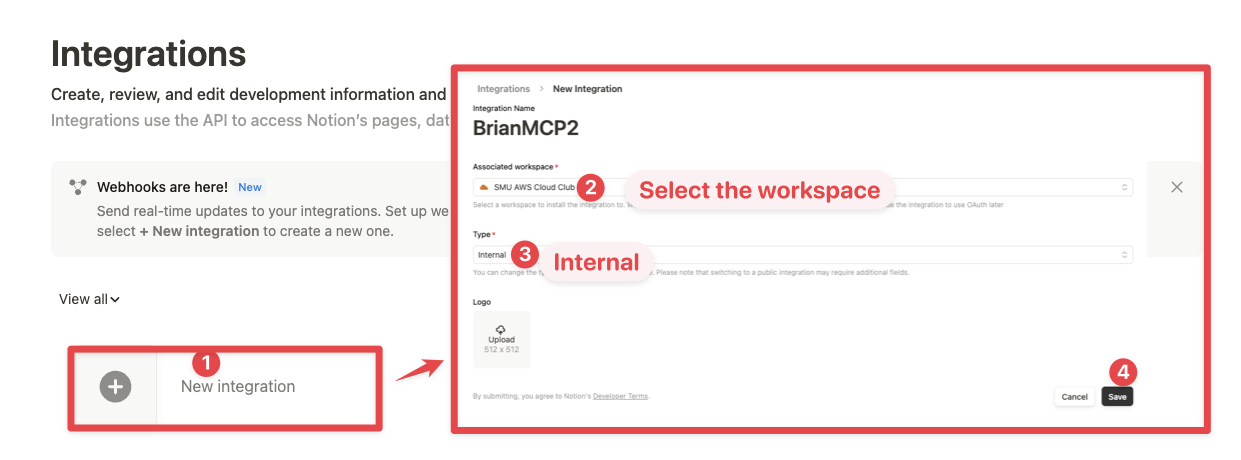
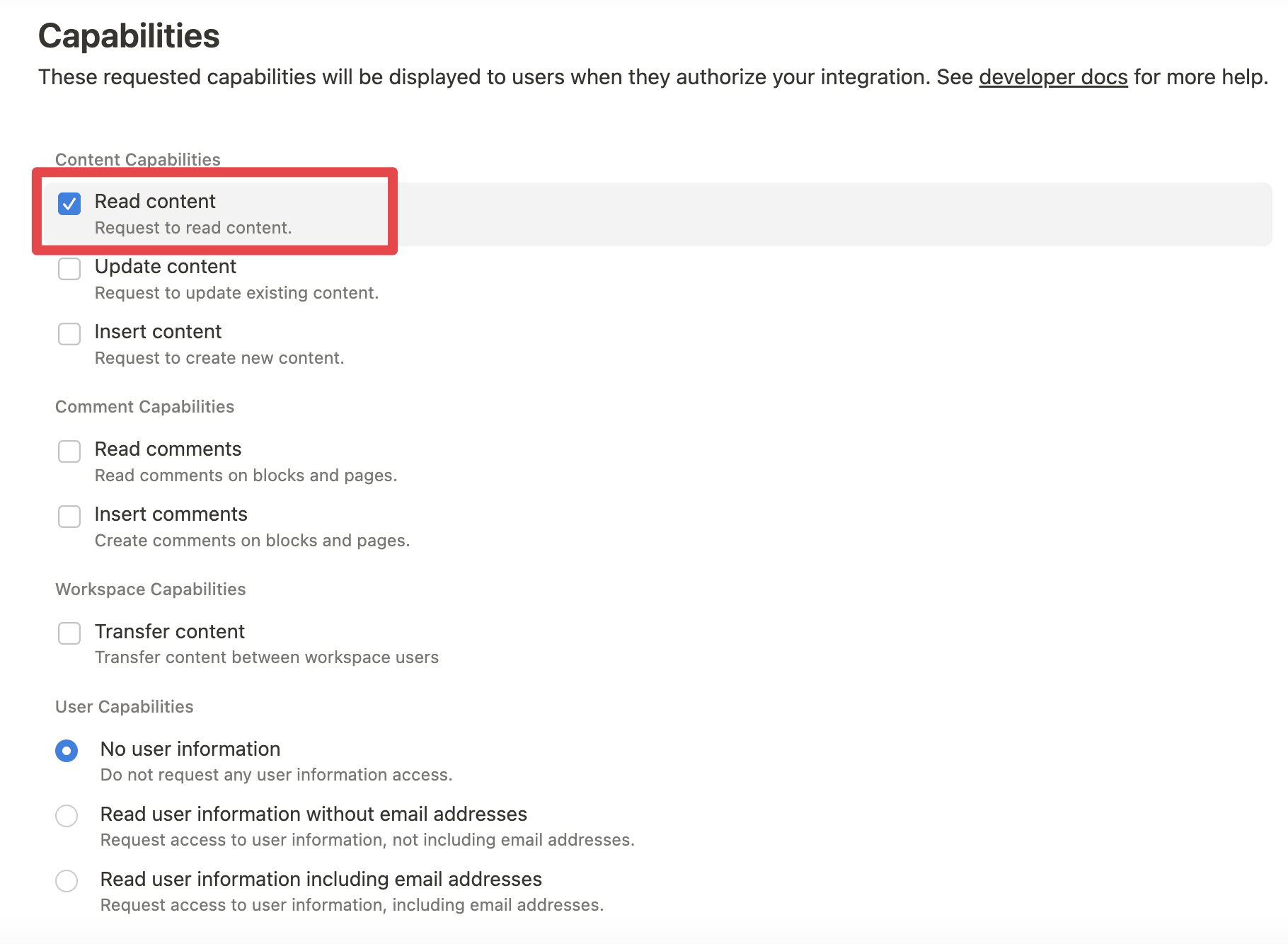
While we limit the scope of Notion API's exposed (for example, you will not be able to delete databases via MCP), there is a non-zero risk to workspace data by exposing it to LLMs. Security-conscious users may want to further configure the Integration's Capabilities.
For example, you can create a read-only integration token by giving only "Read content" access from the "Configuration" tab:
2. Connecting content to integration
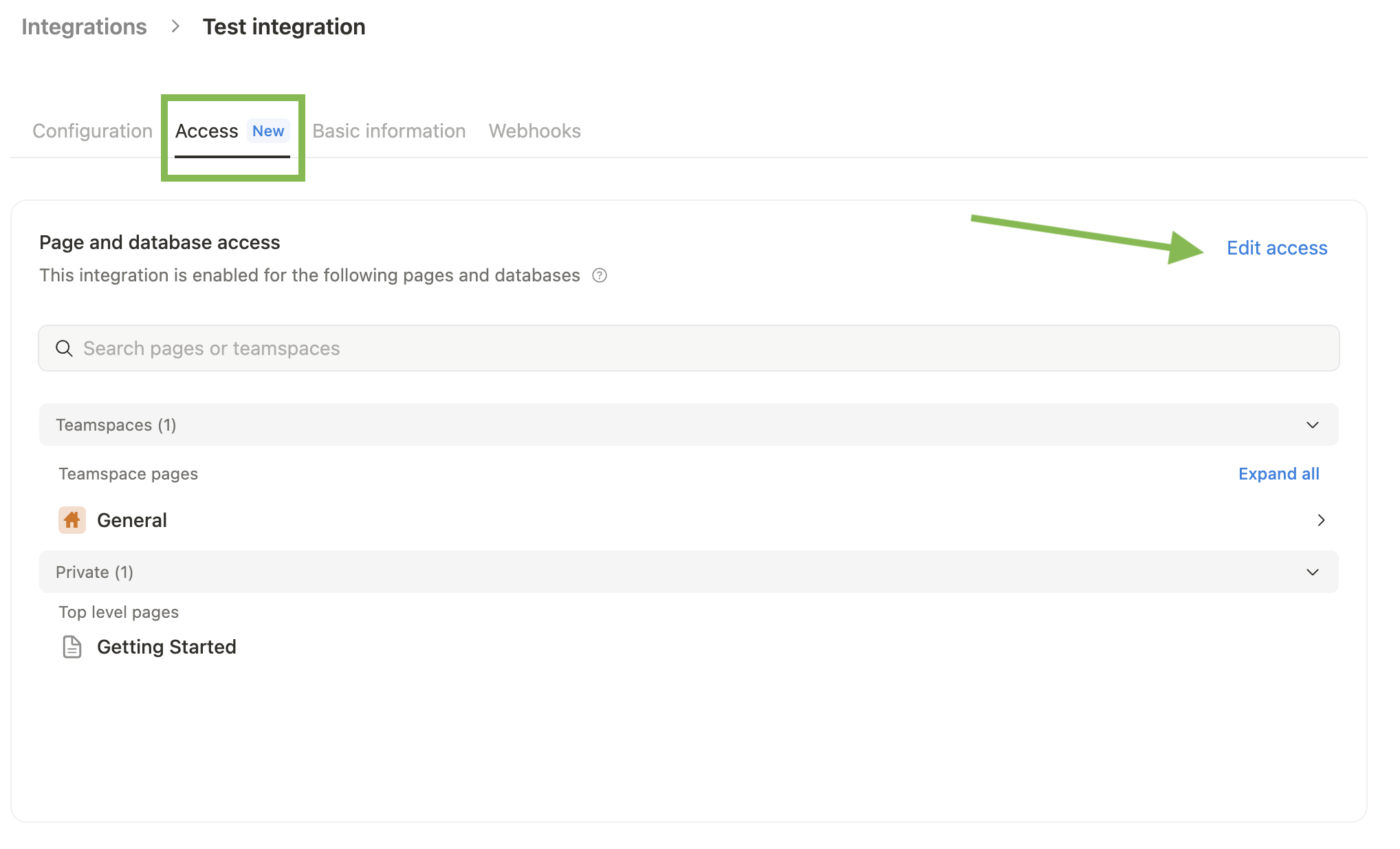
Ensure relevant pages and databases are connected to your integration.
To do this, visit the Access tab in your internal integration settings. Edit access and select the pages you'd like to use.
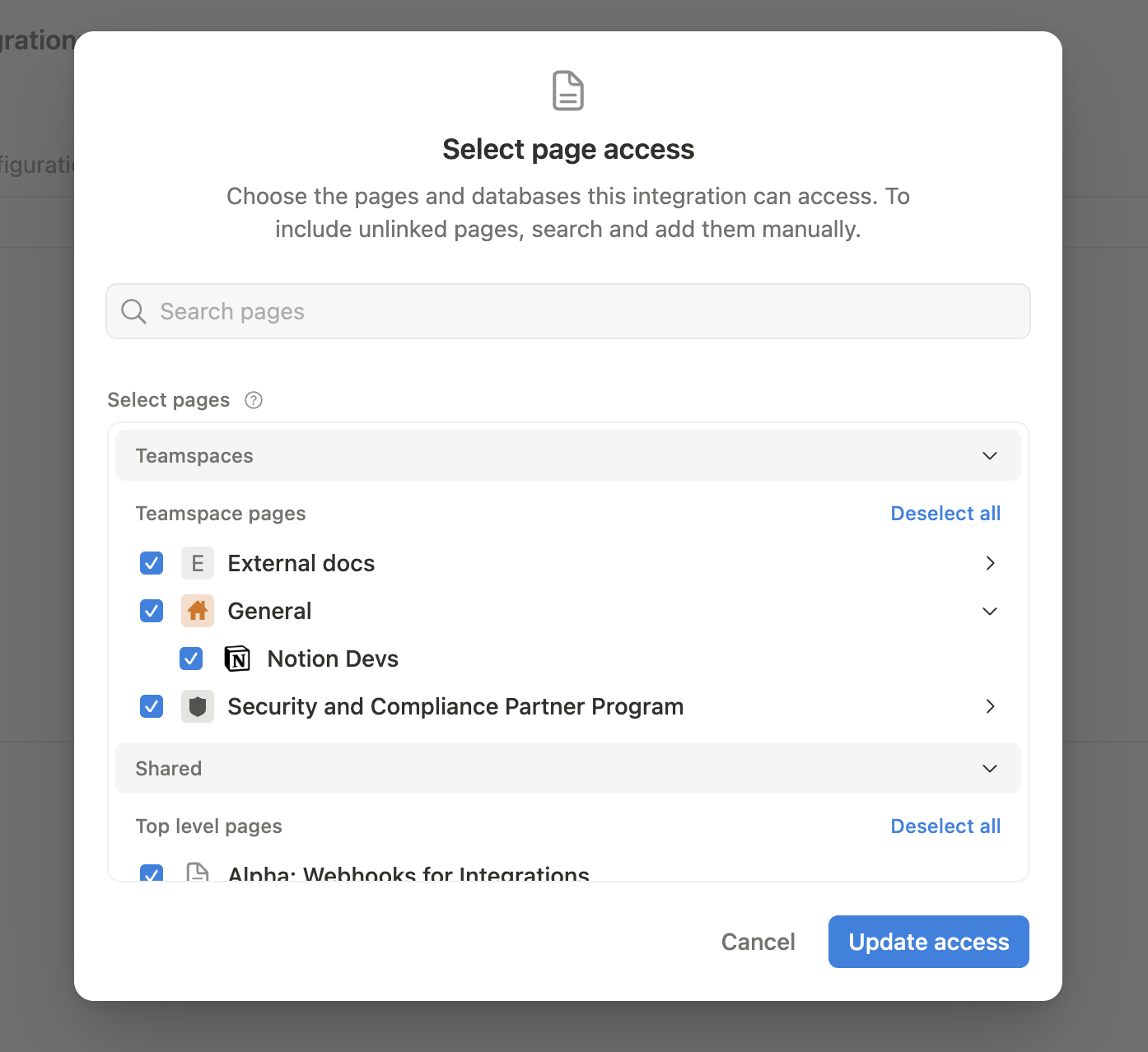
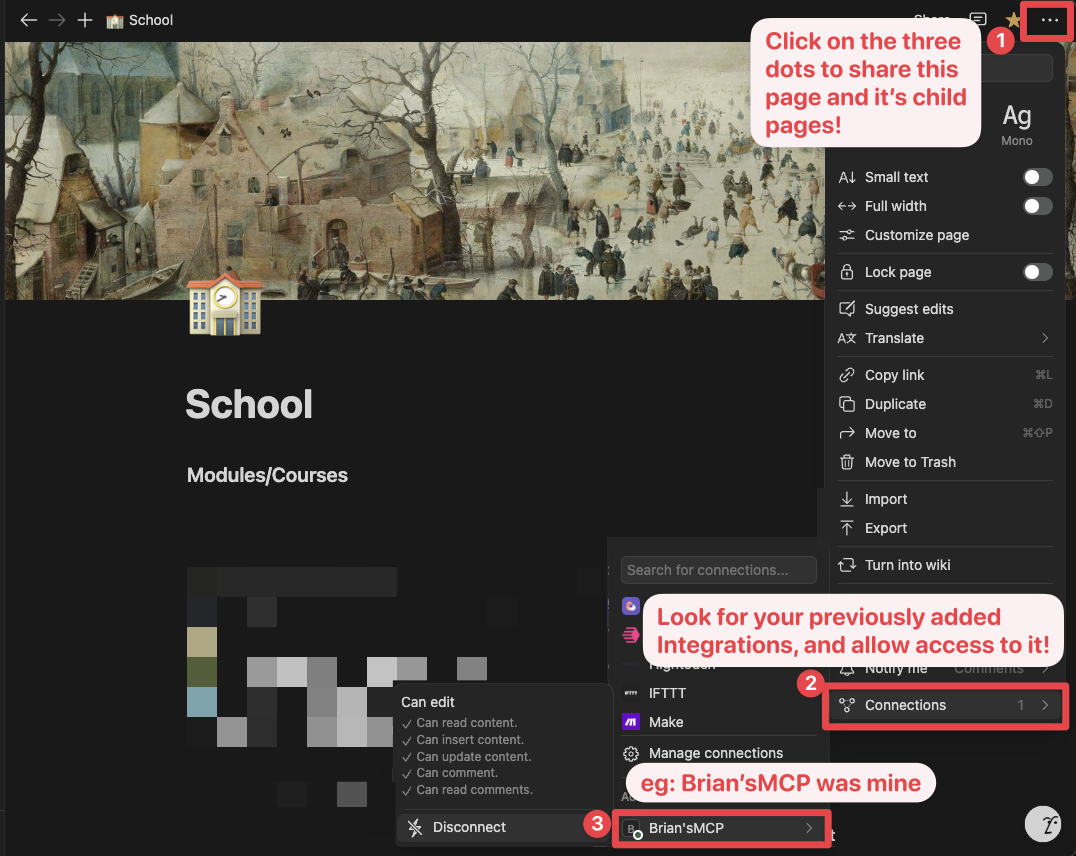
Alternatively, you can grant page access individually. You'll need to visit the target page, and click on the 3 dots, and select "Connect to integration".
3. Adding MCP config to your client
Using npm
Cursor & Claude
Add the following to your .cursor/mcp.json or claude_desktop_config.json (MacOS: ~/Library/Application\ Support/Claude/claude_desktop_config.json)
Option 1: Using NOTION_TOKEN (recommended)
{
  "mcpServers": {
    "notionApi": {
      "command": "npx",
      "args": ["-y", "@notionhq/notion-mcp-server"],
      "env": {
        "NOTION_TOKEN": "ntn_****"
      }
    }
  }
}
Option 2: Using OPENAPI_MCP_HEADERS (for advanced use cases)
{
  "mcpServers": {
    "notionApi": {
      "command": "npx",
      "args": ["-y", "@notionhq/notion-mcp-server"],
      "env": {
        "OPENAPI_MCP_HEADERS": "{\"Authorization\": \"Bearer ntn_****\", \"Notion-Version\": \"2025-09-03\" }"
      }
    }
  }
}
Zed
Add the following to your settings.json
{
  "context_servers": {
    "some-context-server": {
      "command": {
        "path": "npx",
        "args": ["-y", "@notionhq/notion-mcp-server"],
        "env": {
          "OPENAPI_MCP_HEADERS": "{\"Authorization\": \"Bearer ntn_****\", \"Notion-Version\": \"2025-09-03\" }"
        }
      },
      "settings": {}
    }
  }
}
GitHub Copilot CLI
Use the Copilot CLI to interactively add the MCP server:
/mcp add
Alternatively, create or edit the configuration file ~/.copilot/mcp-config.json and add:
{
  "mcpServers": {
    "notionApi": {
      "command": "npx",
      "args": ["-y", "@notionhq/notion-mcp-server"],
      "env": {
        "NOTION_TOKEN": "ntn_****"
      }
    }
  }
}
For more information, see the Copilot CLI documentation.
Using Docker
There are two options for running the MCP server with Docker:
Option 1: Using the official Docker Hub image
Add the following to your .cursor/mcp.json or claude_desktop_config.json
Using NOTION_TOKEN (recommended):
{
  "mcpServers": {
    "notionApi": {
      "command": "docker",
      "args": [
        "run",
        "--rm",
        "-i",
        "-e", "NOTION_TOKEN",
        "mcp/notion"
      ],
      "env": {
        "NOTION_TOKEN": "ntn_****"
      }
    }
  }
}
Using OPENAPI_MCP_HEADERS (for advanced use cases):
{
  "mcpServers": {
    "notionApi": {
      "command": "docker",
      "args": [
        "run",
        "--rm",
        "-i",
        "-e", "OPENAPI_MCP_HEADERS",
        "mcp/notion"
      ],
      "env": {
        "OPENAPI_MCP_HEADERS": "{\"Authorization\":\"Bearer ntn_****\",\"Notion-Version\":\"2025-09-03\"}"
      }
    }
  }
}
This approach:
- Uses the official Docker Hub image
- Properly handles JSON escaping via environment variables
- Provides a more reliable configuration method
Option 2: Building the Docker image locally
You can also build and run the Docker image locally. First, build the Docker image:
docker compose build
Then, add the following to your .cursor/mcp.json or claude_desktop_config.json
Using NOTION_TOKEN (recommended):
{
  "mcpServers": {
    "notionApi": {
      "command": "docker",
      "args": [
        "run",
        "--rm",
        "-i",
        "-e",
        "NOTION_TOKEN=ntn_****",
        "notion-mcp-server"
      ]
    }
  }
}
Using OPENAPI_MCP_HEADERS (for advanced use cases):
{
  "mcpServers": {
    "notionApi": {
      "command": "docker",
      "args": [
        "run",
        "--rm",
        "-i",
        "-e",
        "OPENAPI_MCP_HEADERS={\"Authorization\": \"Bearer ntn_****\", \"Notion-Version\": \"2025-09-03\"}",
        "notion-mcp-server"
      ]
    }
  }
}
Don't forget to replace ntn_**** with your integration secret. Find it from your integration configuration tab:
Transport options
The Notion MCP Server supports two transport modes:
STDIO transport (default)
The default transport mode uses standard input/output for communication. This is the standard MCP transport used by most clients like Claude Desktop.
# Run with default stdio transport
npx @notionhq/notion-mcp-server

# Or explicitly specify stdio
npx @notionhq/notion-mcp-server --transport stdio
Streamable HTTP transport
For web-based applications or clients that prefer HTTP communication, you can use the Streamable HTTP transport:
# Run with Streamable HTTP transport on port 3000 (default)
npx @notionhq/notion-mcp-server --transport http

# Run on a custom port
npx @notionhq/notion-mcp-server --transport http --port 8080

# Run with a custom authentication token
npx @notionhq/notion-mcp-server --transport http --auth-token "your-secret-token"
When using Streamable HTTP transport, the server will be available at http://0.0.0.0:<port>/mcp.
Authentication
The Streamable HTTP transport requires bearer token authentication for security. You have three options:
Option 1: Auto-generated token (only for development)
npx @notionhq/notion-mcp-server --transport http
Th
README truncated. View full README on GitHub.
Alternatives




Related Skills
Browse all skillsDeploy Granola integrations to Slack, Notion, HubSpot, and other apps. Use when connecting Granola to productivity tools, setting up native integrations, or configuring auto-sync. Trigger with phrases like "granola slack", "granola notion", "granola hubspot", "granola integration", "connect granola".
Notion workspace integration. Use when user wants to read/write Notion pages, search databases, create tasks, or sync content with Notion.
Transforms conversations and discussions into structured documentation pages in Notion. Captures insights, decisions, and knowledge from chat context, formats appropriately, and saves to wikis or databases with proper organization and linking for easy discovery.
Find, connect, and use MCP tools and skills via the Smithery CLI. Use when the user searches for new tools or skills, wants to discover integrations, connect to an MCP, install a skill, or wants to interact with an external service (email, Slack, Discord, GitHub, Jira, Notion, databases, cloud APIs, monitoring, etc.).
Prepare meeting materials with Notion context and Codex research; use when gathering context, drafting agendas/pre-reads, and tailoring materials to attendees.
Build rich text editors with Tiptap - headless editor framework with React and Tailwind v4. Covers SSR-safe setup, image uploads, prose styling, and collaborative editing. Use when creating blog editors, comment systems, or Notion-like apps, or troubleshooting SSR hydration errors, typography issues, or image upload problems.