
Pref Editor (Android)
Connects to Android devices via ADB to read and modify app SharedPreferences and DataStore files using natural language commands.
Integrates with Android devices through ADB connectivity to read, modify, add, and delete SharedPreferences and DataStore preference files for debugging app preferences, automating testing workflows, and managing app configuration data.
What it does
- List connected Android devices
- Browse installed apps and preference files
- Read all preferences from app files
- Add new preferences with specified types
- Modify existing preference values
- Delete unwanted preferences
Best for
About Pref Editor (Android)
Pref Editor (Android) is a community-built MCP server published by charlesmuchene that provides AI assistants with tools and capabilities via the Model Context Protocol. Pref Editor (Android) lets you read, modify, and manage app preferences on Android via ADB for debugging and automation. It is categorized under developer tools. This server exposes 7 tools that AI clients can invoke during conversations and coding sessions.
How to install
You can install Pref Editor (Android) in your AI client of choice. Use the install panel on this page to get one-click setup for Cursor, Claude Desktop, VS Code, and other MCP-compatible clients. This server runs locally on your machine via the stdio transport.
License
Pref Editor (Android) is released under the Apache-2.0 license. This is a permissive open-source license, meaning you can freely use, modify, and distribute the software.
Tools (7)
Changes the value of an existing preference
Delete an existing preference
Adds a new preference given the name, value and type.
Lists connected Android devices
Lists apps installed on device
Android Preference Editor MCP Server
Overview
Unlock the power of natural language for Android app development with the Android Preference Editor MCP Server. Effortlessly edit user preferences in real time using simple, conversational commands—no manual file editing required! Built on the robust Android Preference Editor library, this server seamlessly connects with MCP (Model Context Protocol) clients to supercharge your AI-driven workflows.
Just tell the MCP server what you want to do, for example:
- “Toggle the isVisited user preference”
- “Turn off the onboarding guide”
- “List all the user preference values”
- "Create a timestamp preference with the current epoch time"
Experience a smarter, faster way to manage Android preferences—just ask!
Available Tools
| Name | Description |
|---|---|
| change_preference | Changes the value of an existing preference |
| delete_preference | Delete an existing preference |
| add_preference | Adds a new preference given the name, value, and type |
| read_preferences | Reads all user preferences in a file |
| devices | Lists connected Android devices |
| list_apps | Lists apps installed on the device |
| list_files | Lists preference files for an app |
Demo
| Toggle a user preference | Available tools | Add a preference |
|---|---|---|
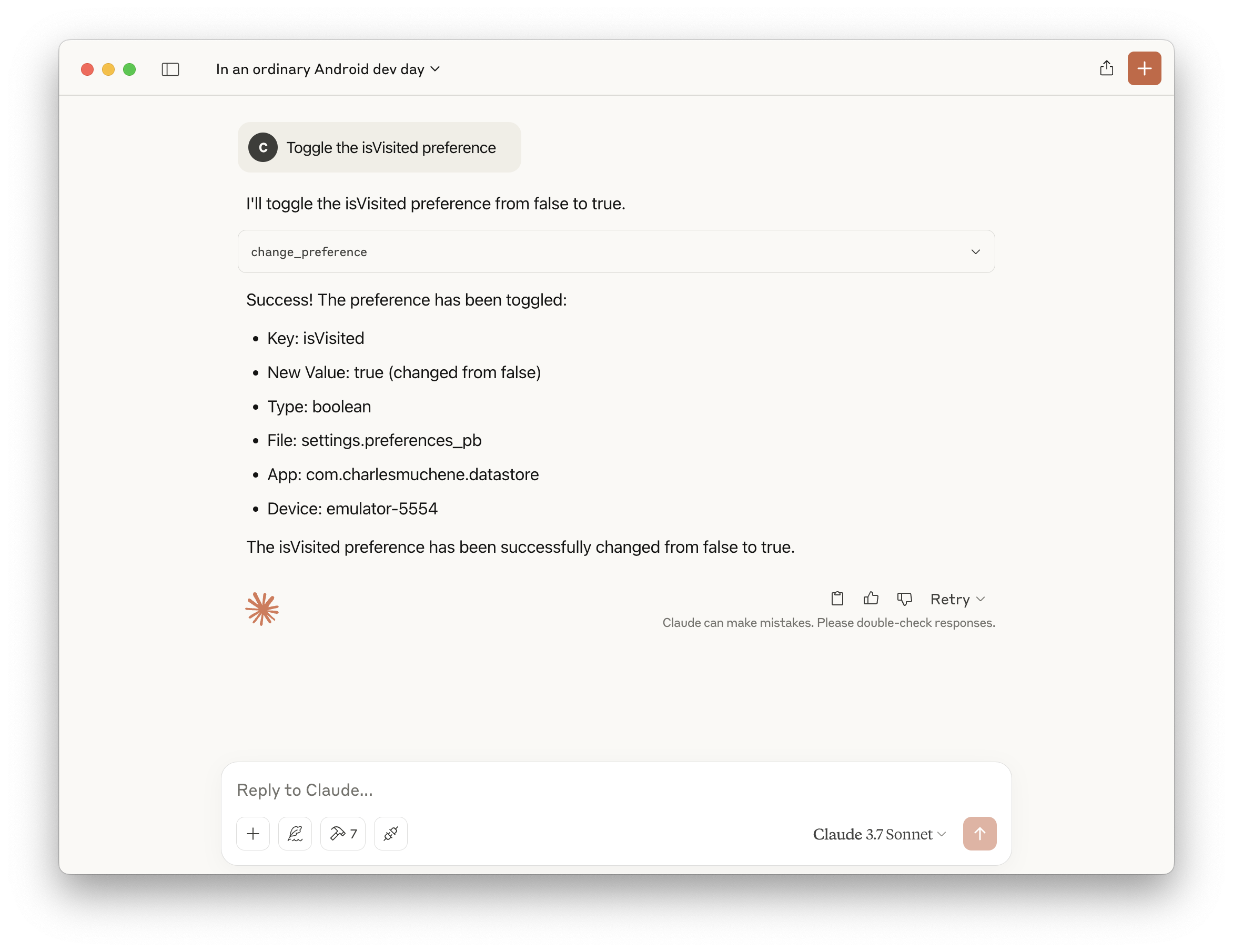 | 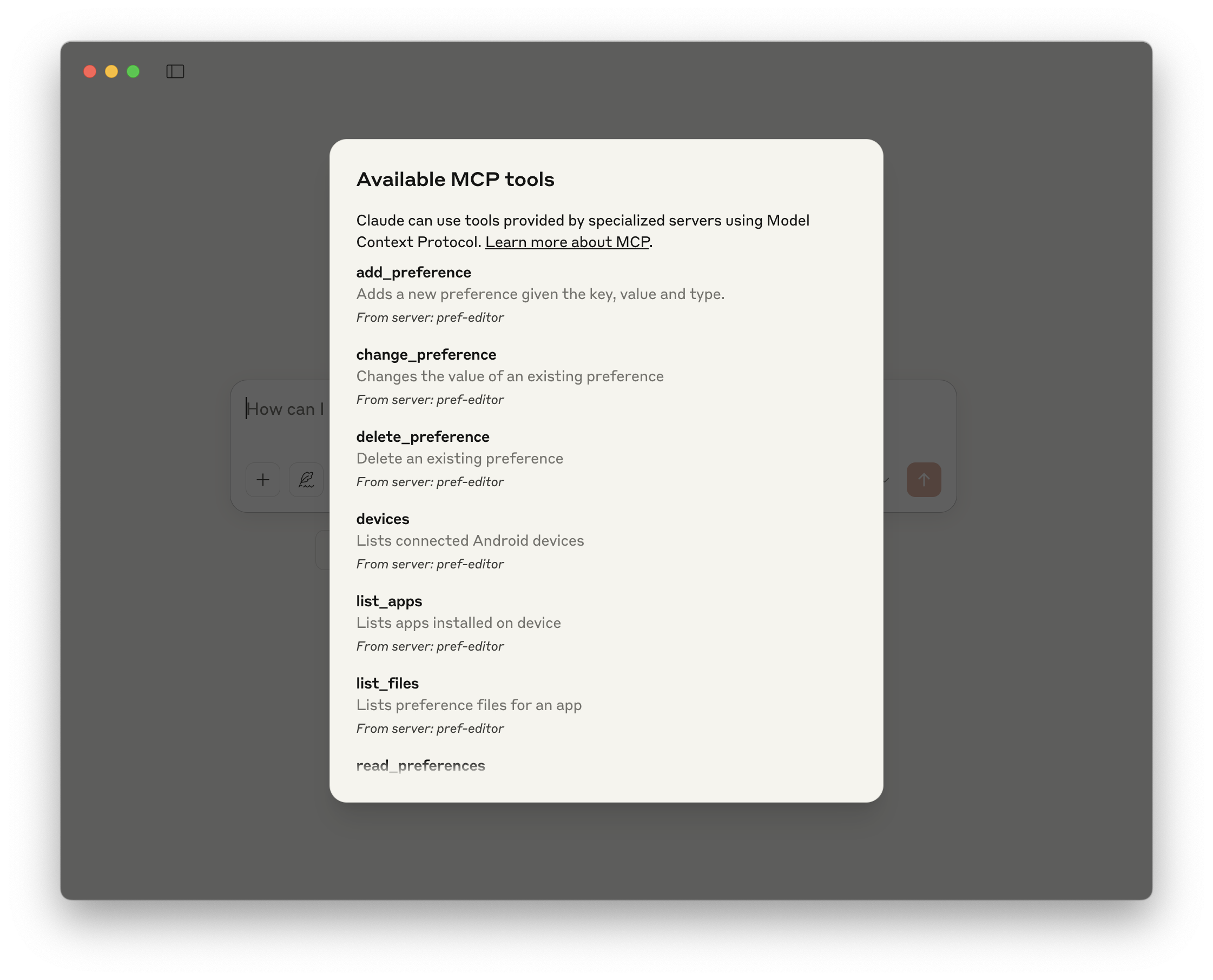 | 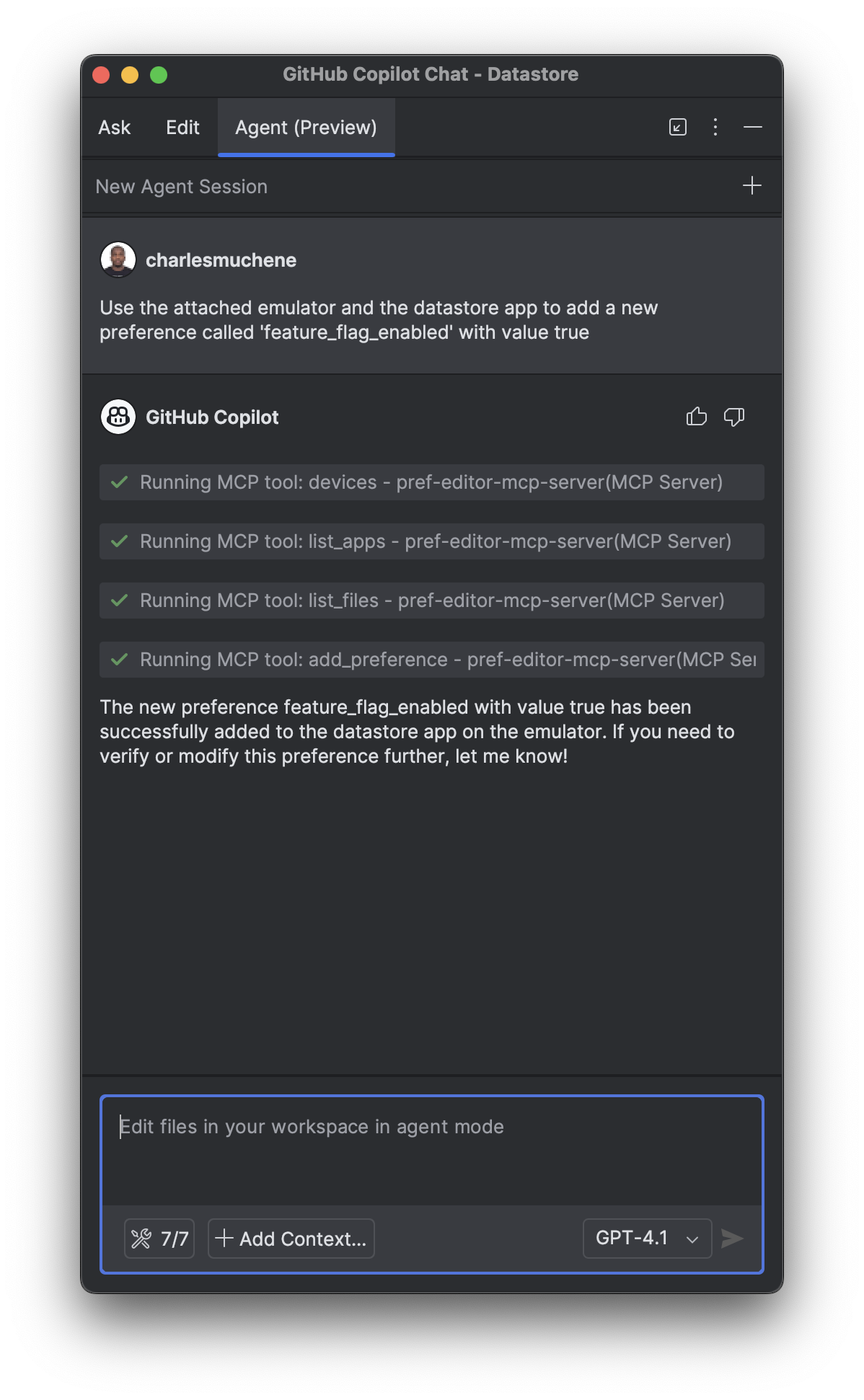 |
See more demos in the demo screenshots directory
Requirements
- Android adb (
v1.0.41+) - Node.js 14+ or Docker
Integrations
This server is available in the Docker MCP Catalog. Enable the Pref Editor server in Docker desktop's MCP toolkit and you'll have access to all the available tools.
Android Studio
Assumes an MCP compatible client is installed.
Add the following configuration to the MCP server config file. For example, for the GitHub Copilot IntelliJ Plugin, the config file is ~/.config/github-copilot/intellij/mcp.json.
Docker
{
  "servers": {
    "pref-editor": {
      "command": "docker",
      "args": ["run", "-i", "--rm", "charlesmuchene/pref-editor-mcp-server"]
    }
  }
}
npx
{
  "servers": {
    "pref-editor": {
      "type": "stdio",
      "command": "npx",
      "args": ["-y", "@charlesmuchene/pref-editor-mcp-server"]
    }
  }
}
Claude Desktop
Add this server to the /Users/<username>/Library/Application Support/Claude/claude_desktop_config.json configuration file.
Docker
{
  "mcpServers": {
    "pref-editor": {
      "command": "docker",
      "args": ["run", "-i", "--rm", "charlesmuchene/pref-editor-mcp-server"]
    }
  }
}
npx
{
  "mcpServers": {
    "pref-editor": {
      "command": "npx",
      "args": ["-y", "@charlesmuchene/pref-editor-mcp-server"]
    }
  }
}
You can troubleshoot problems by tailing the log file:
tail -f ~/Library/Logs/Claude/mcp-server-pref-editor.log
VS Code
To use the server with VS Code, you need to:
- Add the MCP Server configuration to your
mcp.jsonorsettings.json:
.vscode/mcp.json
{
  "servers": {
    "pref-editor": {
      "type": "stdio",
      "command": "npx",
      "args": ["-y", "@charlesmuchene/pref-editor-mcp-server"]
    }
  }
}
~/Library/Application Support/Code/User/settings.json
{
  "mcp": {
    "pref-editor": {
      "type": "stdio",
      "command": "npx",
      "args": ["-y", "@charlesmuchene/pref-editor-mcp-server"]
    }
  }
}
For more information, see the VS Code documentation.
Building Locally
Refer to DEV.md for instructions on how to build this project.
Testing
You can use the MCP Inspector for visual debugging of this MCP Server.
npx @modelcontextprotocol/inspector npm run start
License
See LICENSE
Contact
For questions or support, reach out via GitHub Issues.
Contributing
We welcome contributions from the community! 🎉
First-time contributors: Please start by reading our CONTRIBUTING.md guide, which covers:
- PR requirements and title format
- Development setup and workflow
- Code quality standards
- License information
For detailed development instructions, see DEV.md.

Alternatives



Related Skills
Browse all skillsUse when working with the OpenAI API (Responses API) or OpenAI platform features (tools, streaming, Realtime API, auth, models, rate limits, MCP) and you need authoritative, up-to-date documentation (schemas, examples, limits, edge cases). Prefer the OpenAI Developer Documentation MCP server tools when available; otherwise guide the user to enable `openaiDeveloperDocs`.
UI design system toolkit for Senior UI Designer including design token generation, component documentation, responsive design calculations, and developer handoff tools. Use for creating design systems, maintaining visual consistency, and facilitating design-dev collaboration.
Orchestrate Unity Editor via MCP (Model Context Protocol) tools and resources. Use when working with Unity projects through MCP for Unity - creating/modifying GameObjects, editing scripts, managing scenes, running tests, or any Unity Editor automation. Provides best practices, tool schemas, and workflow patterns for effective Unity-MCP integration.
Comprehensive guide for creating professional UI/UX designs in Penpot using MCP tools. Use this skill when: (1) Creating new UI/UX designs for web, mobile, or desktop applications, (2) Building design systems with components and tokens, (3) Designing dashboards, forms, navigation, or landing pages, (4) Applying accessibility standards and best practices, (5) Following platform guidelines (iOS, Android, Material Design), (6) Reviewing or improving existing Penpot designs for usability. Triggers: "design a UI", "create interface", "build layout", "design dashboard", "create form", "design landing page", "make it accessible", "design system", "component library".
Answer questions about the AI SDK and help build AI-powered features. Use when developers: (1) Ask about AI SDK functions like generateText, streamText, ToolLoopAgent, embed, or tools, (2) Want to build AI agents, chatbots, RAG systems, or text generation features, (3) Have questions about AI providers (OpenAI, Anthropic, Google, etc.), streaming, tool calling, structured output, or embeddings, (4) Use React hooks like useChat or useCompletion. Triggers on: "AI SDK", "Vercel AI SDK", "generateText", "streamText", "add AI to my app", "build an agent", "tool calling", "structured output", "useChat".
Edit opencode.json, AGENTS.md, and config files. Use proactively for provider setup, permission changes, model config, formatter rules, or environment variables. Examples: - user: "Add Anthropic as a provider" → edit opencode.json providers, add API key baseEnv var, verify with opencode run test - user: "Restrict this agent's permissions" → add permission block to agent config, set deny/allow for tools/fileAccess - user: "Set GPT-5 as default model" → edit global or agent-level model preference, verify model name format - user: "Disable gofmt formatter" → edit formatters section, set languages.gofmt.enabled = false