
Revit
Connects AI assistants to Autodesk Revit for programmatic control of building models, allowing you to find, create, update, and delete architectural elements through TCP socket communication.
Bridges Autodesk Revit with external tools for finding, creating, updating, and deleting model elements including walls, floors, levels, grids, and family instances via TCP socket connection.
What it does
- Find and query building elements by category
- Create walls, floors, levels, grids, and family instances
- Update element parameters and properties
- Delete or move model elements
- Generate floor plans and sheets
- Create MEP elements like ducts and pipes
Best for
About Revit
Revit is a community-built MCP server published by zedmoster that provides AI assistants with tools and capabilities via the Model Context Protocol. Connect Revit with external tools for efficient creation, update, and management of model elements through a TCP socket interface. It is categorized under developer tools.
How to install
You can install Revit in your AI client of choice. Use the install panel on this page to get one-click setup for Cursor, Claude Desktop, VS Code, and other MCP-compatible clients. This server runs locally on your machine via the stdio transport.
License
Revit is released under the MIT license. This is a permissive open-source license, meaning you can freely use, modify, and distribute the software.
xml.Revit.MCP Tools Overview
xml.Revit.MCP provides a comprehensive set of tools for integrating with Autodesk Revit through the Model Context Protocol (MCP). This library serves as a bridge between AI assistants and Revit, enabling powerful automation capabilities and programmatic interaction with building models.
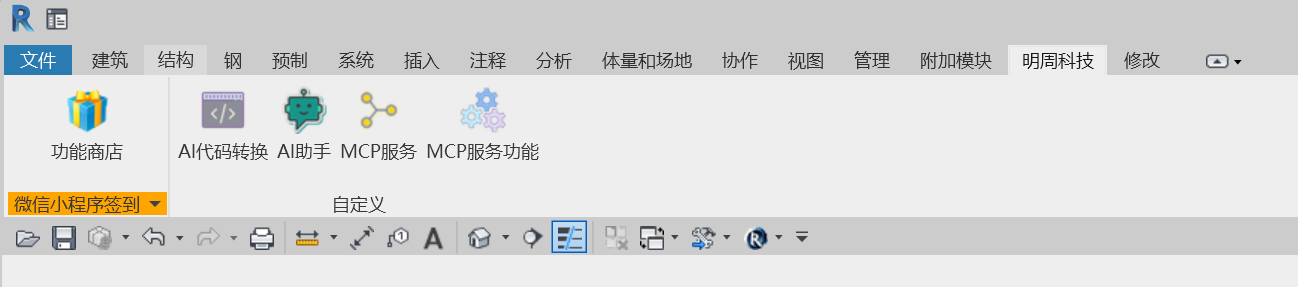
Key Features
The tool library includes numerous functions for Revit automation and interaction:
Basic Operations:
- Get available commands from Revit plugin
- Execute specified commands in Revit
- Call specific Revit functions with parameters
- Retrieve view data and selected elements
Element Management:
- Find elements by category
- Get element parameters and locations
- Update element parameters
- Delete elements
- Show/highlight elements in current view
- Move elements to new positions
Creation Tools:
- Create levels/floors
- Create floor plan views
- Create grid lines
- Create walls and floors
- Create rooms and room tags
- Create doors and windows
- Create MEP elements (ducts, pipes, cable trays)
- Create family instances
- Link DWG files
- Create sheets
Installation Requirements
- xml.Revit: Version 1.3.4.3 or newer
- Python: 3.10 or newer
- UV Package Manager: Required for installation
- Revit: Compatible with versions 2019-2024 (with plugin)
Installation Process
-
First, install the UV package manager:
pip install uv -
Install the revit-mcp package:
pip install revit-mcp -
Test the installation:
uvx revit-mcpYou should see:
RevitMCPServer - INFO - Successfully connected to Revit on startup
Integration with AI Assistants
Claude for Desktop
Edit claude_desktop_config.json to include:
Cursor
Edit mcp.json to include:
Cline
Edit cline_mcp_setting.json to include:
{
  "mcpServers": {
    "RevitMCPServer": {
      "disabled": false,
      "timeout": 30,
      "command": "uvx",
      "args": ["revit-mcp"],
      "transportType": "stdio",
      "autoApprove": [
        "active_view",
        "call_func",
        "create_cable_trays",
        "create_door_windows",
        "create_ducts",
        "create_family_instances",
        "create_floors",
        "create_floor_plan_views",
        "create_grids",
        "create_levels",
        "create_pipes",
        "create_room_separation_lines",
        "create_room_tags",
        "create_rooms",
        "create_sheets",
        "create_walls",
        "delete_elements",
        "execute_commands",
        "find_elements",
        "get_commands",
        "get_locations",
        "get_selected_elements",
        "get_view_data",
        "link_dwg_and_activate_view",
        "move_elements",
        "parameter_elements",
        "show_elements",
        "update_elements"
      ]
    }
  }
}
Extending Functionality
You can create custom MCP DLL files to implement additional functionality by:
- Implementing the
xml.Revit.MCP.Public.IMCPMethodinterface - Following JSON-RPC 2.0 specification for communication
- Compiling to a DLL and placing it in the designated MCP folder
Plugin Configuration
When using the revit-mcp-plugin:
- Register the plugin with Revit
- Configure commands through: Add-in Modules → Revit MCP Plugin → Settings
- Enable the service: Add-in → Revit MCP Plugin → Revit MCP Switch
Once enabled, AI assistants can discover and control your Revit program, executing the various commands provided by the xml.Revit.MCP tools library.
Alternatives



Related Skills
Browse all skillsUI design system toolkit for Senior UI Designer including design token generation, component documentation, responsive design calculations, and developer handoff tools. Use for creating design systems, maintaining visual consistency, and facilitating design-dev collaboration.
Answer questions about the AI SDK and help build AI-powered features. Use when developers: (1) Ask about AI SDK functions like generateText, streamText, ToolLoopAgent, embed, or tools, (2) Want to build AI agents, chatbots, RAG systems, or text generation features, (3) Have questions about AI providers (OpenAI, Anthropic, Google, etc.), streaming, tool calling, structured output, or embeddings, (4) Use React hooks like useChat or useCompletion. Triggers on: "AI SDK", "Vercel AI SDK", "generateText", "streamText", "add AI to my app", "build an agent", "tool calling", "structured output", "useChat".
Use when working with the OpenAI API (Responses API) or OpenAI platform features (tools, streaming, Realtime API, auth, models, rate limits, MCP) and you need authoritative, up-to-date documentation (schemas, examples, limits, edge cases). Prefer the OpenAI Developer Documentation MCP server tools when available; otherwise guide the user to enable `openaiDeveloperDocs`.
Guide for building TypeScript CLIs with Bun. Use when creating command-line tools, adding subcommands to existing CLIs, or building developer tooling. Covers argument parsing, subcommand patterns, output formatting, and distribution.
Guide developers through setting up development environments with proper tools, dependencies, and configurations
Integrate Vercel AI SDK applications with You.com tools (web search, AI agent, content extraction). Use when developer mentions AI SDK, Vercel AI SDK, generateText, streamText, or You.com integration with AI SDK.