
Outlook Meetings Scheduler
Connects to Microsoft Outlook to manage calendar events and schedule meetings using the Microsoft Graph API. Lets you create, update, and delete calendar events while finding attendee email addresses.
Integrates with Microsoft Outlook to create, read, update, and delete calendar events, find people, and schedule meetings with specific parameters like time, location, and attendees.
What it does
- Create calendar events in Microsoft Outlook
- Find people's email addresses by name
- Schedule meetings with specific attendees
- Set meeting times, locations, and descriptions
- Update and delete existing calendar events
- Search Outlook contacts and directory
Best for
About Outlook Meetings Scheduler
Outlook Meetings Scheduler is a community-built MCP server published by anoopt that provides AI assistants with tools and capabilities via the Model Context Protocol. Easily schedule, update, or delete meetings with Outlook Calendars. Find people and manage events with seamless Outlook and calendar integration. It is categorized under productivity, developer tools.
How to install
You can install Outlook Meetings Scheduler in your AI client of choice. Use the install panel on this page to get one-click setup for Cursor, Claude Desktop, VS Code, and other MCP-compatible clients. This server runs locally on your machine via the stdio transport.
License
Outlook Meetings Scheduler is released under the ISC license. This is a permissive open-source license, meaning you can freely use, modify, and distribute the software.
Outlook Meetings Scheduler MCP Server
MCP Server for scheduling meetings in Microsoft Outlook using Microsoft Graph API.
This MCP server allows you to create calendar events, create events with attendees (including finding their email addresses). It integrates seamlessly with other MCP servers, such as the GitHub MCP server, to enhance your workflow.
Sample queries
- Schedule a meeting with Sarah for tomorrow at 3 PM.
- Create a meeting called "Project Kickoff" for tomorrow at 2 PM. Add Megan and John as required attendees.
Usage with GitHub MCP Server
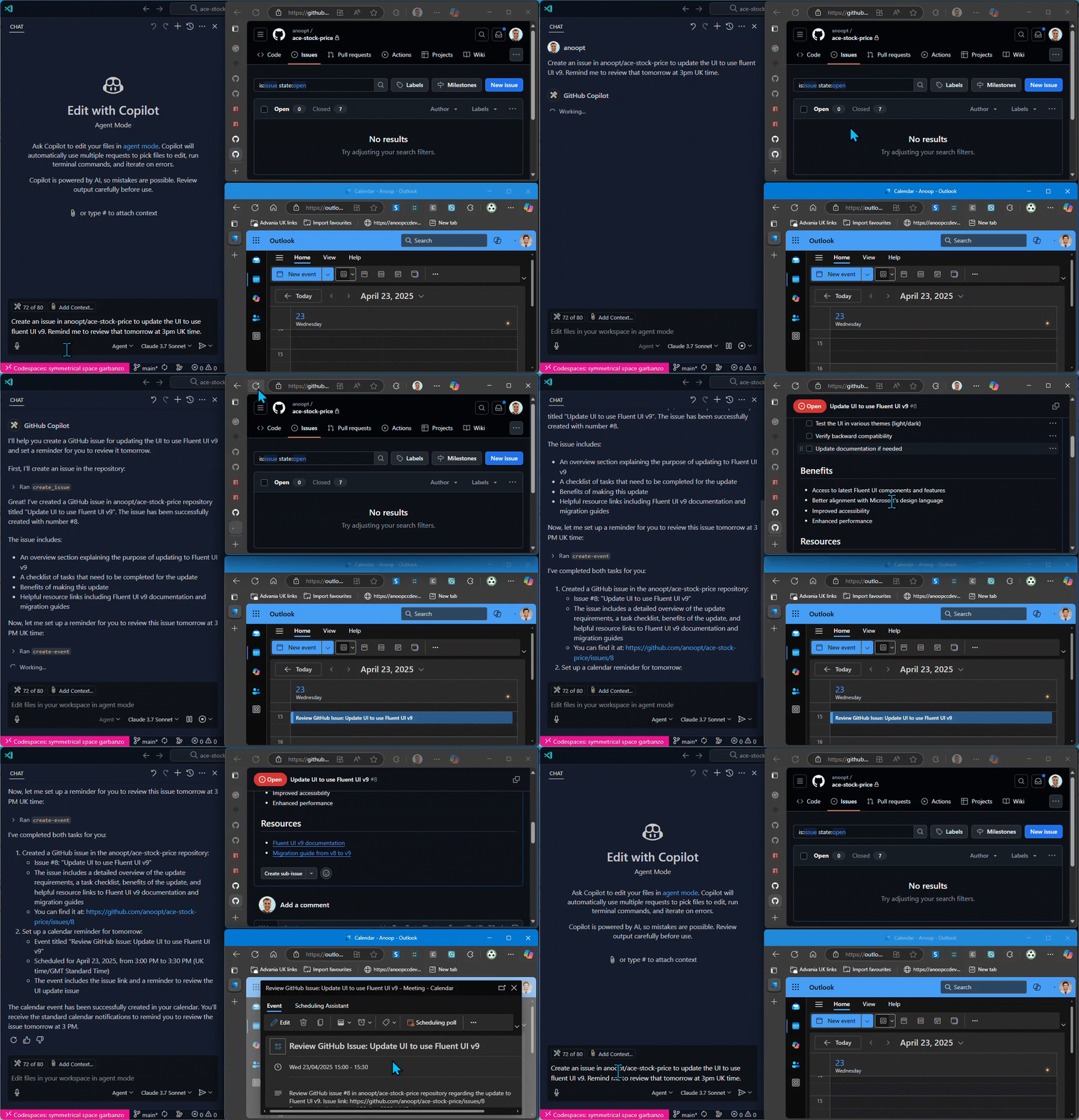
- Create an issue in the organization/repo repository titled "Fix pagination bug in user dashboard" with the description "Users report seeing duplicate entries when navigating between pages." Then schedule a calendar reminder for me to review this issue tomorrow at 3 PM.
Demo
Tools
-
find-person- Find a person's email address by their name
- Input:
name(string) - Returns: List of matching people with names and email addresses
-
create-event- Create a calendar event using Microsoft Graph API
- Inputs:
subject(string): Subject of the calendar eventbody(string): Content/body of the calendar eventstart(optional): ISO format datetime (e.g., 2025-04-20T12:00:00)end(optional): ISO format datetime (e.g., 2025-04-20T13:00:00)timeZone(optional): Time zone for the event (default: "GMT Standard Time")
- Returns: Event details including URL and ID
-
create-event-with-attendees- Create a calendar event with attendees using Microsoft Graph API
- Inputs:
subject(string): Subject of the calendar eventbody(string): Content/body of the calendar eventstart(optional): ISO format datetime (e.g., 2025-04-20T12:00:00)end(optional): ISO format datetime (e.g., 2025-04-20T13:00:00)timeZone(optional): Time zone for the event (default: "GMT Standard Time")location(optional): Location of the eventattendees: Array of { email, name (optional), type (optional) }
- Returns: Event details including URL, ID, and attendees list
-
get-event- Get details of a calendar event by its ID
- Input:
eventId(string): ID of the event to retrieve
- Returns: Detailed event information including subject, time, attendees, and URL
-
list-events- List calendar events with optional filtering
- Inputs:
subject(optional): Filter events by subject containing this textstartDate(optional): Start date in ISO format (e.g., 2025-04-20T00:00:00) to filter events fromendDate(optional): End date in ISO format (e.g., 2025-04-20T23:59:59) to filter events untilmaxResults(optional): Maximum number of events to return
- Returns: List of calendar events with basic information and IDs
-
delete-event- Delete a calendar event
- Input:
eventId(string): ID of the event to delete
- Returns: Confirmation of event deletion
-
update-event- Update an existing calendar event
- Inputs:
eventId(string): ID of the event to updatesubject(optional): New subject for the calendar eventbody(optional): New content/body for the calendar eventstart(optional): New start time in ISO format (e.g., 2025-04-20T12:00:00)end(optional): New end time in ISO format (e.g., 2025-04-20T13:00:00)timeZone(optional): New time zone for the eventlocation(optional): New location for the eventattendees(optional): Array of { email, name (optional), type (optional) }
- Returns: Updated event details showing changes
-
update-event-attendees- Add or remove attendees from a calendar event
- Inputs:
eventId(string): ID of the event to updateaddAttendees(optional): Array of attendees to add: { email, name (optional), type (optional) }removeAttendees(optional): Array of email addresses to remove from the event
- Returns: Updated event attendee information
Setup
Authentication Modes
This MCP server supports three authentication modes:
1. Interactive (Delegated)
Thank you Lokka
Best for: User-impersonation scenarios, accessing user-specific data
- Prompts user to login interactively
- Uses delegated permissions
- Authenticates as the signed-in user
2. Client Credentials (App-Only)
Best for: Server-to-server scenarios, automated processes
- Uses Azure AD application credentials
- Requires Application permissions
- Works without user interaction
3. Client Provided Token
Best for: Custom token management, pre-acquired tokens
- Uses a token provided by the client
- Requires managing token refresh externally
Microsoft Graph API Setup
For Interactive (Delegated) Mode
- Register an application in the Microsoft Azure Portal (or use an existing app)
- Add a redirect URI:
http://localhost(Mobile and desktop applications platform) - Enable public client flows: Go to Authentication > Advanced settings > "Allow public client flows" = YES
- Grant necessary Delegated permissions: Microsoft Graph API > Delegated permissions > Calendars.ReadWrite, People.Read, User.Read
- Note your Client ID and Tenant ID (Client Secret not needed for interactive mode with custom app)
Note: The server uses a built-in multi-tenant app by default, so custom app setup is optional. When authentication is needed, the device code and login URL will appear directly in your MCP client chat interface.
For Client Credentials (App-Only) Mode
- Register an application in the Microsoft Azure Portal
- Create a client secret
- Grant necessary Application permissions: Microsoft Graph API > Application permissions > Calendars.ReadWrite, People.Read.All, User.ReadBasic.All
- Grant admin consent for your organization
- Note your Client ID, Client Secret, and Tenant ID
Usage with VS Code
Authentication Mode Configuration
The MCP server supports different authentication modes via the AUTH_MODE environment variable:
interactive(default) - User authentication with browser or device code flowclient_credentials- App-only authentication with client secretclient_provided_token- Use a pre-acquired token
Backward Compatibility: If AUTH_MODE is not specified, the server automatically detects the mode:
- Presence of
CLIENT_SECRET→client_credentialsmode - Presence of
ACCESS_TOKEN→client_provided_tokenmode - Neither present →
interactivemode (default)
Local Node.js
You can run the MCP server directly with Node.js from your local build:
- Clone the repository and build the project:
git clone https://github.com/anoopt/outlook-meetings-scheduler-mcp-server.git
cd outlook-meetings-scheduler-mcp-server
npm install
npm run build
- For manual installation, add the following JSON block to your User Settings (JSON) file in VS Code. You can do this by pressing
Ctrl + Shift + Pand typing Preferences:Open User Settings (JSON).
Optionally, you can add it to a file called .vscode/mcp.json in your workspace. This will allow you to share the configuration with others:
Interactive Mode (Default - Zero Configuration):
{
  "mcpServers": {
    "outlook-meetings-scheduler": {
      "command": "node",
      "args": [
        "/path/to/outlook-meetings-scheduler-mcp-server/build/index.js"
      ]
    }
  }
}
Interactive Mode with Custom App:
{
  "mcpServers": {
    "outlook-meetings-scheduler": {
      "command": "node",
      "args": [
        "/path/to/outlook-meetings-scheduler-mcp-server/build/index.js"
      ],
      "env": {
        "AUTH_MODE": "interactive",
        "CLIENT_ID": "<YOUR_CLIENT_ID>",
        "TENANT_ID": "<YOUR_TENANT_ID>"
      }
    }
  }
}
Client Credentials Mode:
{
  "mcpServers": {
    "outlook-meetings-scheduler": {
      "command": "node",
      "args": [
        "/path/to/outlook-meetings-scheduler-mcp-server/build/index.js"
      ],
      "env": {
        "AUTH_MODE": "client_credentials",
        "CLIENT_ID": "<YOUR_CLIENT_ID>",
        "CLIENT_SECRET": "<YOUR_CLIENT_SECRET>",
        "TENANT_ID": "<YOUR_TENANT_ID>",
        "USER_EMAIL": "<YOUR_EMAIL>"
      }
    }
  }
}
Client Provided Token Mode:
{
  "mcpServers": {
    "outlook-meetings-scheduler": {
      "command": "node",
      "args": [
        "/path/to/outlook-meetings-scheduler-mcp-server/build/index.js"
      ],
      "env": {
        "AUTH_MODE": "client_provided_token",
        "ACCESS_TOKEN": "<YOUR_ACCESS_TOKEN>",
        "TOKEN_EXPIRES_ON": "2025-10-03T12:00:00Z",
        "USER_EMAIL": "<YOUR_EMAIL>"
      }
    }
  }
}
Note:
- Uses a built-in multi-tenant Azure AD app (works for any organization)
- USER_EMAIL is automatically determined from the signed-in user
- Users will see a one-time consent prompt (no admin approval needed)
- Zero configuration required - works out of the box
Interactive Mode with Custom App:
{
  "mcpServers": {
    "outlook-meetings-scheduler": {
      "command": "node",
      "args": [
        "/path/to/outlook-meetings-scheduler-mcp-server/build/index.js"
      ],
      "env": {


---

*README truncated. [View full README on GitHub](https://github.com/anoopt/outlook-meetings-scheduler-mcp-server).*
Alternatives



Related Skills
Browse all skillsUI design system toolkit for Senior UI Designer including design token generation, component documentation, responsive design calculations, and developer handoff tools. Use for creating design systems, maintaining visual consistency, and facilitating design-dev collaboration.
Automate Outlook Calendar tasks via Rube MCP (Composio): create events, manage attendees, find meeting times, and handle invitations. Always search tools first for current schemas.
Automate Microsoft Teams tasks via Rube MCP (Composio): send messages, manage channels, create meetings, handle chats, and search messages. Always search tools first for current schemas.
Answer questions about the AI SDK and help build AI-powered features. Use when developers: (1) Ask about AI SDK functions like generateText, streamText, ToolLoopAgent, embed, or tools, (2) Want to build AI agents, chatbots, RAG systems, or text generation features, (3) Have questions about AI providers (OpenAI, Anthropic, Google, etc.), streaming, tool calling, structured output, or embeddings, (4) Use React hooks like useChat or useCompletion. Triggers on: "AI SDK", "Vercel AI SDK", "generateText", "streamText", "add AI to my app", "build an agent", "tool calling", "structured output", "useChat".
PERSONAL APP ARCHITECT - Strategic development orchestrator for personal productivity applications. Analyzes project context, makes architectural decisions for single-developer projects, delegates to specialized skills, and ensures alignment between user experience goals and technical implementation. Optimized for personal apps targeting 10-100 users.
Creates educational Teams channel posts for internal knowledge sharing about Claude Code features, tools, and best practices. Applies when writing posts, announcements, or documentation to teach colleagues effective Claude Code usage, announce new features, share productivity tips, or document lessons learned. Provides templates, writing guidelines, and structured approaches emphasizing concrete examples, underlying principles, and connections to best practices like context engineering. Activates for content involving Teams posts, channel announcements, feature documentation, or tip sharing.