
Spec Workflow MCP
Creates structured development workflows by generating detailed specifications before writing code, with a real-time dashboard to track progress. Ensures AI-assisted development follows a planned, spec-driven approach rather than jumping straight to implementation.
Structured spec-driven development workflow for AI-assisted software development. Creates detailed specifications before implementation, ensuring consistent and well-planned code output. 3,900+ GitHub stars.
What it does
- Generate sequential specifications (Requirements → Design → Tasks)
- Track implementation progress with visual dashboards
- Manage approval workflows with revision tracking
- Monitor task completion with detailed logs
- Search implementation history with code statistics
- View specs and progress in VSCode sidebar
Best for
About Spec Workflow MCP
Spec Workflow MCP is a community-built MCP server published by Pimzino that provides AI assistants with tools and capabilities via the Model Context Protocol. Structured spec-driven development workflow for AI-assisted software development. It is categorized under developer tools, productivity.
How to install
You can install Spec Workflow MCP in your AI client of choice. Use the install panel on this page to get one-click setup for Cursor, Claude Desktop, VS Code, and other MCP-compatible clients. This server runs locally on your machine via the stdio transport.
License
Spec Workflow MCP is released under the GPL-3.0 license.
Spec Workflow MCP


A Model Context Protocol (MCP) server for structured spec-driven development with real-time dashboard and VSCode extension.
☕ Support This Project

📺 Showcase
🔄 Approval System in Action
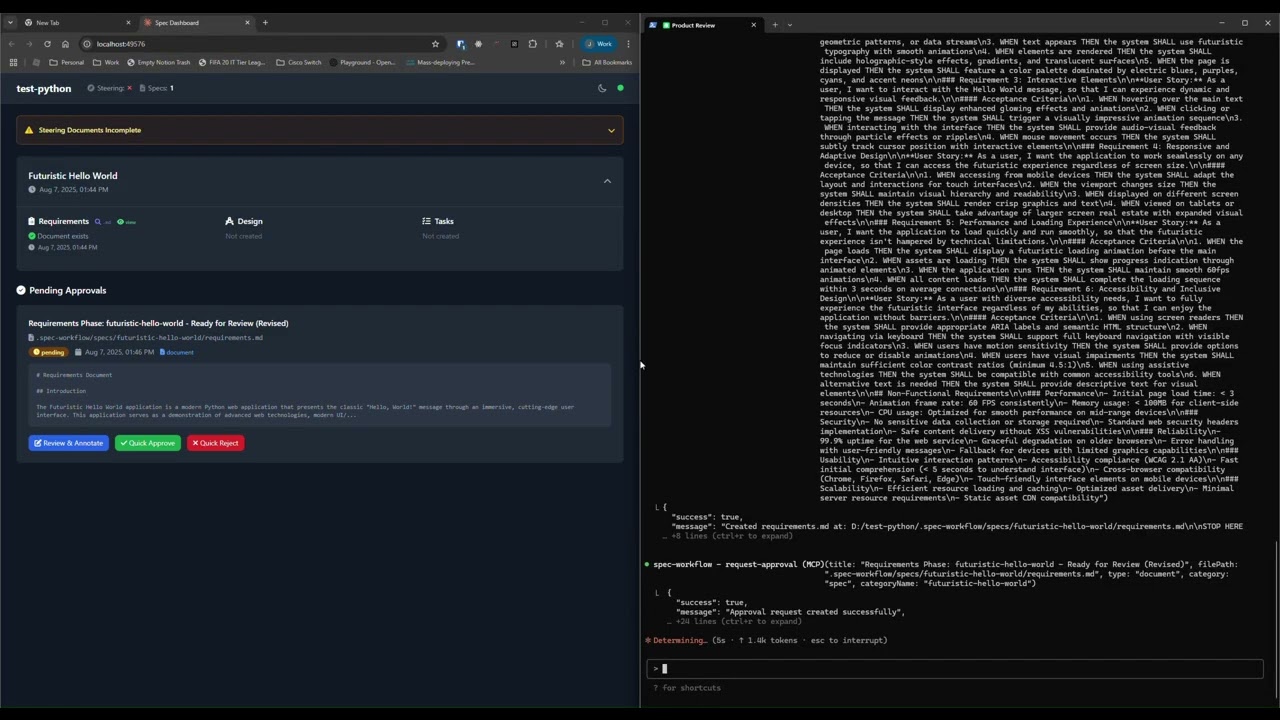
See how the approval system works: create documents, request approval through the dashboard, provide feedback, and track revisions.
📊 Dashboard & Spec Management
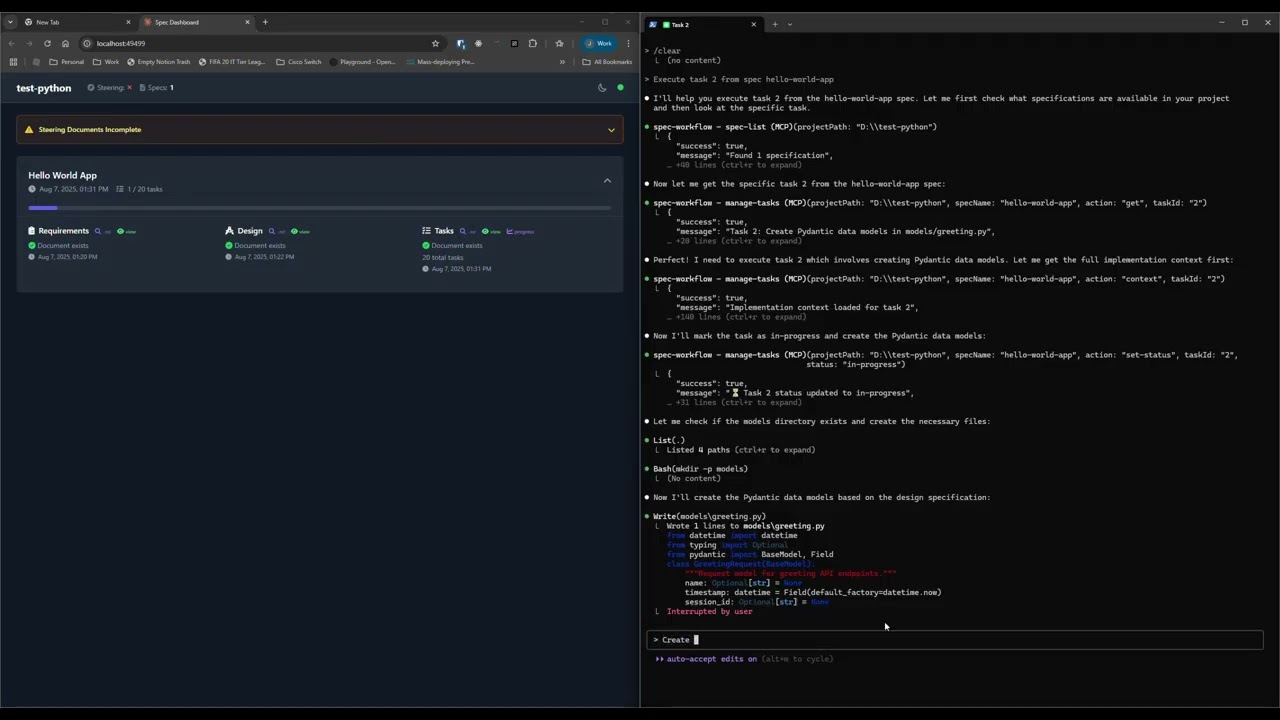
Explore the real-time dashboard: view specs, track progress, navigate documents, and monitor your development workflow.
✨ Key Features
- Structured Development Workflow - Sequential spec creation (Requirements → Design → Tasks)
- Real-Time Web Dashboard - Monitor specs, tasks, and progress with live updates
- VSCode Extension - Integrated sidebar dashboard for VSCode users
- Approval Workflow - Complete approval process with revisions
- Task Progress Tracking - Visual progress bars and detailed status
- Implementation Logs - Searchable logs of all task implementations with code statistics
- Multi-Language Support - Available in 11 languages
🌍 Supported Languages
🇺🇸 English • 🇯🇵 日本語 • 🇨🇳 中文 • 🇪🇸 Español • 🇧🇷 Português • 🇩🇪 Deutsch • 🇫🇷 Français • 🇷🇺 Русский • 🇮🇹 Italiano • 🇰🇷 한국어 • 🇸🇦 العربية
📖 Documentation in your language:
English | 日本語 | 中文 | Español | Português | Deutsch | Français | Русский | Italiano | 한국어 | العربية
🚀 Quick Start
Step 1: Add to your AI tool
Add to your MCP configuration (see client-specific setup below):
{
  "mcpServers": {
    "spec-workflow": {
      "command": "npx",
      "args": ["-y", "@pimzino/spec-workflow-mcp@latest", "/path/to/your/project"]
    }
  }
}
Step 2: Choose your interface
Option A: Web Dashboard (Required for CLI users) Start the dashboard (runs on port 5000 by default):
npx -y @pimzino/spec-workflow-mcp@latest --dashboard
The dashboard will be accessible at: http://localhost:5000
Note: Only one dashboard instance is needed. All your projects will connect to the same dashboard.
Option B: VSCode Extension (Recommended for VSCode users)
Install Spec Workflow MCP Extension from the VSCode marketplace.
📝 How to Use
Simply mention spec-workflow in your conversation:
- "Create a spec for user authentication" - Creates complete spec workflow
- "List my specs" - Shows all specs and their status
- "Execute task 1.2 in spec user-auth" - Runs a specific task
🔧 MCP Client Setup
Augment Code
Configure in your Augment settings:
{
  "mcpServers": {
    "spec-workflow": {
      "command": "npx",
      "args": ["-y", "@pimzino/spec-workflow-mcp@latest", "/path/to/your/project"]
    }
  }
}
Claude Code CLI
Add to your MCP configuration:
claude mcp add spec-workflow npx @pimzino/spec-workflow-mcp@latest -- /path/to/your/project
Important Notes:
- The
-yflag bypasses npm prompts for smoother installation - The
--separator ensures the path is passed to the spec-workflow script, not to npx - Replace
/path/to/your/projectwith your actual project directory path
Alternative for Windows (if the above doesn't work):
claude mcp add spec-workflow cmd.exe /c "npx @pimzino/spec-workflow-mcp@latest /path/to/your/project"
Claude Desktop
Add to claude_desktop_config.json:
{
  "mcpServers": {
    "spec-workflow": {
      "command": "npx",
      "args": ["-y", "@pimzino/spec-workflow-mcp@latest", "/path/to/your/project"]
    }
  }
}
Important: Run the dashboard separately with
--dashboardbefore starting the MCP server.
Cline/Claude Dev
Add to your MCP server configuration:
{
  "mcpServers": {
    "spec-workflow": {
      "command": "npx",
      "args": ["-y", "@pimzino/spec-workflow-mcp@latest", "/path/to/your/project"]
    }
  }
}
Continue IDE Extension
Add to your Continue configuration:
{
  "mcpServers": {
    "spec-workflow": {
      "command": "npx",
      "args": ["-y", "@pimzino/spec-workflow-mcp@latest", "/path/to/your/project"]
    }
  }
}
Cursor IDE
Add to your Cursor settings (settings.json):
{
  "mcpServers": {
    "spec-workflow": {
      "command": "npx",
      "args": ["-y", "@pimzino/spec-workflow-mcp@latest", "/path/to/your/project"]
    }
  }
}
OpenCode
Add to your opencode.json configuration file:
{
  "$schema": "https://opencode.ai/config.json",
  "mcp": {
    "spec-workflow": {
      "type": "local",
      "command": ["npx", "-y", "@pimzino/spec-workflow-mcp@latest", "/path/to/your/project"],
      "enabled": true
    }
  }
}
Windsurf
Add to your ~/.codeium/windsurf/mcp_config.json configuration file:
{
  "mcpServers": {
    "spec-workflow": {
      "command": "npx",
      "args": ["-y", "@pimzino/spec-workflow-mcp@latest", "/path/to/your/project"]
    }
  }
}
Codex
Add to your ~/.codex/config.toml configuration file:
[mcp_servers.spec-workflow]
command = "npx"
args = ["-y", "@pimzino/spec-workflow-mcp@latest", "/path/to/your/project"]
🐳 Docker Deployment
Run the dashboard in a Docker container for isolated deployment:
# Using Docker Compose (recommended)
cd containers
docker-compose up --build

# Or using Docker CLI
docker build -f containers/Dockerfile -t spec-workflow-mcp .
docker run -p 5000:5000 -v "./workspace/.spec-workflow:/workspace/.spec-workflow:rw" spec-workflow-mcp
The dashboard will be available at: http://localhost:5000
🔒 Security
Spec-Workflow MCP includes enterprise-grade security features suitable for corporate environments:
✅ Implemented Security Controls
| Feature | Description |
|---|---|
| Localhost Binding | Binds to 127.0.0.1 by default, preventing network exposure |
| Rate Limiting | 120 requests/minute per client with automatic cleanup |
| Audit Logging | Structured JSON logs with timestamp, actor, action, and result |
| Security Headers | X-Content-Type-Options, X-Frame-Options, X-XSS-Protection, CSP, Referrer-Policy |
| CORS Protection | Restricted to localhost origins by default |
| Docker Hardening | Non-root user, read-only filesystem, dropped capabilities, resource limits |
⚠️ Not Yet Implemented
| Feature | Workaround |
|---|---|
| HTTPS/TLS | Use a reverse proxy (nginx, Apache) with TLS certificates |
| User Authentication | Use a reverse proxy with Basic Auth or OAuth2 Proxy for SSO |
For External/Network Access
If you need to expose the dashboard beyond localhost, we recommend:
- Keep dashboard on localhost (
127.0.0.1) - Use nginx or Apache as a reverse proxy with:
- TLS/HTTPS termination
- Basic authentication or OAuth2
- Configure firewall rules to restrict access
# Example nginx reverse proxy with auth
server {
    listen 443 ssl;
    server_name dashboard.example.com;

    ssl_certificate /path/to/cert.pem;
    ssl_certificate_key /path/to/key.pem;

    auth_basic "Dashboard Access";
    auth_basic_user_file /etc/nginx/.htpasswd;

    location / {
        proxy_pass http://127.0.0.1:5000;
        proxy_http_version 1.1;
        proxy_set_header Upgrade $http_upgrade;
        proxy_set_header Connection "upgrade";
    }
}
🔒 Sandboxed Environments
For sandboxed environments (e.g., Codex CLI with sandbox_mode=workspace-write) where $HOME is read-only, use the SPEC_WORKFLOW_HOME environment variable to redirect global state files to a writable location:
SPEC_WORKFLOW_HOME=/workspace/.spec-workflow-mcp npx -y @pimzino/spec-workflow-mcp@latest /workspace
📚 Documentation
- Configuration Guide - Command-line options, config files
- User Guide - Comprehensive usage examples
- Workflow Process - Development workflow and best practices
- Interfaces Guide - Dashboard and VSCode extension details
- Prompting Guide - Advanced prompting examples
- [Tools Reference](docs/TOOL
README truncated. View full README on GitHub.
Alternatives



Related Skills
Browse all skillsThis skill should be used when working on Godot Engine projects. It provides specialized knowledge of Godot's file formats (.gd, .tscn, .tres), architecture patterns (component-based, signal-driven, resource-based), common pitfalls, validation tools, code templates, and CLI workflows. The `godot` command is available for running the game, validating scripts, importing resources, and exporting builds. Use this skill for tasks involving Godot game development, debugging scene/resource files, implementing game systems, or creating new Godot components.
Expert Kubernetes architect specializing in cloud-native infrastructure, advanced GitOps workflows (ArgoCD/Flux), and enterprise container orchestration. Masters EKS/AKS/GKE, service mesh (Istio/Linkerd), progressive delivery, multi-tenancy, and platform engineering. Handles security, observability, cost optimization, and developer experience. Use PROACTIVELY for K8s architecture, GitOps implementation, or cloud-native platform design.
PERSONAL APP ARCHITECT - Strategic development orchestrator for personal productivity applications. Analyzes project context, makes architectural decisions for single-developer projects, delegates to specialized skills, and ensures alignment between user experience goals and technical implementation. Optimized for personal apps targeting 10-100 users.
Expert deployment engineer specializing in modern CI/CD pipelines, GitOps workflows, and advanced deployment automation. Masters GitHub Actions, ArgoCD/Flux, progressive delivery, container security, and platform engineering. Handles zero-downtime deployments, security scanning, and developer experience optimization. Use PROACTIVELY for CI/CD design, GitOps implementation, or deployment automation.
Customize or personalize a Claude Code plugin for a specific organization's tools and workflows. Use when users want to customize a plugin, replace tool placeholders, or configure MCP servers for a plugin. This skill requires Cowork mode with mounted plugin directories and will not work in remote or standard CLI sessions.
Comprehensive CrewAI framework guide for building collaborative AI agent teams and structured workflows. Use when developing multi-agent systems with CrewAI, creating autonomous AI crews, orchestrating flows, implementing agents with roles and tools, or building production-ready AI automation. Essential for developers building intelligent agent systems, task automation, and complex AI workflows.